
kellybellis
Known Participant
July 12, 2018
Answered

How to edit 4-band imagery using layers?

  • July 12, 2018
  • 2 replies
  • 3438 views

RE: PS CS6 64-bit

This discussion is regarding geospatial 4-band imagery where the alpha channel (4th band) is near infrared.

During work session, all 4 channels are active with only RGB visible.
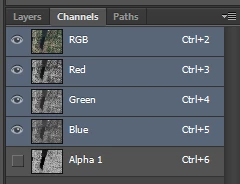
Edits made to the flattened (i.e., no layers, background), such as cloning operations appear to include the active, but not visible 4th band. However, there arises the issue of when using layers, edits are made and then the document is flattened, only the RGB channels reflect the edits with the 4th band unchanged.

How can one edit all 4 bands using layers?

This topic has been closed for replies.
Correct answer c.pfaffenbichler

Might

• Image > Mode > Multichannel

• Image > Mode > CMYK

not allow using the fourth Channel in Layers and then creating a copy and using

• Image > Mode > Multichannel

• Image > Mode > RGB

get the result back to a flattened RGB + Channel?

Edit: The layered CMYK image would naturally look hugely different than intended, though, but the resulting RGB should get back to that …

2 replies

kellybellis
Known Participant
July 13, 2018

I've spent the past week making errors like the one above because I was using layers and masks to fix problems with seam mismatches and drooping bridges before flattening and saving, all the time thinking that everything looked good. I've yet to find a clearly written narrative of the correct procedure. My instructors aren't Photoshop experts by a long shot and had only one means (cloning flattened source pixels to another flattened target document) of achieving the needed fixes, but cloning not-as-bad pixels in lieu of worse pixels becomes particularly disagreeable when the projections are impacted by changes in the terrain surface. But at least their cloning method was somehow able to adequately handle the 4th band/ channel.  Transforming 8-bit RGB to CMYK (via Multichannel) has been mentioned and it might work, however, there's uneasiness about 1) how lossy things become going from RGB to CMYK and back to RGB, and 2) how or if color space plays a significant role during such color transformations.

c.pfaffenbichler
Community Expert
Community Expert
July 13, 2018

1) how lossy things become going from RGB to CMYK and back to RGB,

Not RGB to CMYK, but RGB to Multichannel to CMYK, and not CMYK to RGB, but CMYK to Multichannel to RGB.

and 2) how or if color space plays a significant role during such color transformations.

If the Multichannel steps are honored there is no color transformation, though if the RGB image does not have the RGB Working Space you may have to assign its original Profile again at the end. 

Edit: The transformation I did in CMYK (rotate by 180˚) is naturally meaningless and by rotating 180˚ back in RGB the effect is negated, but it should illustrate that the Channels themselves have not been changed by the round-trip.

kellybellis
Known Participant
July 13, 2018

1) Good distinction, thank you for emphasizing this.

2) I'm not clear as to the means of making that determination

From the Information, Advanced tab:

Mylenium
Legend
July 13, 2018

Propagate your channel data to actual layer data using Image --> Calculations and Apply Image and use blending modes to create your overlays, then simply take the reverse route to create new channels.

Mylenium

kellybellis
Known Participant
July 13, 2018

I think I understand a little bit:

1) create a new layer of editable data from/ including the Alpha 1 channel (near infrared); however,

I don't understand: a) which channel data you intend to perform the calculation on; e.g., R,G, B, and Alpha1, or only the 4th band (alpha1); nor b) which blending method; e.g. add, multiply, normal, etc., you're saying should be used in the calculation. In any case, the possible results don't include New Layer; i.e., only New Document, New Channel, and Selection.

I'm totally guessing in the above example of taking the Alpha 1 channel from the original flattened image and Blending: Normal. In this case, I added a new layer, Layer 1, before performing the calculation as it seemed required, but I'm unsure about this also.

If this is even close to the correct work flow, then the resultant new channel, Alpha 2, is to be used for step 2), Apply Image that actually gets the channel data onto Layer 1.


Once again, I'm unclear which blending mode you intended to be used in the Apply Image procedure; e.g., Normal.

I realize, I'm only half way following through your sentence, but also realize I may/ probably have already messed up; please correct my understanding. E.g., is it necessary that Layer 1 be created?

kellybellis
Known Participant
July 16, 2018

I can't say what nuances are even possible to answer this question, which I also wondered about; however, from the Adobe information given for the original image prior to being edited, it looks like there was no compression:

After editing, and saving the document, the TIFF options that were used indicate no compression:

In the example above showing the comparison of before and after files sizes, the edited bridge gives an example of the type of edits that were done; i.e., working pixels from an ortho image that been projected to a single averaged ground elevation/ single plane, onto another image draped (drooped) over a digital terrain model. That terrain typically is of the ground beneath bridges which results of a deformed/ warped looking structure. In this case, it was minor, but enough to look a little hinky. Or in other words, I don't think the edits in and of themselves account for the differences in file sizes.

The other item worth noting, the original 4th band's color: 255,0,0 -> then to grayscale during CMYK workflow -> and then back to 255,0,0 at the end. So at least that RGB element remains the same from start to end.

This circles back to Mylenium's initial reply (above), which I found intriguing, though difficult to decipher as my response to him reveals. After many edits using the CMYK workflow that you've helped me in understanding, I'm drawn to thinking again about his response;

1) would that method allow editing in RGB+NIR; and,

2) would it similarly show different file sizes at the end?

FWIW - I do not care for editing in CMYK; it's horrid. Each time you touch a layer, PS toggles on the Black channel, but if this is the price for editing 4-band imagery, then I'll continue with that expense, and be thankful. And these 2 actions help in their execution.


Here are the results of a test done that involved no editing whatsoever. Only the transformation processed as seen in the two actions: