This topic has been closed for replies.
Correct answer Trevor.Dennis

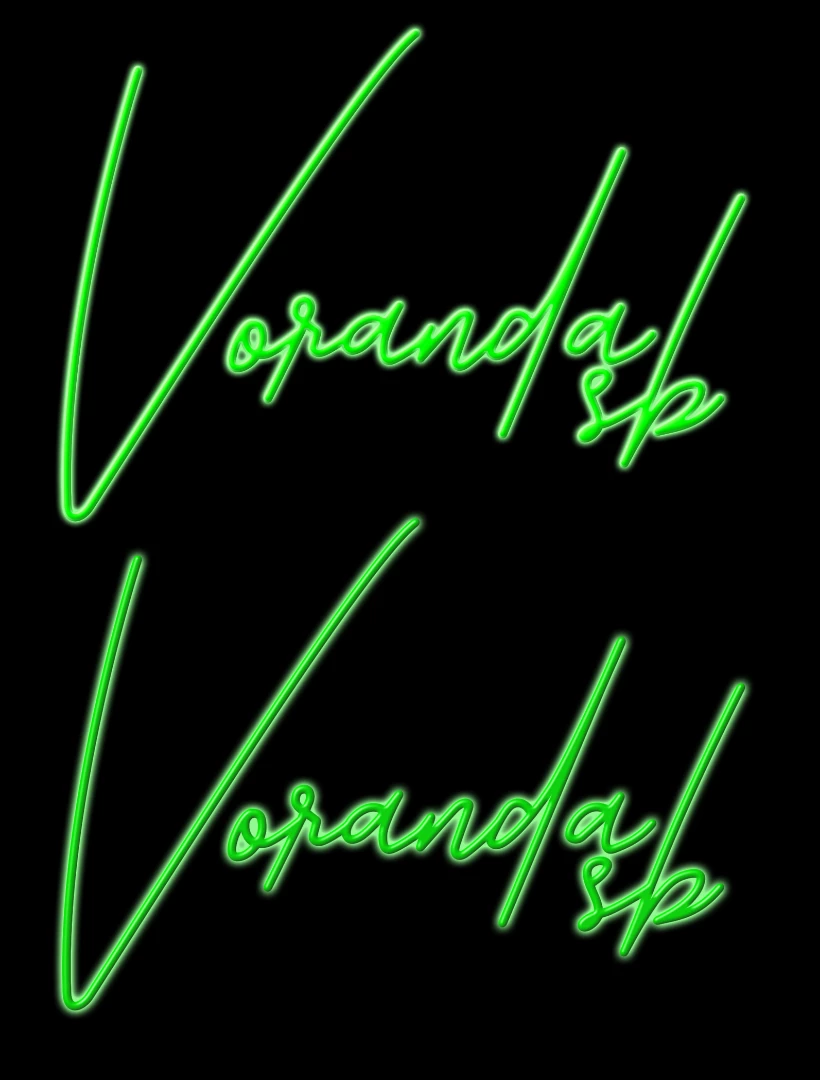
The top one just uses Layer Styles.  Double click the layer to open Layer Styles, and apply Bevel & Emboss, and Outer Glow.

The lower one used Alien Skin Eye Candy 7 to apply the bevel, and layer styles to apply the outer glow.

I pasted the image in fairly big, so  you can click to expand it, and right click to copy.  PM me your email address if you want the original file with workpath.
2 replies

Participating Frequently
October 29, 2018

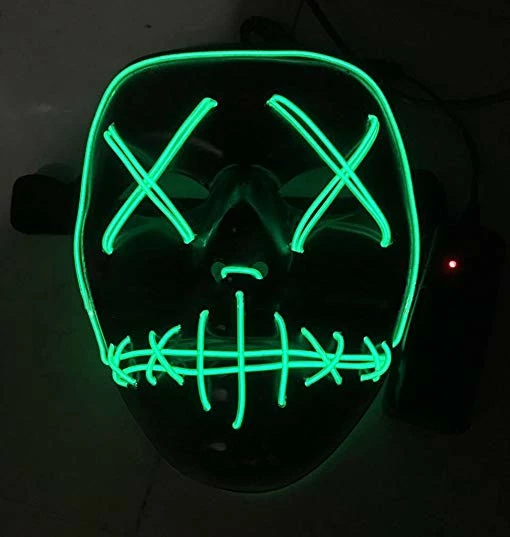
I want to make something like the picture on a portrait of someone else.

Thanks

mglush
Community Expert
Community Expert
October 29, 2018

Hi!

Can you explain your idea? Do you want to take your existing artwork and put it over someone's face? Have you tried using the blending modes to apply your art onto an image of a person? Put this layer on top of the layer with the photo and then apply the Screen blending mode to this layer. The black will disappear and only what is in the green will be left.

If this doesn't help, then please explain in more detail what you want it to look like.

Michelle

Participating Frequently
October 29, 2018

Hey

I want to make something like the picture on a portrait of someone else.

Thanks

Participating Frequently
October 30, 2018

The top one just uses Layer Styles.  Double click the layer to open Layer Styles, and apply Bevel & Emboss, and Outer Glow.

The lower one used Alien Skin Eye Candy 7 to apply the bevel, and layer styles to apply the outer glow.

I pasted the image in fairly big, so  you can click to expand it, and right click to copy.  PM me your email address if you want the original file with workpath.


Hey Trevor, Thanks. But still im abit lost.

Email: vsbatawalage@gmail.com