

greless
Inspiring
August 20, 2019
Question

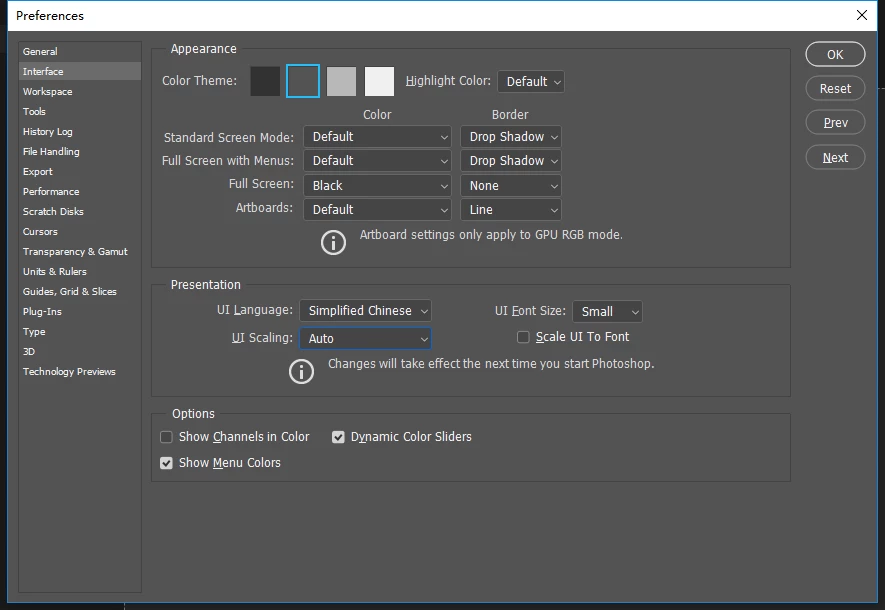
How to save preferences interface UI Scaling?

  • August 20, 2019
  • 1 reply
  • 1318 views
hi frineds,

     i have a qunstion, the photoshop UI Scaling is Auto,then Close app, i have a "Adobe Photoshop CC 2019 Prefs.psp" (UI Scaling 200) replace to old in Adobe Photoshop CC 2019 Settings folder. then launch Photoshop,the UI Scaling still is Auto,why There is no effective? or are  configuration files  not "Adobe Photoshop CC 2019 Prefs.psp"?
    This topic has been closed for replies.

    1 reply

    JJMack
    Community Expert
    Community Expert
    August 21, 2019

    What OS version are you using??

    High-density monitor support and per-monitor scaling

    New in the January 2018 release

    High-density monitor support and per-monitor scaling

    On Windows 10 Creators Update and later versions, Photoshop now offers a full range of choices for UI scaling—from 100% through 400% in 25% increments. This enhancement makes the Photoshop user interface looks crisp and sharp regardless of the pixel density of your monitor. Photoshop automatically adjusts its resolution based on your Windows settings.

    In addition, Adobe and Microsoft have worked closely to provide per-monitor scaling across monitors with different scaling factors. This enhancement ensures that a high resolution (HiDPI) laptop works seamlessly alongside a lower-resolution desktop monitor, or vice versa. For example, one of your monitors can have a scale factor of 175%, while another monitor can have a scale factor of 400%. So, you can choose either the highest-end 13-inch laptops with 4k screens, the more affordable 1080p models, or tap into the new 8k desktop monitors, and still have an uncompromised experience within Photoshop.

    In Windows, select Start > Settings > System > Display. Now, under Scale And Layout, choose a scaling factor for each of your displays.

    Note:

    On Windows 10 Creators Update and later versions, the UI Scaling setting in Photoshop (Preferences > Interface > UI Scaling) still applies to some components, such as the File Info and Camera Raw dialogs.

    On earlier versions of Windows, this preference applies to all Photoshop components. When the UI Scaling option is set to Auto, scaling defaults to the value closest to the primary monitor's OS scaling factor—100or 200.

    JJMack
    greless
    grelessAuthor
    Inspiring
    August 21, 2019

    hello JJMack,

    I was on the same computer and found that the configuration file could not take effect。win10.

    First I set  UI scaling  is 200,then save Adobe Photoshop CC 2019 Prefs.psp,then open PS ,set UI scaling  is auto,close PS ,then replace to Adobe Photoshop CC 2019 Prefs.psp(200 UI) ,Open Ps,find the PS UI still Auto,why not UI 200?