
New Participant
January 4, 2018
Answered

How to sync Photoshop actions between 2 computers

  • January 4, 2018
  • 1 reply
  • 5410 views

I recently purchased a new desktop computer and installed the creative cloud app. I'm trying to figure out how I can sync the setting from my laptop photoshop app with the new desktop photoshop. Since both are applications are part of my creative cloud subscription I thought it would be easy to simple sync all settings from my laptop to the cloud and then they would show up on my desktop. What I would like to have show up in PS on the new computer is all of the actions I created on my other computer's PS. Thanks in advance!
This topic has been closed for replies.
Correct answer Trevor.Dennis

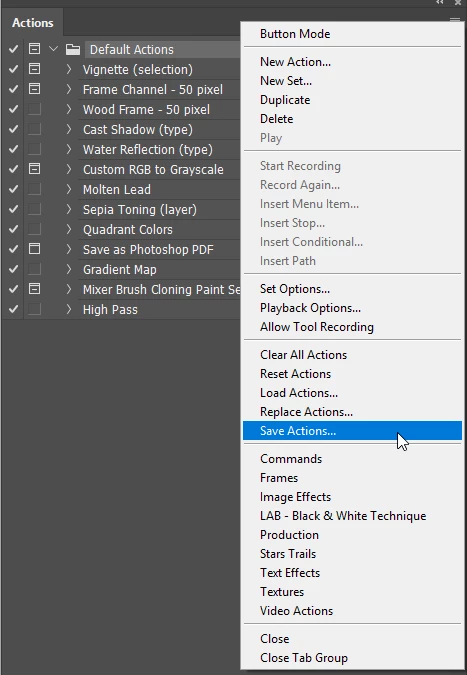
You can certainly select an Actions Group and save it so you can load it on another computer.  Note that it has to be a group/folder and not individual actions.

Unfortunately we can't now sync Preferences between different computers, mores the pity. Things like work spaces and custom toolbars, keyboards shortcuts, are stored outside of Preferences.  There is no easy and direct way to save those, but you could try sharing the file.  I've never tried this myself.

C:\Users\Your User Name\AppData\Roaming\Adobe\Adobe Photoshop CC 2018\Adobe Photoshop CC 2018 Settings\

This shows you other file locations, and will be valid for all CC versions

Photoshop CS6 preference file functions, names, locations

1 reply

Trevor.Dennis
Trevor.DennisCorrect answer
Community Expert
January 4, 2018

You can certainly select an Actions Group and save it so you can load it on another computer.  Note that it has to be a group/folder and not individual actions.

Unfortunately we can't now sync Preferences between different computers, mores the pity. Things like work spaces and custom toolbars, keyboards shortcuts, are stored outside of Preferences.  There is no easy and direct way to save those, but you could try sharing the file.  I've never tried this myself.

C:\Users\Your User Name\AppData\Roaming\Adobe\Adobe Photoshop CC 2018\Adobe Photoshop CC 2018 Settings\

This shows you other file locations, and will be valid for all CC versions

Photoshop CS6 preference file functions, names, locations