Participant
January 20, 2019
Answered

Hue and saturation animation

  • January 20, 2019
  • 1 reply
  • 9527 views

Hello !

I would like to create an animation on photoshop with a hue and saturation effect, that is to say that the hue changes during the animation for example at Frame 0 it is -180 and at frame 25 it is at 0 , where between frame 0 and 25, the hue will take all values between -180 and 0, only I can not do it, I do not see how to do that: /

Thank you !
    Correct answer barbara_a7746676

    Thanks for posting an image. That is helpful.

    As far as technique, similar idea.

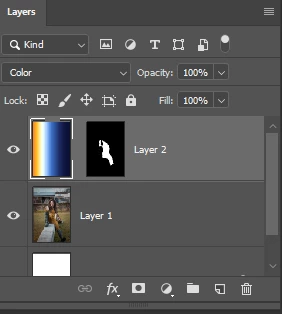
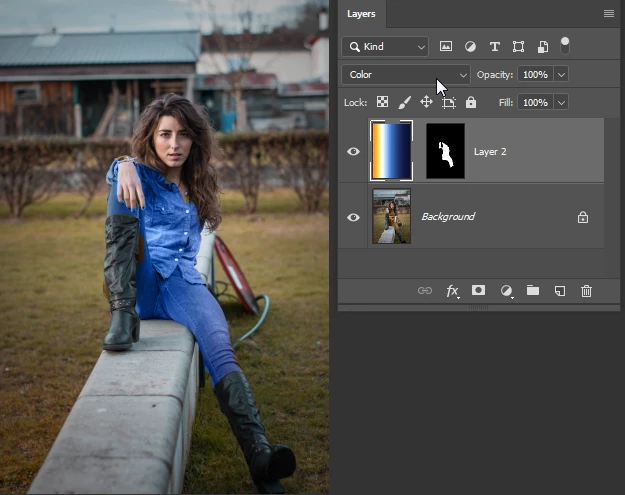
    You need a layer with the image and a layer with the gradient. The gradient layer needs a layer mask the shows only the area you want to change. On the Gradient layer, click the chain icon between the layer thumbnail and the mask so that the gradient and mask can move independently.

    Change the color blend mode for the gradient layer to Color (instead of Normal).

    In the Layers panel, the gradient layer thumbnail should be targeted, not the layer mask.

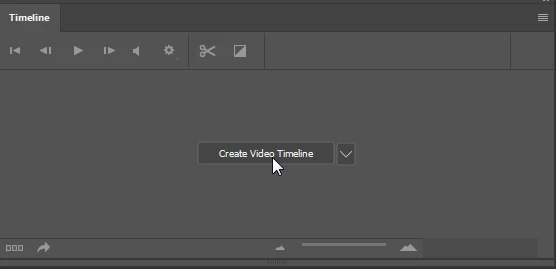
    Click Create Video Timeline button.

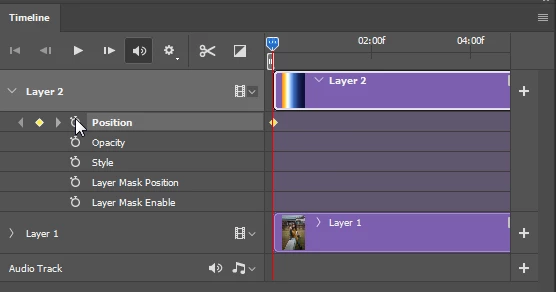
    Expand the layer with the gradient

    Play the video to the end.

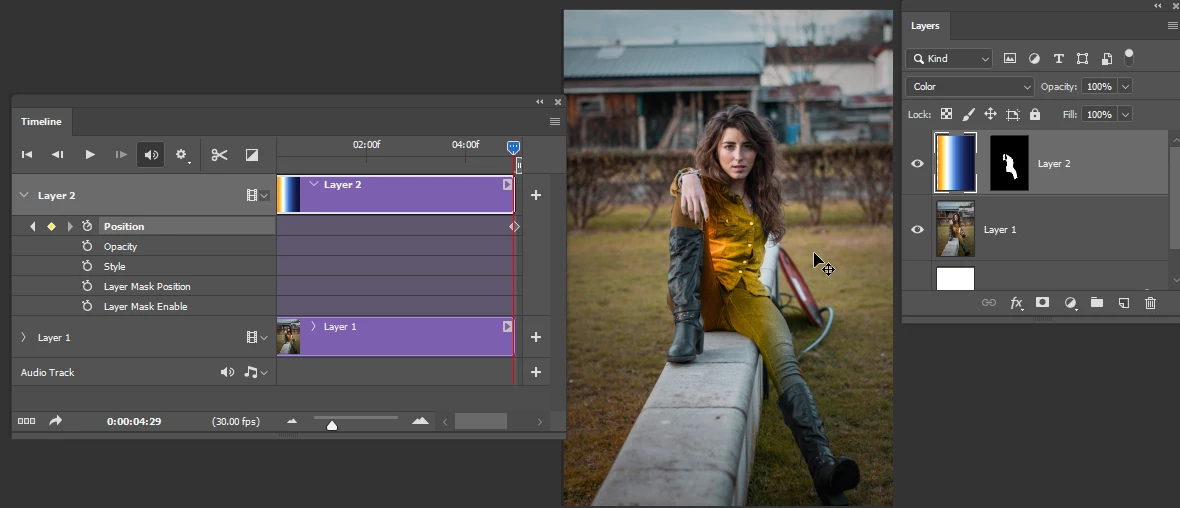
    In the Layers panel, move the gradient so that the opposite color appears inside the masked area.

    1 reply

    barbara_a7746676
    Community Expert
    Community Expert
    January 20, 2019

    Create a layer and fill it with a gradient. Must be a regular layer, not a background.

    Resize the gradient so that it goes past the canvas area. You will not be able to see the part that is outside the canvas, but it is there.

    In the Timeline panel, click on Create Video Timeline.

    Expand the layer in the Timeline and click on Position. You should see a small triangle at the beginning of the timeline.

    Play the video to the end.

    With the Move tool, move the gradient pixels to the right to the end of the gradient. A new diamond should appear at the end of the timeline.

    Now when you play the timeline from the beginning, the gradient should gradually move from right to left.

    PareilAuthor
    Participant
    January 20, 2019

    Hello Barbara!

    Thank you for your answer but that's not exactly what I want, it does not give a realistic rendering, because it's for a photograph or only the clothes changes colors so hue and saturation is the best way to keep a rendering Realistically, here is a picture, and so I would really like to have an evolution of hues (Although I do not think it is possible...

    barbara_a7746676
    Community Expert
    barbara_a7746676Community ExpertCorrect answer
    Community Expert
    January 21, 2019

    Thanks for posting an image. That is helpful.

    As far as technique, similar idea.

    You need a layer with the image and a layer with the gradient. The gradient layer needs a layer mask the shows only the area you want to change. On the Gradient layer, click the chain icon between the layer thumbnail and the mask so that the gradient and mask can move independently.

    Change the color blend mode for the gradient layer to Color (instead of Normal).

    In the Layers panel, the gradient layer thumbnail should be targeted, not the layer mask.

    Click Create Video Timeline button.

    Expand the layer with the gradient

    Play the video to the end.

    In the Layers panel, move the gradient so that the opposite color appears inside the masked area.