
Participant
November 22, 2016
Answered

Hue blend mode not working as expected

  • November 22, 2016
  • 4 replies
  • 1097 views

I have a photo that has a red area—almost magenta— that is supposed to be orange. On looking around the web, I found some tutorials about changing colors using the hue blend mode. But when I try it, it doesn't behave as I would expect.

Starting with the photo as Layer 1, I add a new layer, Layer 2. (Not an adjustment layer, just a new layer.) In the layer properties dialog box for layer 2, I set its blend mode to "hue." I then select the brush tool from the tool bar at left edge of window, and I click on the foreground color icon. This takes me to the color picker. I enter the RGB values for the desired shade of orange and click "OK."

So, at this point the correct shade of orange appears in the foreground color box. With Layer 2 selected,  I paint over the red areas with the orange foreground color selected. But rather than the selected shade of orange substituting for the deep red on Layer 1, the orange and red appear to add together, making a muddy brown That is darker than either the red or the orange alone.

So my question is: is this the expected behavior? Or am I missing something that is making the colors add together rather than substitute one for the other? If this is the expected behavior, I don't see how the hue blend mode could ever result in a lighter color.

Finally, if this is the expected behavior, what should I try next to change the hue of the deep red area to orange without changing the hue of the rest of the layer?

I'll be glad to post screenshots, but I don't know what screenshots would be helpful, so please tell me what you need.

Thanks.
This topic has been closed for replies.
Correct answer JJMack

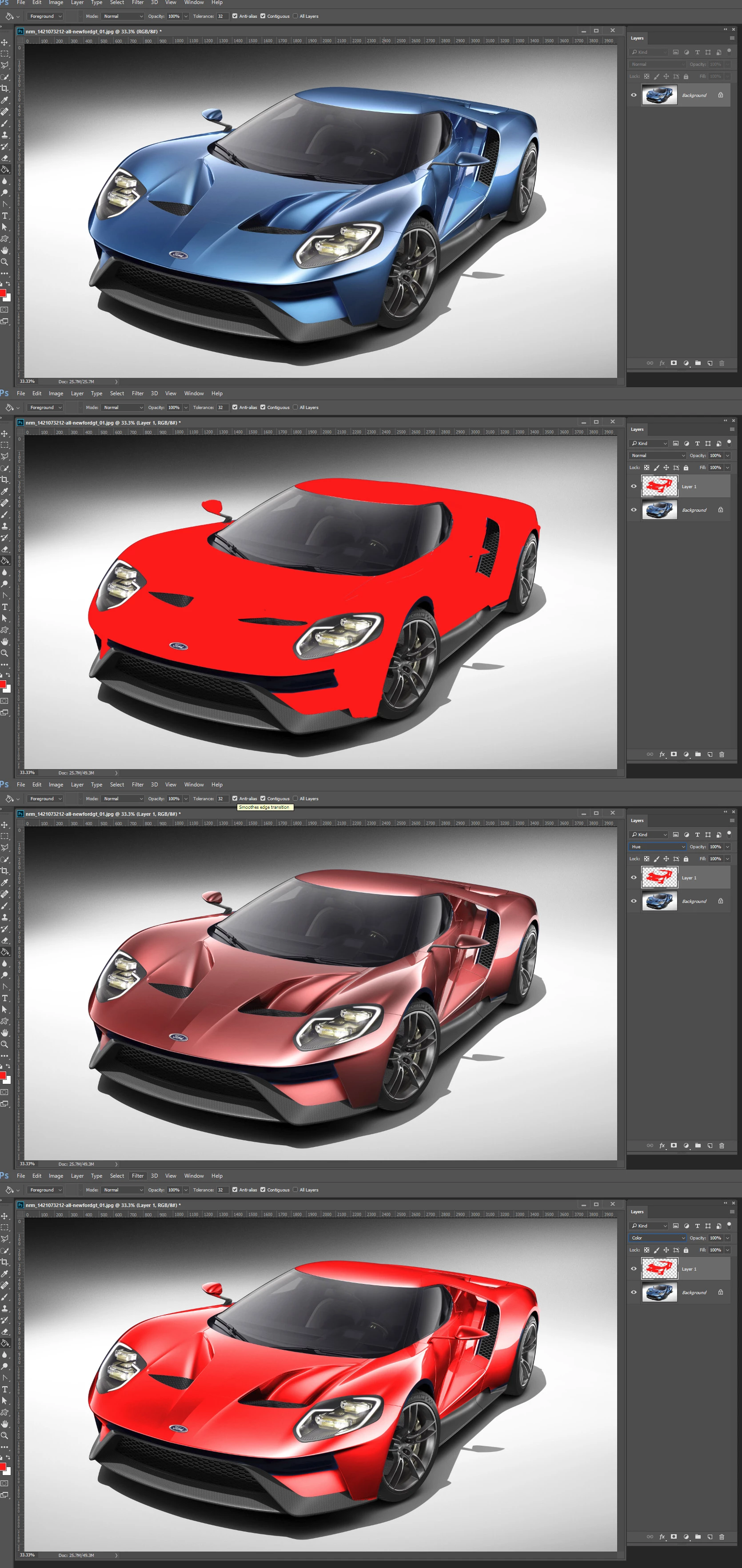
See if blend mode Color works any better.

4 replies

Participant
November 23, 2016

JMack, thanks so much for your detailed answer. The screenshots were especially great. It's working like a charm!

(I also appreciate you being "gentle" with your answer. I'm sure when you work with Photoshop every day, the questions we lesser skilled users ask might seem dumb sometimes. )

Mylenium
Legend
November 22, 2016

So my question is: is this the expected behavior?

Yes, it is.

If this is the expected behavior, I don't see how the hue blend mode could ever result in a lighter color.

Why would you even want that? It does what the name implies - shift the color by the difference amount of the input colors while retaining the lightness/ luminosity. The issue is not the blending mode, you are just using the wrong method. As already suggested by the others, using Color mode or an adjustment layer would be more adequate.

Mylenium

davescm
Community Expert
Community Expert
November 22, 2016

It sounds like it is working as expected.

If you want to see how Hue works, rather than a brush,  add a Hue/Saturation adjustment layer set it to Colorize and move the sliders. You will see that to change to a particular colour you need to move the Hue the Saturation and the Lightness sliders. Just the Hue does not do it. That is why just applying a Hue with the brush will not give you the shade of colour you are after.

If you want a specific colour, set it in the info panel as HSL then adjust the sliders in the Hue  and Saturation layer to home in on those values (in the info panel not the HSL properties panel). The sliders interact so you will need to adjust a couple of times to home in on the colour you want.

To continue JJMacks theme :

This

+ this

=

Dave

Participant
November 23, 2016

Dave and Mylenium, thanks for your help. I've got a much better understanding as a result of your input.

JJMack
Community Expert
JJMackCommunity ExpertCorrect answer
Community Expert
November 22, 2016

See if blend mode Color works any better.

JJMack