
vincent solomito
Inspiring
June 24, 2017
Answered

I can't see selection lines in SELECT AND MASK

  • June 24, 2017
  • 1 reply
  • 5156 views

Using iMac, Sierra 10.12 and PS 2017.1.1

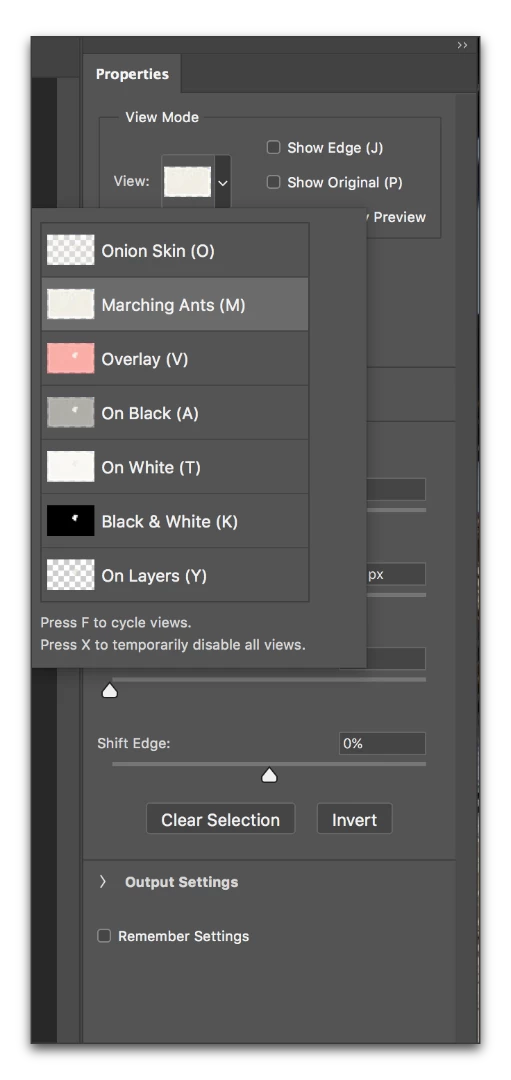
When I open select and mask and select the QUICK SELECTION TOOL and drag with it, I can not see selection lines anywhere, regardless of the transparency selected. I use the onion skin  mode.

I can see the changes in the tiny icon in the top right, VIEW.

I am certain that I am doing something fundamentally wrong

but what???
This topic has been closed for replies.
Correct answer Barb Binder

Do you want to see the marching ants selection lines? In that case, choose View Mode from the Properties panel and select Marching Ants. Onion skin doesn't show them, instead it shows the top layer with partial transparency (you can adjust it with the Transparency slider) so that the edges are not obscured by the marching ants.

1 reply

Barb Binder
Community Expert
Barb BinderCommunity ExpertCorrect answer
Community Expert
June 24, 2017

Do you want to see the marching ants selection lines? In that case, choose View Mode from the Properties panel and select Marching Ants. Onion skin doesn't show them, instead it shows the top layer with partial transparency (you can adjust it with the Transparency slider) so that the edges are not obscured by the marching ants.

~Barb at Rocky Mountain Training
vincent solomito
Inspiring
June 24, 2017

I am grateful for the response. I guess I was too fixed on the onion skin view.

I am embarrassed  but I know more now.

thanks,

vince

Barb Binder
Community Expert
Community Expert
June 24, 2017

Please don't be embarrassed! Photoshop is an enormous program, and all of us learn new things all the time. (And I started teaching it in 1992!).

Anyway, glad I could help.

~Barb at Rocky Mountain Training