
Known Participant
June 13, 2019
Question

Image Fit to Canvas Option

  • June 13, 2019
  • 4 replies
  • 4125 views

Hello Adobe Community!

I'm a Graphic Designer.

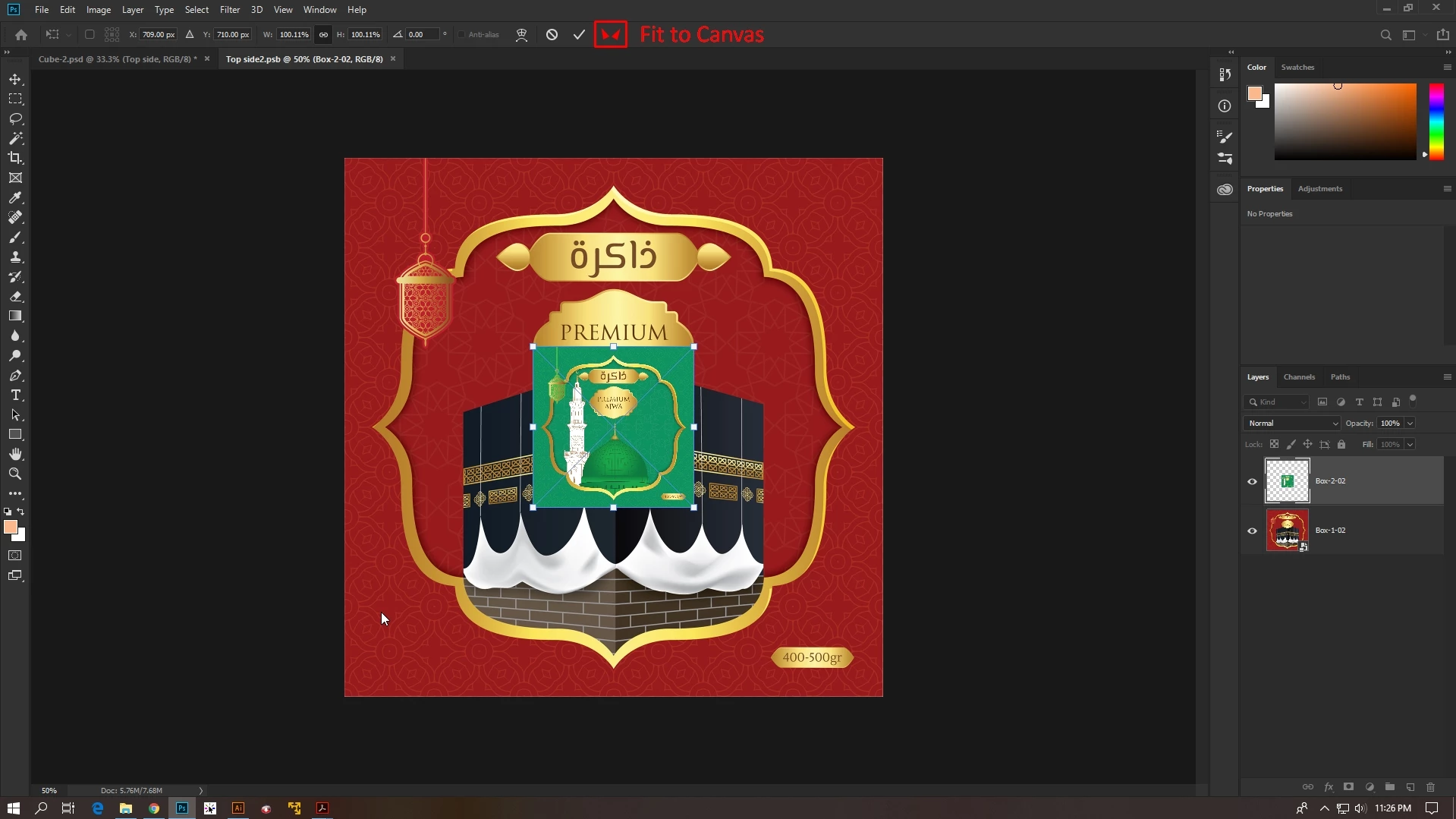
To present my design as a mock-up I always use Adobe Photoshop. So, when we want to change the .psb file we need to place new design and of course we need to place image in whole canvas. But reason of different size or resolution images we always drag image (Edge to Edge) to Fit in Whole Canvas. For 1 or 2 mock-ups it doesn't matter but when we mock-up a Book or Brochure with a huge number of pages then we need drag image for all pages. It's take too long to complete all pages mock-up. There is a option as I know that 'I can create Fit to canvas Action' but it's not work for all mock-up. Please help me if there is another easy option to Fit .psb image in whole canvas by One Click. Otherwise, I'm requesting to Adobe Systems to give us a Button like below attachment... Thanks in advance.
This topic has been closed for replies.

4 replies

Bojan Živković11378569
Community Expert
Community Expert
June 17, 2019

What you have presented in screenshot does not seem to be mockup, it is flat image which needs some object/pixels to be replaced actually covered in the middle of canvas/image. If you create layered file there will be many options to replace what is in the middle or any part/layer content. Things will be even easier if object is always in the same dimensions.

JJMack
Community Expert
Community Expert
June 13, 2019

Place has a transform so you should be able to transform you should be able to fit your design to the documents canvas.  You should constrain you transform to your design aspect ratio so it will not distort.  You also need to be careful when you use Place it will degrade your design. If the File Print DPI resolution do not match the resolution of the document you are placing the the image into.

If by Mockup  you have created a Mockup Template that has your design in it as a Smart Object layer.   If you are replacing the design  using Layer>Smart Object>Replace Content.  The replacement files need to be exactly the same Aspect Ratio, have the same number of Pixels and have the same Print DPI resolution as the Object . Replace content is like Place however the existing Associated  Layer transform is not updated  a smart object may be shared by other smart Object layers all  the layers that share  the object content will be replaced their existing layers  transform are the Originals Object.   There is an other way to replace the Smart Object layer content by opening the object and editing it. Still you should not change the work document size and resolution.  You would fit your replacement to the work document canvas.

Both method can be scripted.  My Batch Mockup Scripts can use either method.  They default to using Replace Content which requires all replacement to have the right Aspect Ratio, Size and Print Resolution.   If the replacement do not the scripts have a edit option and a couple of edit options that can rotate the design for best fit and resize the design to fill the canvas or  be fitted to the canvas.

I feel you need to automate the process and do something else while Photoshop Is cranking out your mockups.  However, I do not understand why your Mockup are so complicated that  you need to use  PSB files.  That sounds more like  you trying to put all you designs into a single document. The is asking for problems and Photoshop performances handling all the date is not something I would want.

JJMack
jane-e
Community Expert
Community Expert
June 13, 2019

fainbox  wrote

when we mock-up a Book or Brochure with a huge number of pages then we need drag image for all pages. It's take too long to complete all pages mock-up.

Hi

The default is proportional now, and going edge-to-edge can distort, so you might have to stop short or extend past the canvas. I'm sure you are aware of that, but you didn't say, so I have to confirm.

Your new image is in the exact center (I checked). If that's always the case, will it work if you hold down Option (Alt) and drag any handle to resize from the center? I like using a side handle, such as the bottom center.

I don't use frames in PS, but in InDesign there many choices as to how to fit an image into a frame and they can be saved as an Object Style and (if desired) set it as the default for every image in your book. If you have InDesign, you could try that. If not, maybe someone who knows PS frames better can say whether or not that's even an option for what you are trying to do.

~ Jane

fainboxAuthor
Known Participant
June 16, 2019

Hello Jane, thanks for your reply in my content. Yeah, "it works if I hold down Option (Alt) and drag any handle to resize from the center". But I need just like Adobe InDesign options 'Fit an image into a Frame', but Instead of 'Frame' there should be 'Canvas' in Photoshop. Thanks.

June 13, 2019

fainbox  wrote

Otherwise, I'm requesting to Adobe Systems to give us a Button like below attachment...

Hi

Feature request can be made here Photoshop | Photoshop Family Customer Community