

Nature Mike
Known Participant
May 5, 2020
Answered

Image turns red when copy and pasting a channel layer created calculations. Why?

  • May 5, 2020
  • 1 reply
  • 4755 views

Hello, I'm relatively new to using calculations in Photoshop. I have been setting the output to a new channel and since I'm creating the calulations to be useed as pixel based layers. I'm copying the alpha  from the Aplha channel and pating it in the layers window. when I do this the entire image gets a red overlay that looks like a quick mask but the backspace and Q keys won't turn it off. I know that turning off the RGB I know having only the alpha or only the RGB channels fixes the problem. My question is why is this happening and is there any other way to fix the problem other than turning off the RGN or Alpha channel?


Thanks so much for your time!


- Mike
This topic has been closed for replies.
Correct answer davescm

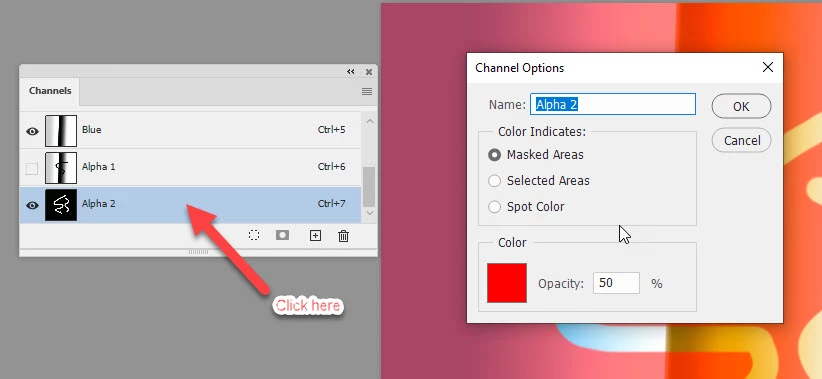
That is normal and is the channel overlay which displays when you have RGB + an Alpha channel selected visible in the channels panel.

You can choose how it displays by clicking next to the Alpha channel to open the channel overlay options.


Dave


[Edit - Wording corrected as pointed out by Semaphoric]


1 reply

davescm
Community Expert
davescmCommunity ExpertCorrect answer
Community Expert
May 5, 2020

That is normal and is the channel overlay which displays when you have RGB + an Alpha channel selected visible in the channels panel.

You can choose how it displays by clicking next to the Alpha channel to open the channel overlay options.


Dave


[Edit - Wording corrected as pointed out by Semaphoric]


Semaphoric
Community Expert
Community Expert
May 5, 2020

Should really say that it's Visible, not Selected. Of course, if it's selected but not visible, all you can do with the channel is duplicate or delete it.

davescm
Community Expert
Community Expert
May 5, 2020

You're right - my bad wording !

Dave