
impossible to make a title slide in photoshop cc
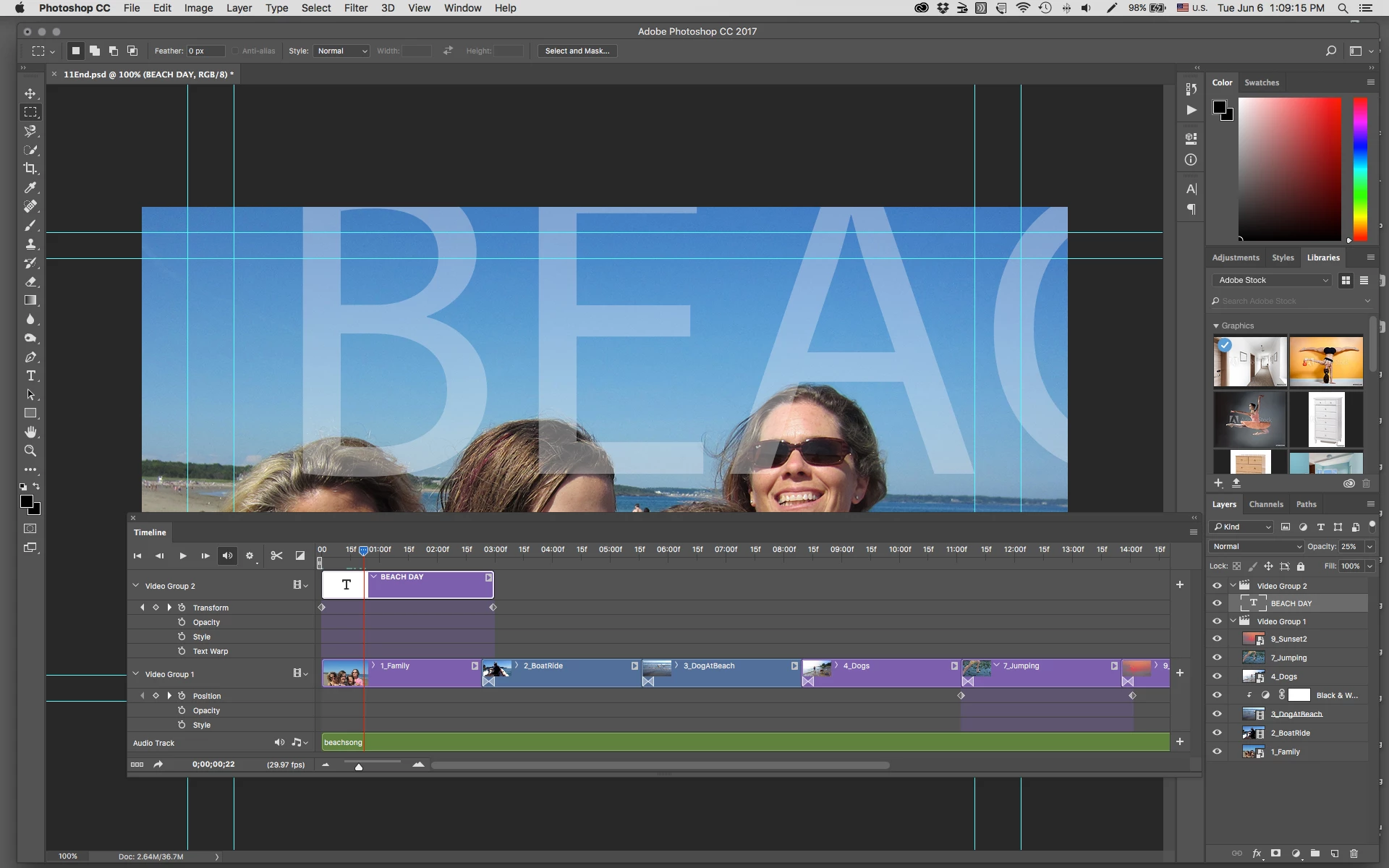
I am still trying to make a title slide with a blue background to tack onto a video in Photoshop CC. I got one answer, cannot find it now, but it did not help. All I want is for a a blue title slide with text to precede the 10 videos that I have successfully stitched and transitioned etc. I get transparent slides and ones that go over the graphics. The time line jumps over it and omits some ot the video part. Sometimes the video lines simply disappear.. Is there a program that can do this like the now defunct Windows movie maker. It was quite easy to add title slides to it but there were other problems with making the videos, such as converting it to a DVD.
I have had great success with both Lightroom and Photoshop CC up until now
Please help, quite frustrated, as there seem to be no clear tutorials either on Lynda nor via google.
Thanks
[Moved from the Lounge (which is where you can "connect with your peers" from across all of Adobe's products for conversations that don't directly relate to help and support) to a product-specific support forum - moderator]
 AdChoices