Participant
June 19, 2017
Answered

Insert image into png chip bag

  • June 19, 2017
  • 4 replies
  • 12537 views

Hi I'm attempting to insert an image into a transparent chip bag but I get no result. I'm using a chip bag png file but after that I can't select it or do much with it. I wan't to be able to insert any image I create into it for future use. I thought its almost like drawing inside of the object like illustrator does but I don't think thats the correct rout. Can someone please point me in the right direction. Thank You.

    Correct answer barbara_a7746676

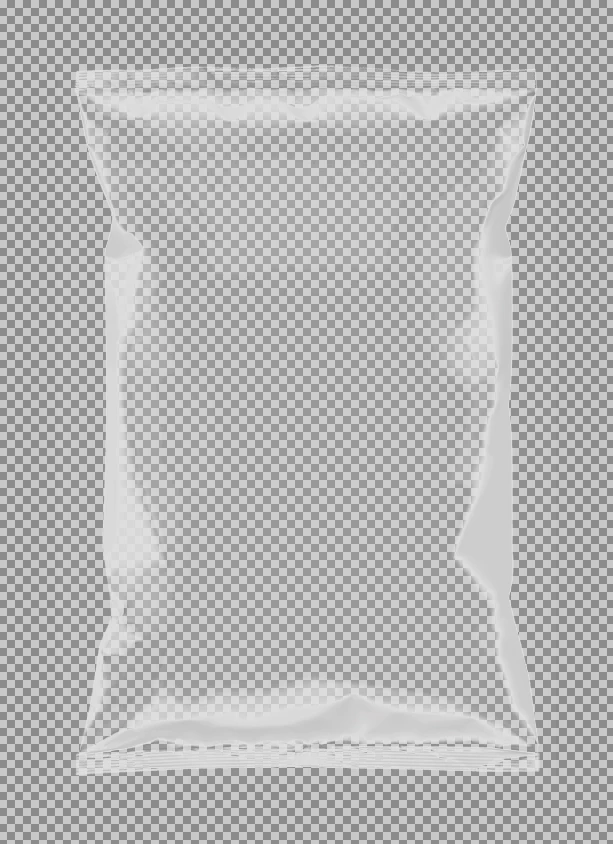
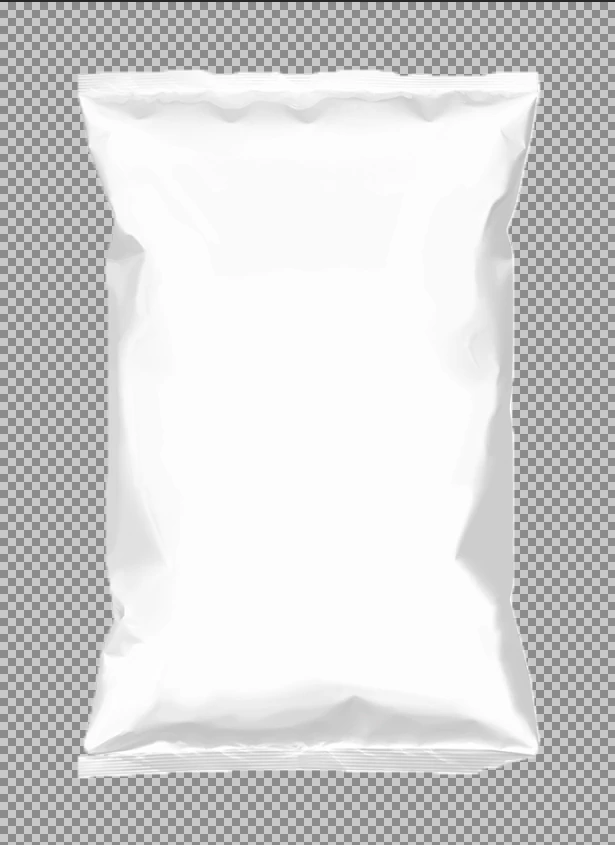
    The bag in your screen capture does not look transparent. If it is transparent there would normally be a checkerboard pattern like this:

    Or maybe like this:

    On the other hand, maybe it is on top of a white layer and that's why it doesn't look transparent.

    Advice would be different, depending on whether it is transparent or not.

    Since I can't see that it is transparent, I will assume that it isn't.

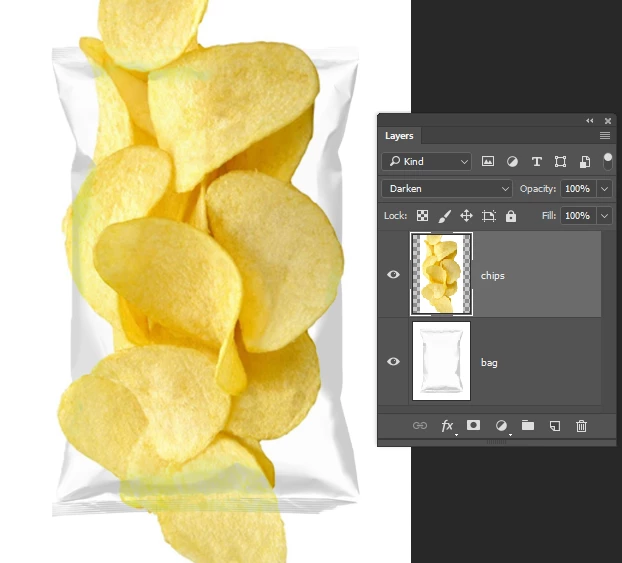
    Photoshop does not have a "Draw Inside" mode but you can get similar results. Below I put the bag on one layer and the chips on a layer above it.

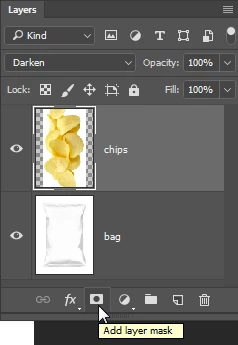
    Next, add a Layer Mask by clicking the icon at the bottom of the Layers panel.

    Select the brush tool, and use a soft feathered brush.

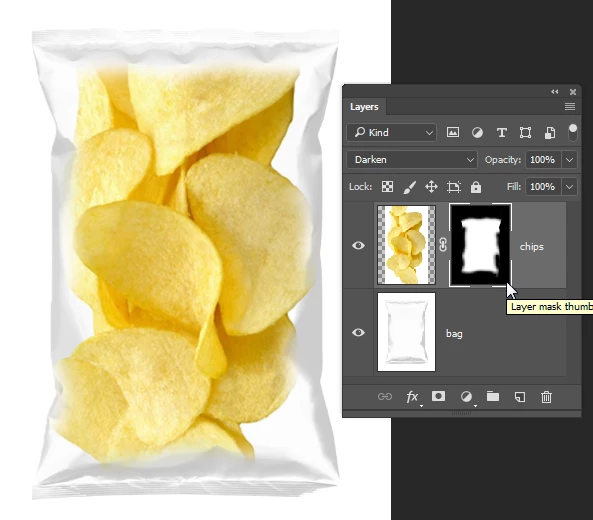
    Click on the mask to make it active (it will get a thicker line around it in the Layers panel when it is active).

    Paint in the mask with black where you want to hide the chips.

    4 replies

    Participant
    August 14, 2024

    Thank you it's help me a lot ☺️ 

    Participant
    September 27, 2023

    Thanks You !!!¡!!


    barbara_a7746676
    Community Expert
    barbara_a7746676Community ExpertCorrect answer
    Community Expert
    June 20, 2017

    The bag in your screen capture does not look transparent. If it is transparent there would normally be a checkerboard pattern like this:

    Or maybe like this:

    On the other hand, maybe it is on top of a white layer and that's why it doesn't look transparent.

    Advice would be different, depending on whether it is transparent or not.

    Since I can't see that it is transparent, I will assume that it isn't.

    Photoshop does not have a "Draw Inside" mode but you can get similar results. Below I put the bag on one layer and the chips on a layer above it.

    Next, add a Layer Mask by clicking the icon at the bottom of the Layers panel.

    Select the brush tool, and use a soft feathered brush.

    Click on the mask to make it active (it will get a thicker line around it in the Layers panel when it is active).

    Paint in the mask with black where you want to hide the chips.

    barbara_a7746676
    Community Expert
    Community Expert
    June 20, 2017

    You may want to lower the layer opacity a bit to make it look more like the chips are inside the bag. I also changed the Layer Blend mode to Darken in the upper left corner of the Layers panel.

    JJMack
    Community Expert
    Community Expert
    June 19, 2017

    You Bag look like it  is opaque and white. If you actually want the image to be on the bag's surface the image would need to be distorted to the bag's shape and also need a distort Displacement map. Look for a Photoshop tutorials for Displacement Map.

    You png is mostly transparent you will no be able to select the bag in the png document. Is you save it also as a jpeg it will ne easy to select the bag in the jpeg version. That layer can also be duplicated into the png document and the bag selected.

    All you need is the Jpg you can save as version as a displacement PSD.   You can place an image in over the background bag image scale it for the bag mask it to the bag's shape. Displacement distort the image and blend in the bag's shading texture using multiply blend mode.

    JJMack
    JJMack
    Community Expert
    Community Expert
    July 10, 2017

    I made a template PSD file for your chip bag and also saved a PSD of the Chip Bag to be used for a displacement map for any picture populated over the bag.  With my template design it is not possible to add a distort displacement filter for my template design has no image layer in them only mapping Alpha channels that are used to map image location size and shape.  However, my populating scripts always save Populated templates as layered PSD files so they can be tweaked when needed.  It is a simple matter to add the Smart distort Filter to add the displacement map to the populated image layer.  Other things my populating scripts can not do is add perspective transforms or even tilt images.  For some templates some hand tweaking may be required.

    Photo Collage Toolkit

    Photoshop scripting is powerful and I believe this package demonstrates this A video showing a 5 image collage PSD template  being populated with images:

    The package includes four simple rules to follow when making Photo Collage Template PSD files so they will be compatible with my Photoshop scripts.

    1. Size the photo collage templates for the print size you want - width, height and print DPI resolution.
    2. Photo collage templates must have a Photoshop background layer. The contents of this layer can be anything.
    3. Photo collage templates must have alpha channels named "Image 1", "Image 2", ... "Image n".
    4. Photo collage templates layers above the background layers must provide transparent areas to let the images that will be placed below them show through.

    There are fifteen scripts in this package they provide the following functions:

    1. HelpPhotoCollageToolkit.jsx - Online Help
    2. TestCollageTemplate.jsx - Used to test a Photo Collage Template while you are making it with Photoshop.
    3. CollageTemplateBuilder.jsx - Can build Templates compatible with this toolkit's scripts.
    4. LayerToAlphaChan.jsx - Used to convert a Prototype Image Layer stack into a template document.
    5. InteractivePopulateCollage.jsx - Used to interactively populate Any Photo Collage template. Offers most user control inserting pictures and text.
    6. ReplaceCollageImage.jsx - use to replace a populated collage image Smart Object layer with an other image correctly resized and positioned.
    7. ChangeTextSize.jsx - This script can be used to change Image stamps text size when the size used by the populating did not work well.
    8. PopulateCollageTemplate.jsx - Used to Automatically populate a Photo Collage template and leave the populated copy open in Photoshop.
    9. BatchOneImageCollage.jsx - Used to Automatically Batch Populate Collage templates that only have one image inserted. The Collage or Image may be stamped with text.
    10. BatchMultiImageCollage.jsx - Used to Automatically Batch Populate Any Photo Collage template with images in a source image folder. Easier to use than the interactive script. Saved collages can be tweaked.
    11. PasteImageRoll.jsx - Paste Images into a document to be print on roll paper.
    12. BatchPicturePackage.jsx - Used to Automatically Batch Populate Any Photo Collage template with an image in a source image folder.  Images Rotates for best fit.
    13. BatchPicturePackageNoRotate.jsx - Used to Automatically Batch Populate Any Photo Collage template with an image in a source image folder.
    14. PopulatePicturePackage.jsx - Used to Automatically populate a Photo Collage template Fill with the same single image and leave the populated copy open in Photoshop.
    15. PCTpreferences.jsx - Edit This File to Customize Collage Populating scripts default setting and add your own Layer styles.

    Documentation and Examples

    JJMack