
Participant
December 12, 2018
Answered

Keyboard shortcut cycles through multiple functions

  • December 12, 2018
  • 3 replies
  • 2065 views

Is there a way to disable the ability of multiple tools when you hit a keyboard shortcut more than once. For example, when i hit the Move Tool (Cmd V) it gives me the desired function but when I hit it again it goes to the Artboard Tool. I just want it go to the Move tool and if I want the Artboard tool.

Thanks
This topic has been closed for replies.
Correct answer Conrad_C

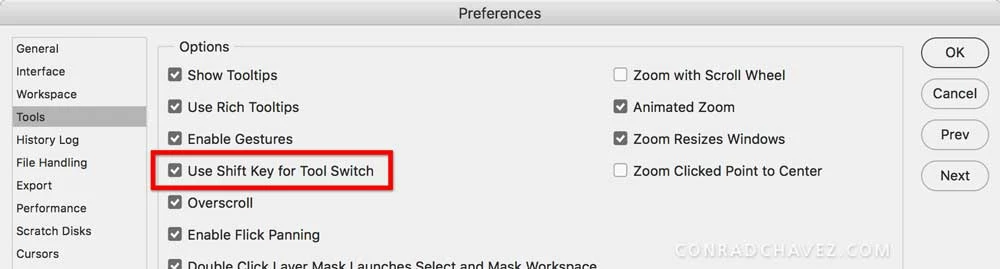
This is controlled by a preference setting. Open the Tools pane of the Preferences dialog box, and enable Use Shift Key for Tool Switch.

After you do this, pressing the same tool shortcut key will not switch tools. When you want to switch tools, press Shift and the tool shortcut key. So when that preference is on, switch between the Move and Artboard tools by pressing Shift+V.

If that works for you, you don't need to edit the Tools panel.

3 replies

JJMack
Community Expert
Community Expert
December 12, 2018

quinn_bell  wrote

For example, when i hit the Move Tool (Cmd V)

I believe that would be like Windows Crtl+V  Paste shortcut.  V should get you  Move or Artboard depending on which tool you had been usinfg to sswitch  tools  you would need to add Shift+V.

JJMack
Participant
December 12, 2018

Ooops... good catch. Yes, I meant jut the Move tool which is (V).

Thanks for the clarification.

Conrad_C
Community Expert
Conrad_CCommunity ExpertCorrect answer
Community Expert
December 12, 2018

This is controlled by a preference setting. Open the Tools pane of the Preferences dialog box, and enable Use Shift Key for Tool Switch.

After you do this, pressing the same tool shortcut key will not switch tools. When you want to switch tools, press Shift and the tool shortcut key. So when that preference is on, switch between the Move and Artboard tools by pressing Shift+V.

If that works for you, you don't need to edit the Tools panel.

Participant
December 12, 2018

Thanks Conrad. That it! Many thanks

Norman Sanders
Legend
December 12, 2018

A solution is to choose the three-dot Edit Toolbar and make them individual tools in the Toolbar. For example, separate the Magic Wand from the Quick Selection tool in the list.

Trevor.Dennis
Community Expert
Community Expert
December 12, 2018

norman.sanders  wrote

A solution is to choose the three-dot Edit Toolbar and make them individual tools in the Toolbar. For example, separate the Magic Wand from the Quick Selection tool in the list.

I've been streamlining tool selection since long before we had the custom Toolbar feature.   My desktop has a lot of screen space with a 32 inch main screen (2560 X 1440) and a pair of 24 inch screens in portrait mode one either side (1200 X 1920), so it makes sense maximise that screen space.

This is the Toolbar I use for most of the various Workspaces I use:

Before CC2015  introduced the incredibly useful Edit Toolbar feature, I used to remove the shortcuts from rarely used tool.  So hitting the B key, for instance, would _always_ give me the brush.  I also hate have to use the Shift key to toggle tools, so I have that turned off in Preferences.   I do still share some shortcuts, so hitting the O key toggles the Dodge & Burn tools.  You can see I have the fly-out triangle next to the Burn icon, and that's because I do occasionally use the Sponge tool, but not enough to let it have a shortcut.

It is also incredibly useful to be able to store Custom Shortcuts and Toolbars with Custom Workspaces.  With there essentially being no spare shortcuts, this lets us 'borrow' an otherwise used shortcut, and switch to the Essentials Workspace at such times we need the default. 

I guess we all have our own priorities, but I think there might be a degree of user overlap from the Michael Ninness Photoshop Power Shortcuts video from MAX in 2013.  This an hour long video, but it just might change the way you use Photoshop.

Lastly, and with the highly likely chance that it will make forum regulars groan, I like to use single key shortcuts where possible, and that works for me with a Logitech Gaming keyboard.  I am currently using the G910 which has nine G-keys which can each be switched between three banks of functions.  You can program G-keys with macros,  or long character strings.  I use mine for things like toggling Lazy Nezumi on and off, and switching between workspaces, plus triggering Actions for batch processing a lot of  photographs.

I like this aid so much, I also have a Razer Orbweaver  add-on keypad which has 20 keys that can be switched between an infinite number of banks.  The Orbweaver is designed as a gaming aid.  On the plus side is the large number of keys and no restriction of uses.  It is also better than the Logitech equivalent regards its context sensitivity, but the Razer software is not as good as Logitechs.

Razer Orbweaver

Logitech G910

This is not my keyboard, but I have mocked it up to show some of how I use it.  If you are familiar with SketchUp then you'll know how you lock in an axis with the cursor keys, and I am forever forgetting which is which.  Both Razer and Logitech allow individual key colour allocation, so I simply set the cursor keys with the appropriate axis colour.  That has saved my old brain a time or two.