
Participant
June 9, 2018
Question

Layer Styles - Channels Issue?

  • June 9, 2018
  • 1 reply
  • 937 views

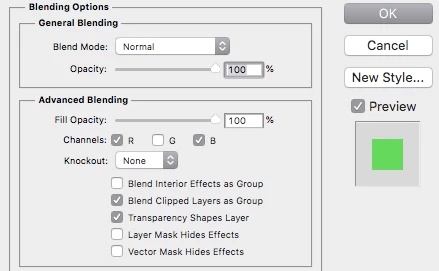
This is such a specific thing no amount of googling seems to have come up with an answer for me. Whenever I go to uncheck RGB channels through the Layer Styles menu, it seems to do the opposite of what I'm trying to do. For example, when I uncheck the Green channel, it turns it green, instead of purple/magenta, like it should.

You can see in the preview for it as well it shows green.
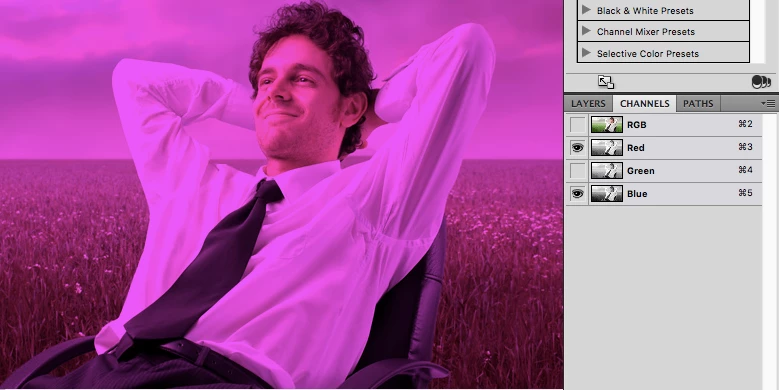
However, when I uncheck Green through the Channels tab, it does what it's supposed to.
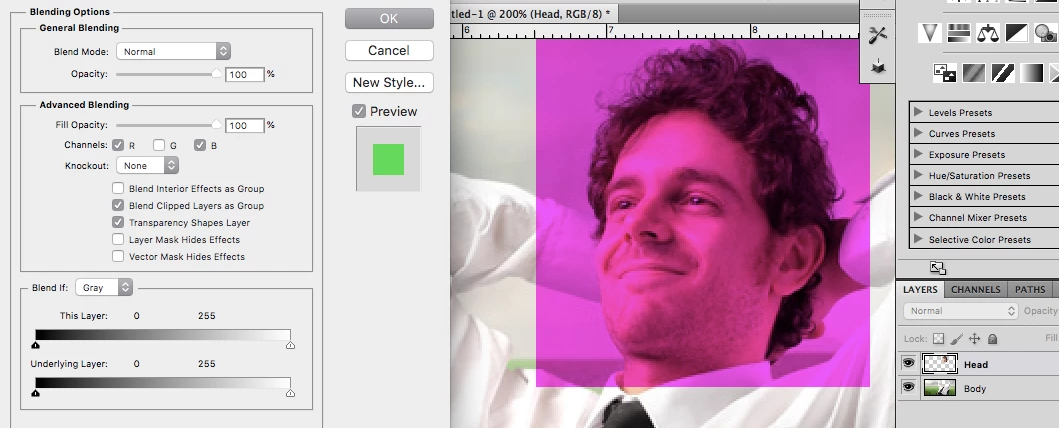
Alternatively, I put this guy's head on a separate layer to see what usually happens, and uncheck Green through Layer Styles the preview shows Green, but that layer turns purple/magenta.
Here's one last final image based off of the Head being on a different layer. If I move the top layer, wherever  it overlaps with the original image it's green.
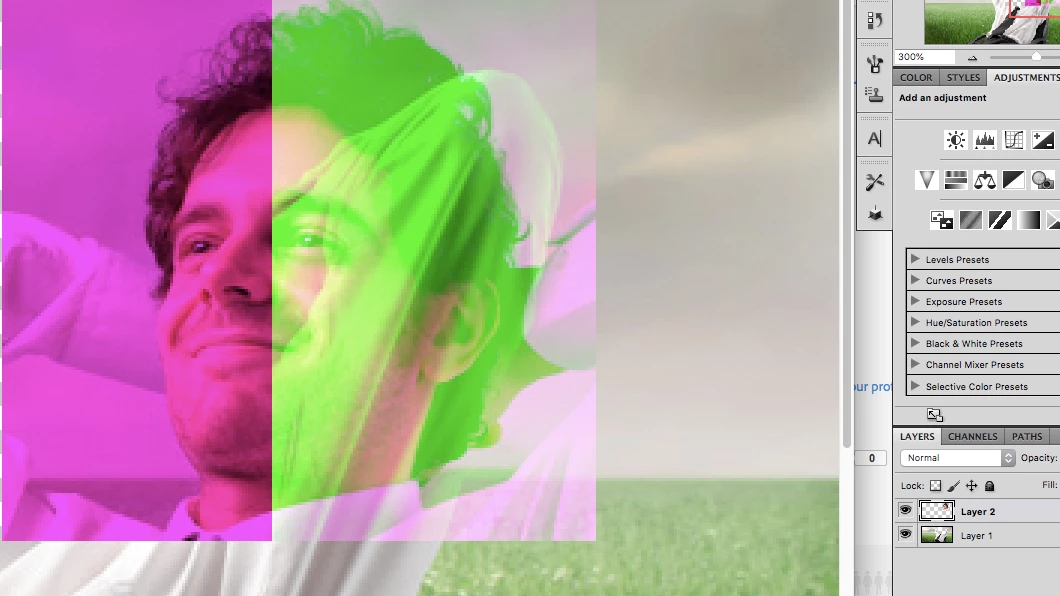
It just never seems to be consistent. Is there some very simple explanation I'm not getting here? For some projects I'm trying to edit the layers RBG separately, not the whole image (which is what happens when I do it through the Channels tab). It does this with all the RGB colors through Layer Styles: Uncheck Blue and it turns Blue instead of Yellow. Uncheck Red and it turns Red instead of Cyan.

The images are always in RBG mode. I'm using Photoshop CS5.1 running on a Mac, High Sierra 10.13.5.

This topic has been closed for replies.

1 reply

davescm
Community Expert
Community Expert
June 9, 2018

In layer styles the RGB refers to the blending.

So if you uncheck green (with normal blending mode) the Red and Blue channels will be taken from the layer and the Green Channel from the layer(s) below

Dave

Participant
June 11, 2018

Hmm, interesting. So, I've gone through quite a few tutorials trying to achieve the effect I'm looking for, and I've found 3 where it does it the "RBG Channels" way (Uncheck Green = Red & Blue), and 2 where it does it the way I'm describing (Uncheck Green = Green). Any idea why that might be? Doesn't seem to be any other differences, though it's entirely possible I missed something.

Source

Photoshop CC

Source

Doesn't say

Source

Photoshop CC

Source

Doesn't Say

Source

Photoshop CC

Also, I don't quite understand what you mean by the layers below, it doesn't seem like it makes any difference to the other layers when done this way?

davescm
Community Expert
Community Expert
June 11, 2018

Hi

In your final example there are no pixels on the layer below for the solid pixels on the layer above to blend with.

The RGB switches in Layers styles is about layer blending. If you turn of the Green channel then the Red and Blue channels are taken from the current layer (where there are pixels)  and the green from the layer(s) below (where there are pixels) .

Perhaps this will help

The upper layer is a plain white rectangle

The lower layer has a white area with coloured circles on the left and is fully transparent (no solid pixels) on the right

If I use blend mode normal with all three channels checked in Blending Options I get this :

However if I turn off the Green blending in Blending Options then the Red and Blue channels are taken from the upper layer and the green from the layer below. This means that where there is no green in the channel below , the white from the top layer turns magenta (Red+Blue).
Where there is green in the channel below (the green circle and the white area) then the white from the top area stays white (Red+Blue from the top layer  and Green from the layer below)

Dave