



Lazy Nezumi Pro has a Toolbar
While discussing my Lazy Nezumi Pro appearing to make Photoshop freeze issue with Guillaume Stordeur — the author of LNP — he asked in passing, how I was getting on with the new toolbar
? What toolbar was my reply?
While LNP is far and away my favourite Photoshop plugin, the ever continuing addition of new features and presets leaves you with a 'can't find the wood for the trees situation. The UI has become more complex over the years, and a preset that you use only occasionally, becomes a chore to find. You can add shortcuts for your favourite presets, at least one of which Guillaume fixed specifically for me (he is incredibly helpful) but with more than 40 presets, all of which are configurable, you can see the problem.
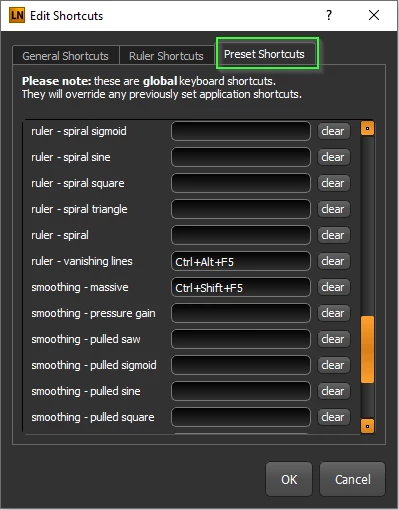
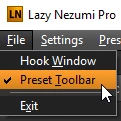
It turns out that a toolbar was added at the end of May this year and can be turned on from the File menu.
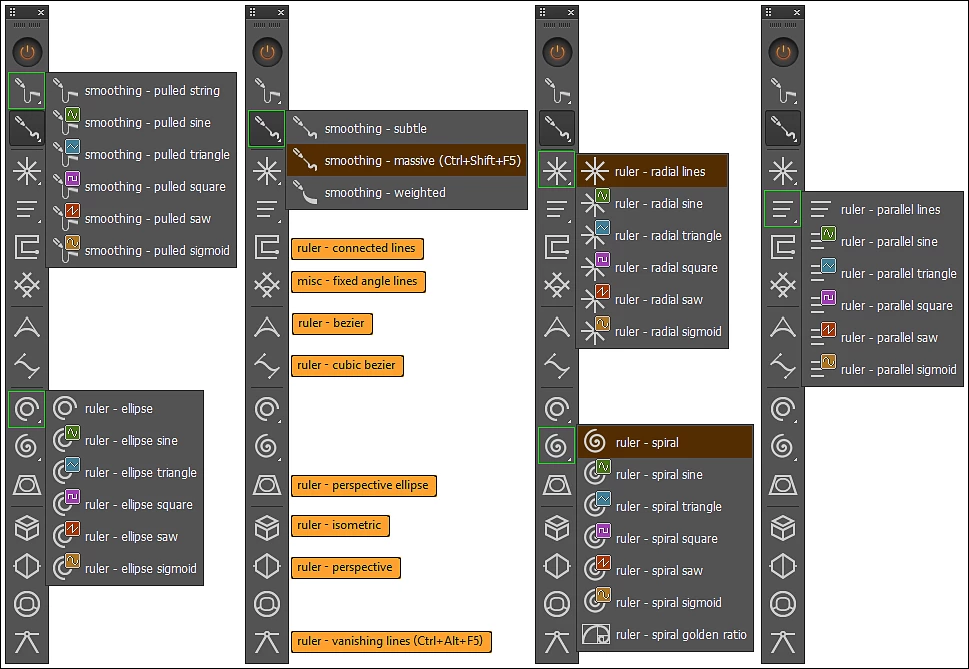
And what a lot of options it has.
The toolbar floats on top the same as the main LNP panel, but it is a bugger to pick up and move, and I still have not got that off pat.
The UI has the same font size as the main LNP panel, and I don't know any way to change it. I'm thinking that is going to be a real problem on a very high resolution screen. A poster was asking about a 15" Alienware laptop with a 4K screen in a recent thread. Photoshop would just about be OK at 200% but the LNP toolbar works out to 3.5mm x 52mm (0.138" x 2.06"). I suspect that would be completely unusable for all but the very young.
Getting back on track, the toolbar is configurable by shape
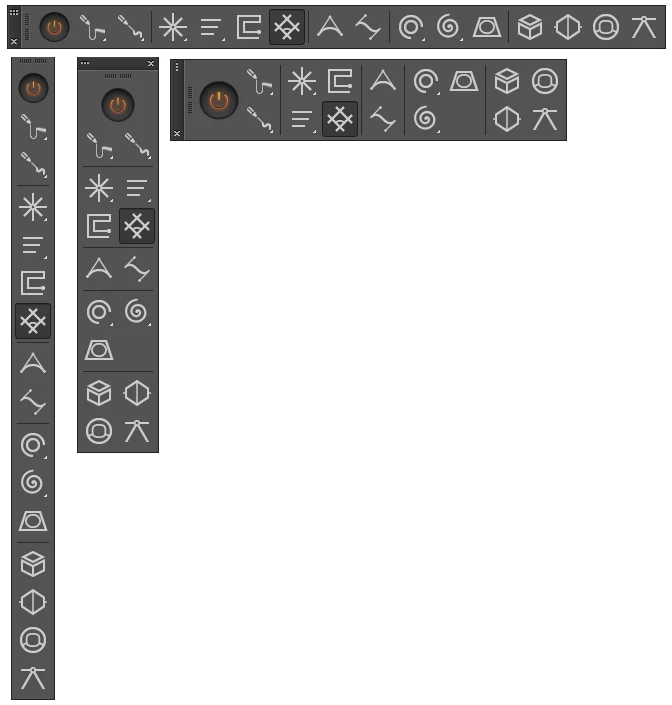
Two sets of icons are available, and you can design and apply your own icons via an XML file
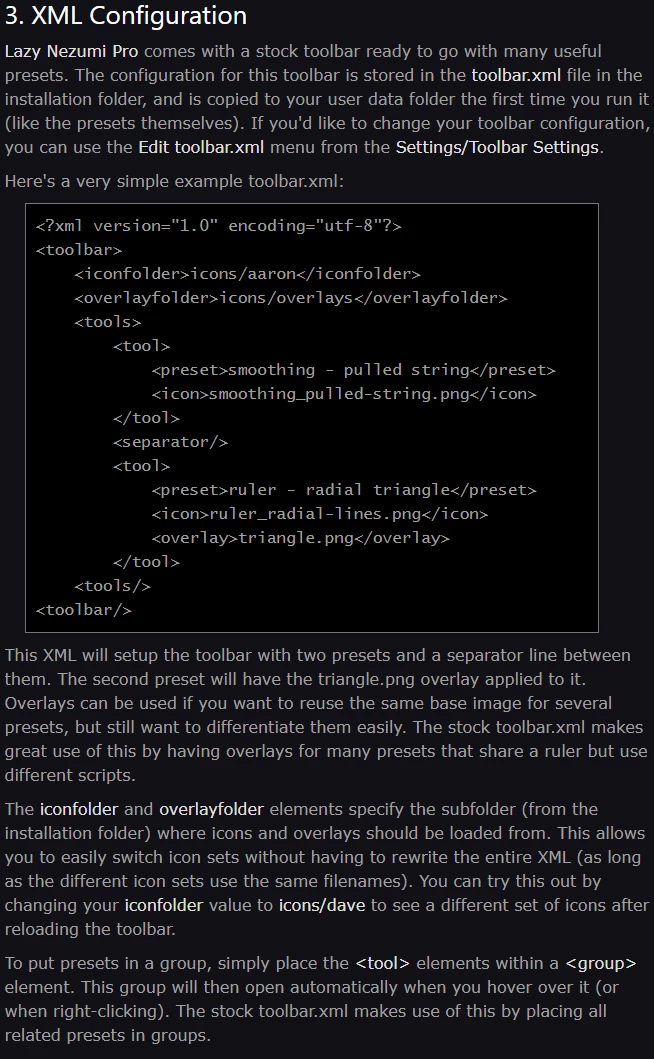
So I hope this helps if you are a Lazy Nezumi user. I mainly use it for brush stroke smoothing and the Vanishing lines perspective preset, but today I was also using Loops to draw a coil, and Radial Lines to draw the converging lines in the radio valve on the left. I use most of the Ruler, and a good few of the scripted, presets at some time or other, and I am sure I'll make better use of them now they are easier to find.
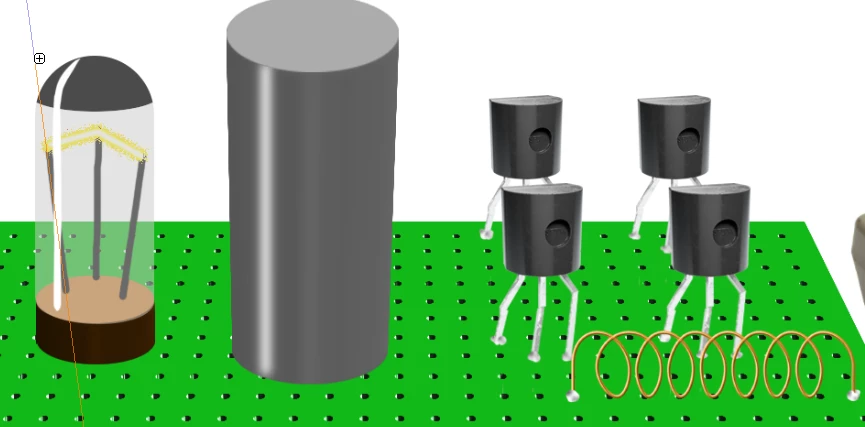
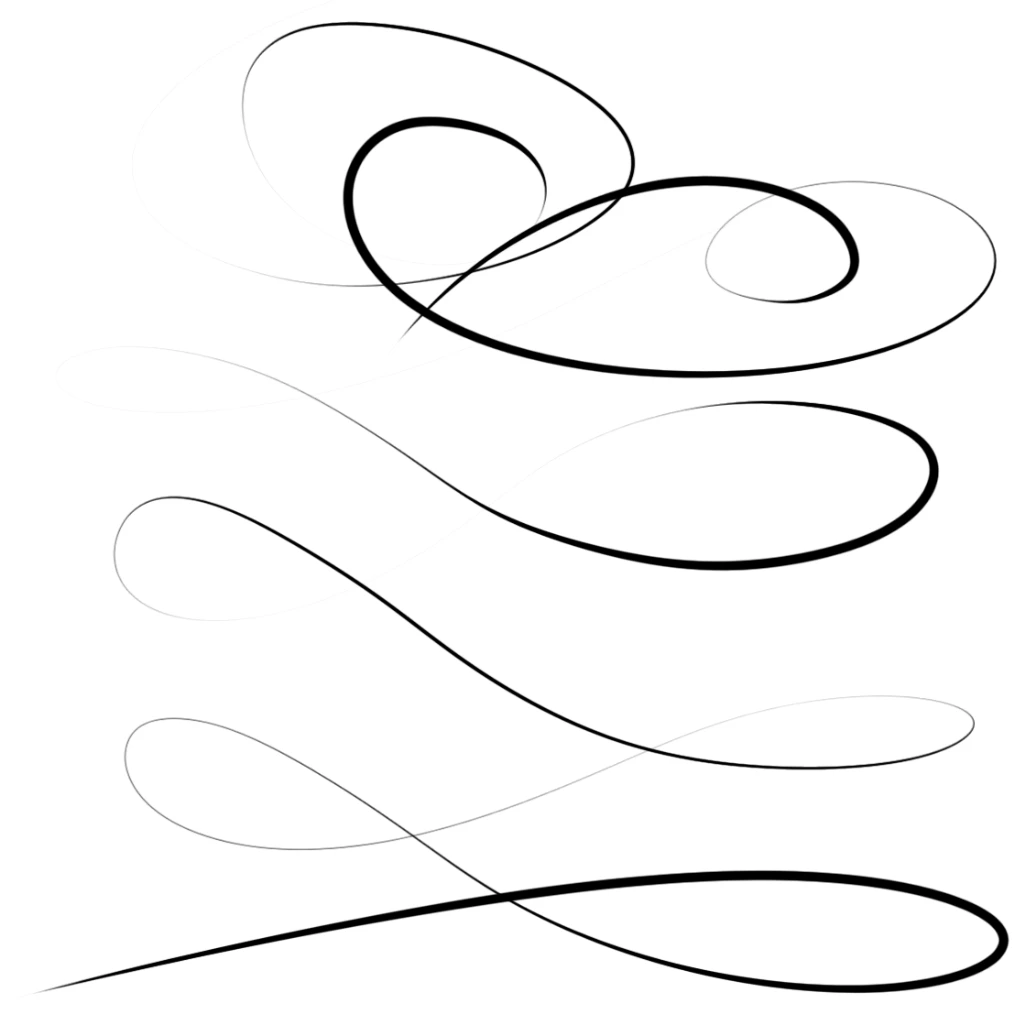
I was really only giving folk a heads up about the toolbar with this post, but now I am at it, I'd like to mention pen pressure. If you've used Krita (It's free, so no reason not to) or Paintstorm Studio, you'll have noticed how much better they handle pen pressure. They also let you customize the pressure curve leading to all sorts of wondrous effects, but mostly, it lets you home in on a pressure curve that gives you 'way' more control at the lower end. This is Paintstorm Studio below (US$19)
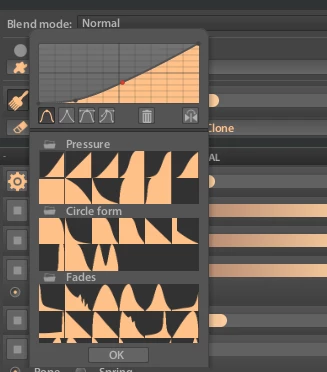
This is Krita right out of the box. You'd have a job to do that with any sort of reliability in Photoshop.
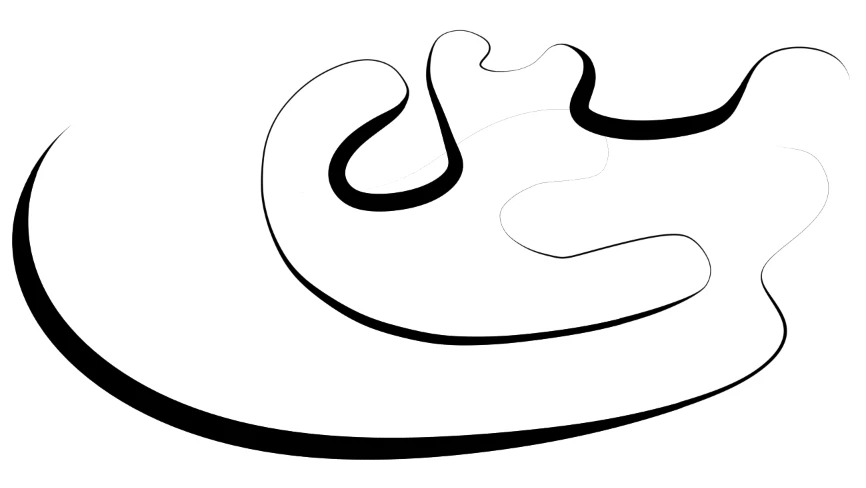
Well Lazy Nezumi Pro gives you the same control of brush pressure. Try settings like these below. Maybe go even lower with Gain and Softness

Have a wee play with the brush, and then turn LNP off. It's like being hit in the face with a sledge hammer. If you find a setting you like, you can save it at the bottom of the panel, or just remember the ball park settings that work for you.
 AdChoices