
shauna95489628
Participant
February 4, 2017
Answered

Line tunnel effect
  • February 4, 2017
  • 4 replies
  • 2345 views

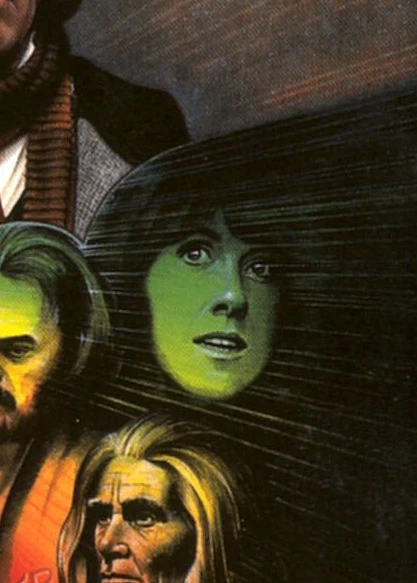
hello all, i am trying to create a line tunnel effect like the one in the picture. The line tunnel around an object (such as a face or person), or just a simple line tunnel. I am using photoshop 2015 so any help would be greatly appreciated. Thank you.

    This topic has been closed for replies.
    Correct answer Chuck Uebele

    Okay, Trevor, got me thinking about brush fade, then using transform and transform again to make a step and repeat pattern.

    4 replies

    Semaphoric
    Community Expert
    Community Expert
    February 5, 2017

    You could probably do something with Distort > Polar Coordinates and the Wind filter, too.

    Trevor.Dennis
    Community Expert
    Community Expert
    February 4, 2017

    I'll add my two cents worth.

    Brush size and opacity set to fade with 25% spacing, and fade values of 1500.

    The perspective was done with a Lazy Nezumi preset, but if I didn't have LNP I'd have made them parallel (with shift key) and FT'd them.

    Chuck Uebele
    Community Expert
    Chuck UebeleCommunity ExpertCorrect answer
    Community Expert
    February 5, 2017

    Okay, Trevor, got me thinking about brush fade, then using transform and transform again to make a step and repeat pattern.

    shauna95489628
    Participant
    February 5, 2017

    thank you, it helps me a lot

    Chuck Uebele
    Community Expert
    Community Expert
    February 4, 2017

    You can also use the gradient tool with the gradient set to noise.

    shauna95489628
    Participant
    February 5, 2017

    thank you, much appreciated

    davescm
    Community Expert
    Community Expert
    February 4, 2017

    That looks like it was drawn.

    You can draw lines on an empty layer all centering on a single vanishing point which can be in your image (as in my example below) or out of it. Then you can clip a coloured layer to it.

    If you want to do something with filters you could try using a combination of the motion blur /radial zoom blur.

    In the pic below :

    The bottom layer is just black

    The second is some radiating lines (just drawn on an empty layer and drawn from the centre)

    The third is the image with radial zoom blur and heavy sharpness applied. This layer is clipped to the layer below (with the radiating lines)

    The fourth is a duplicate of the image with radial blur but this time not clipped. This has opacity reduced to 50% and is just just to fill some space between the lines

    The top layer is the original image of the wolf - with no treatment just a mask around the face

    Dave