roberts51234453
Participating Frequently
February 27, 2018
Answered

Line with arrow

  • February 27, 2018
  • 1 reply
  • 1851 views

I managed to create a line with an arrow at the end (very confusing, BTW), but when I try to flatten the layers or save the file the line disappears. How do I fix the line in place and not lose it? There does not appear to be any ":check box" or other way to complete the operation - at least none that I can find.

    This topic has been closed for replies.
    Correct answer

    The .psd file looks like this:
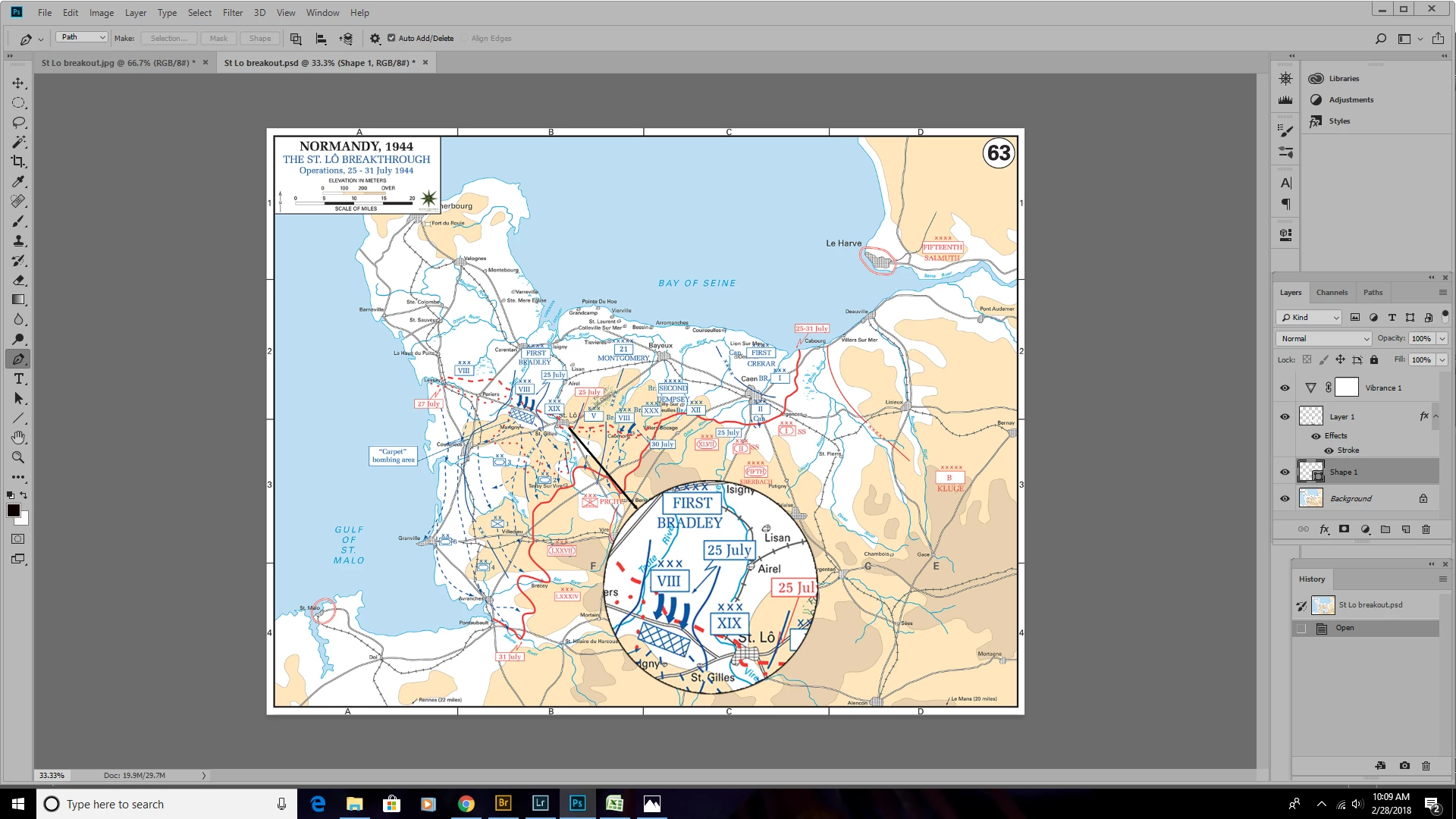
       Somehow I was able to change the .jpg file to get the arrow to look

    different:
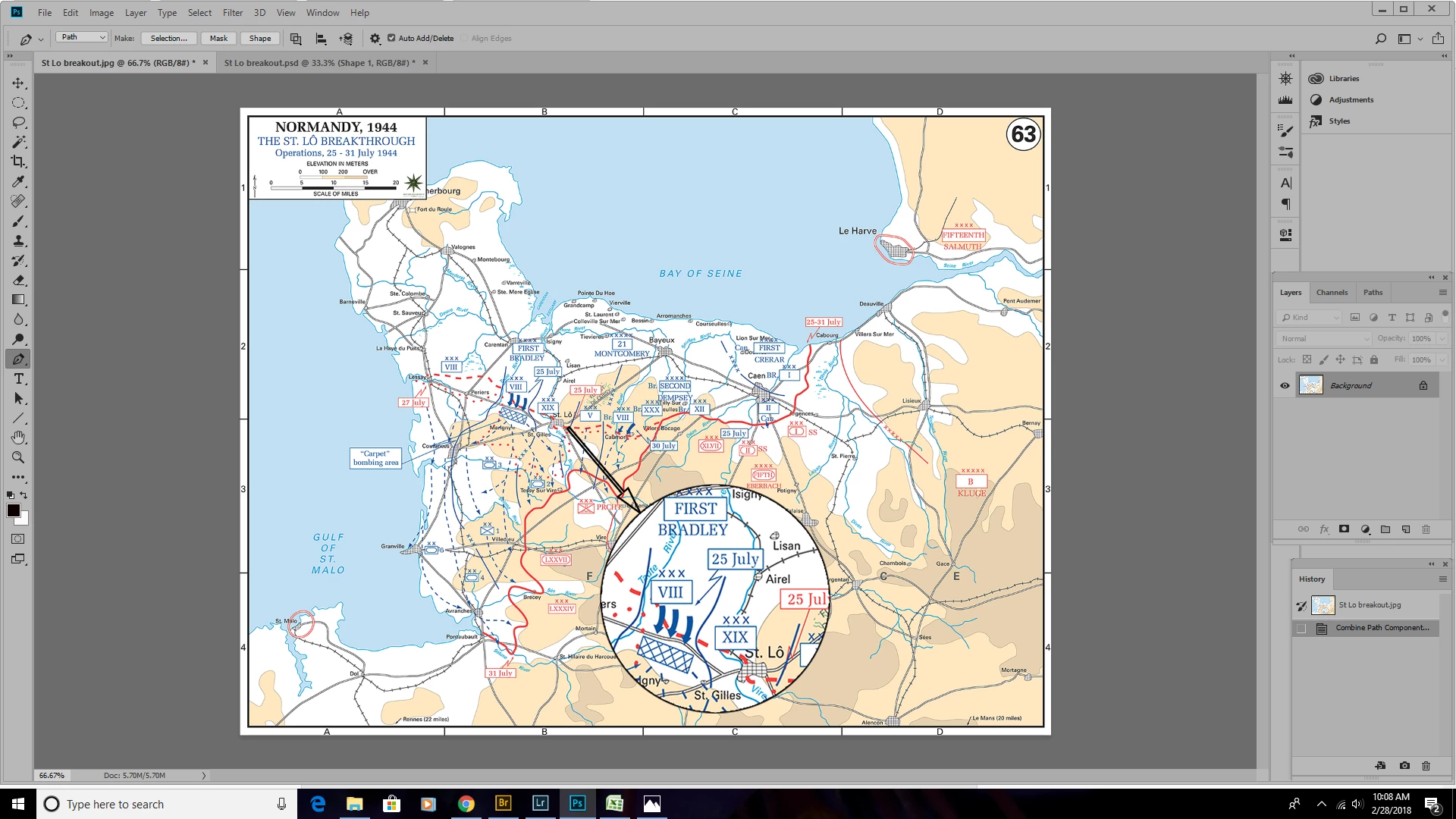
       I wish I could tell you how I made this happen. I fooled around for quite a

    while, and I don't recall what finally worked.  The JPEG file looks fine

    when viewed in Photoshop, but when the same file is opened in another

    program, the line disappears :
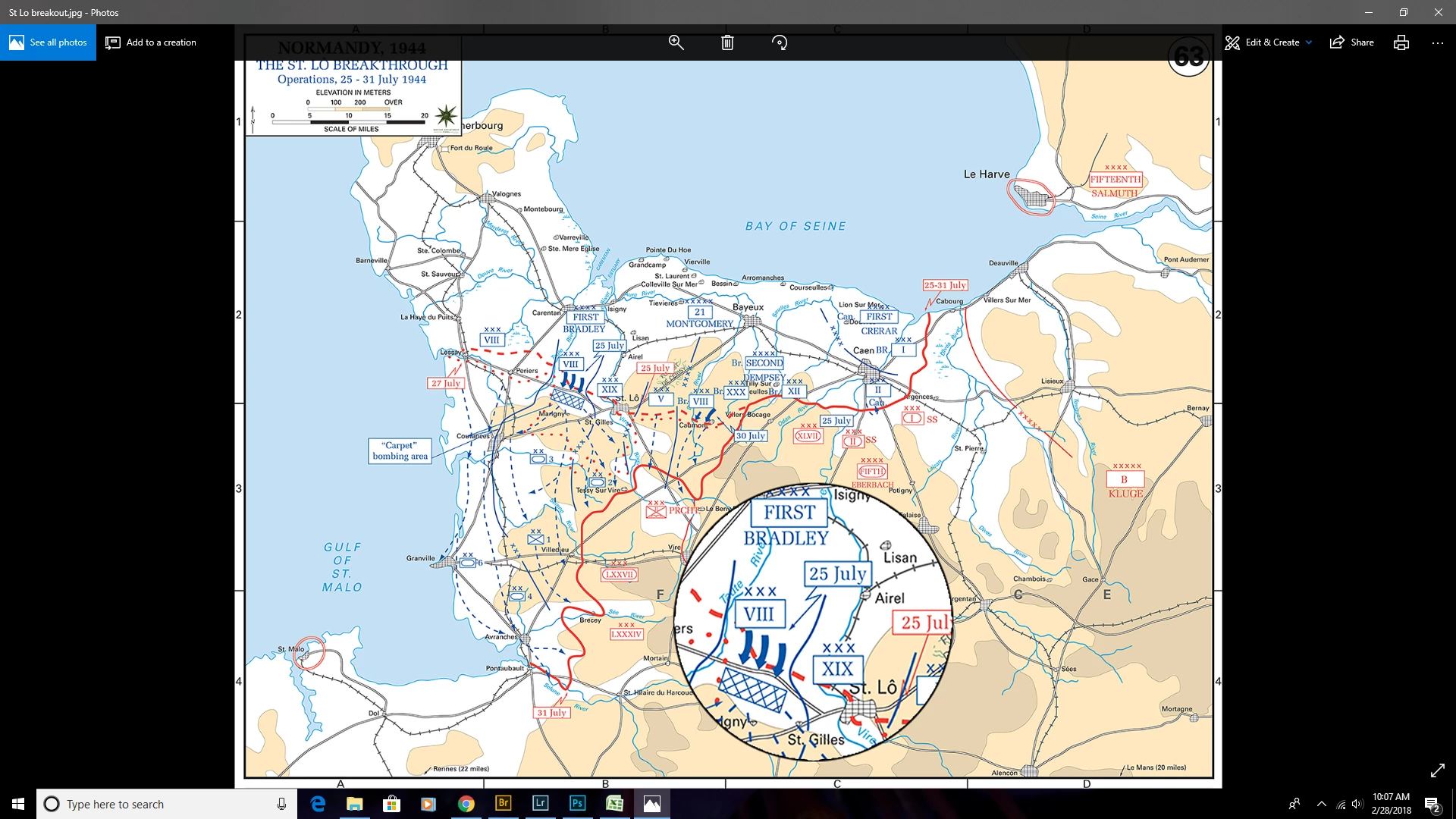
    What gives?


    I assume you used the Line tool to draw the arrow.

    And also I assume you did it in "Path"-mode.
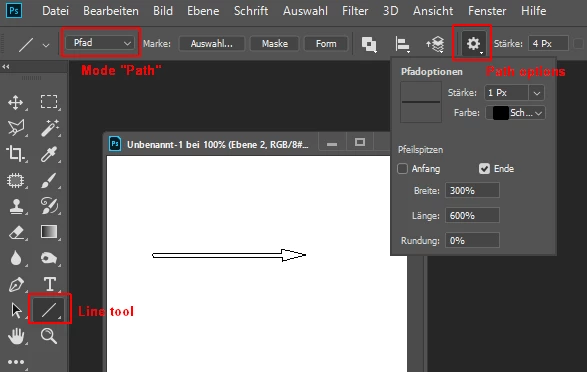
    A path is a virtual shape, you can fill it or stroke or convert in a real shape or in a selection.

    In Photoshop you can show/hide it in the path panel (menu Window). A jpeg outside of Photoshop can't display this virtual shape.

    What to do?

    Select the arrow path in the path panel and click on the Shape button in the control bar.
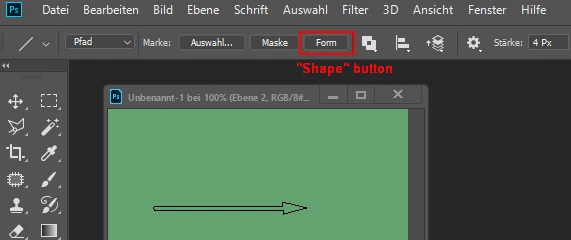
    Now the path will be converted in a real shape and will be visible forever.
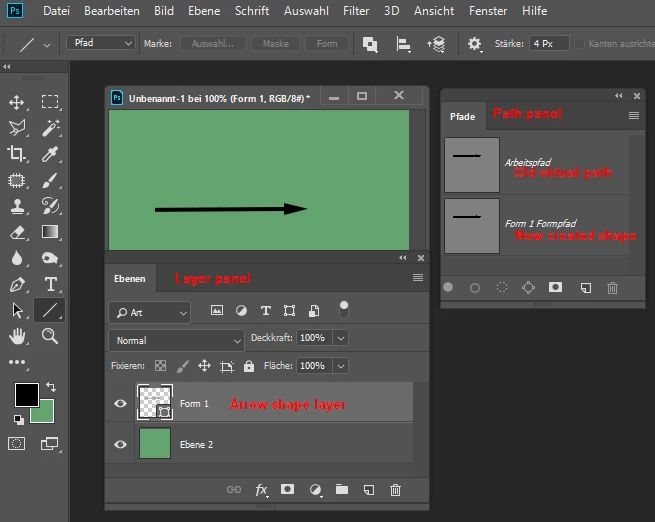
    In the Layer panel you get a new shape layer. You can move and transform the shape as you like.

    In the Path panel the original path is still available.

    --------------------------------------------------------------------------------

    If I guessed wrong, please, describe the way how you did draw the arrow and insert an image of the used panels.

    Fenja

    1 reply

    Just Shoot Me
    Legend
    February 27, 2018

    Look at the top in the Tool Bar area for a Check Mark. It will be on the Right End of the bar. Clicking that Check Mark applies the edit to the image. Same for Text and other things.

    roberts51234453
    Participating Frequently
    February 27, 2018

    Thanks, but the only check mark I can find is labeled "auto add/delete",

    and that is checked. The line+arrow sometimes shows up when the file is

    opened in Photoshop, but not when the saved file is opened in another

    program. I am trying to add the line+arrow to the image in Photoshop, save

    it as a JPEG, then use it in another program.

    Maybe I have started out wrong. Which tool should I be using?

    On Tue, Feb 27, 2018 at 2:59 PM, Just Shoot Me <forums_noreply@adobe.com>

    Just Shoot Me
    Legend
    February 27, 2018

    The .psd file looks like this:

    Somehow I was able to change the .jpg file to get the arrow to look

    different:

    I wish I could tell you how I made this happen. I fooled around for quite a

    while, and I don't recall what finally worked. The JPEG file looks fine

    when viewed in Photoshop, but when the same file is opened in another

    program, the line disappears :

    On Tue, Feb 27, 2018 at 3:15 PM, Just Shoot Me <forums_noreply@adobe.com>


    You have to Log In to the Forum to post screen shots.

    Use the Icon in the reply window tool bar.