
Participant
February 17, 2020
Answered

Lines appearing in custom brush

  • February 17, 2020
  • 1 reply
  • 1255 views

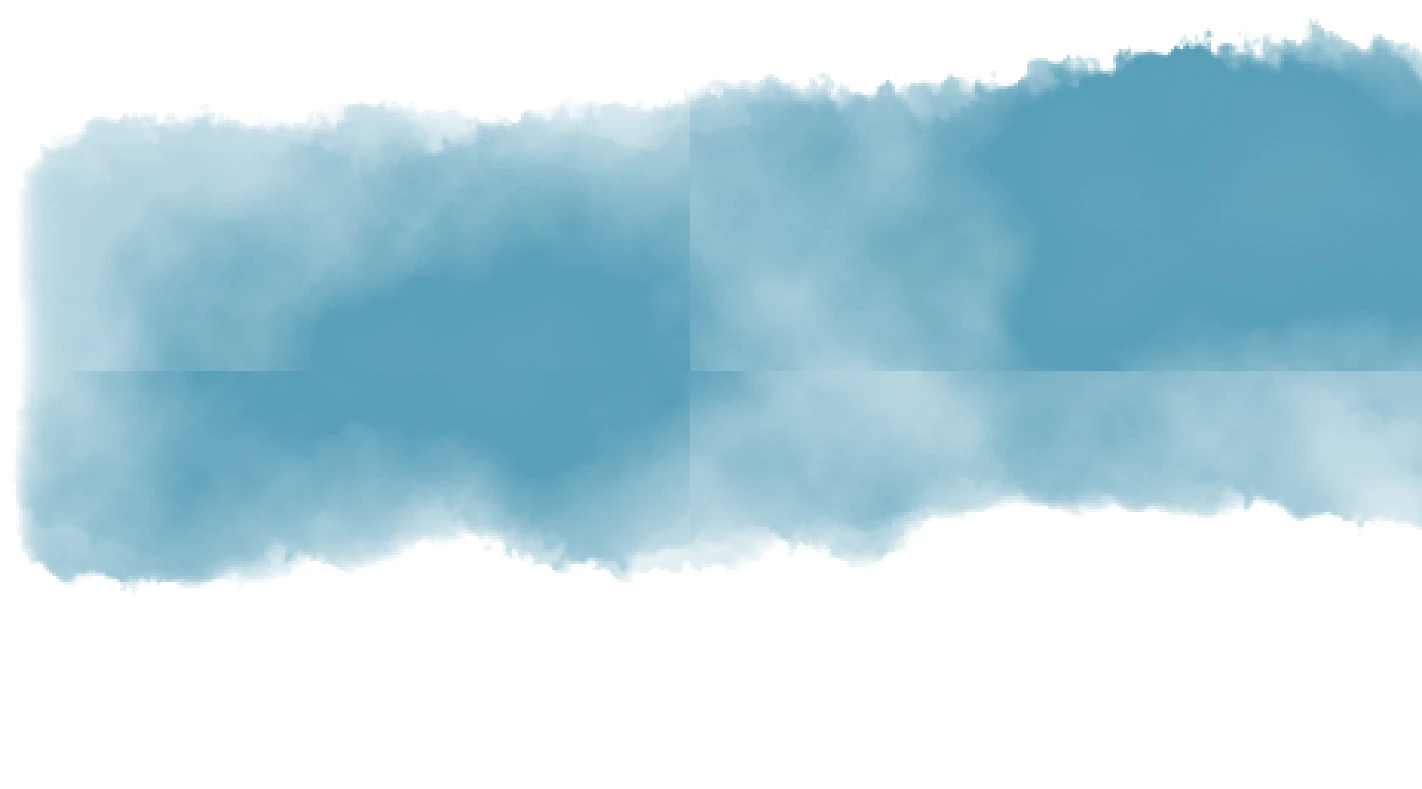
I created a custom brush follwoing this tutorial https://www.youtube.com/watch?v=qvTNKSalhEw however when I try to use it, it's almost like there's an invisible grid in the document that shows up in the middle of my strokes. It doesn't matter where I start the brush stroke or the brush size, the lines are always in the same spot on the document. It also doesn't happen for the default brushes. I can't find anything when I try to google the problem. It seems to be a problem with the brush but I have no idea what. Any ideas what might be causing it and how can I fix it? 
This topic has been closed for replies.
Correct answer c.pfaffenbichler

Filter > Render > Clouds should produce seamless results for multiples of 512px, so if you apply the filter to an image of 1024px x 1024px and create the pattern off of that it should be seamless. 

1 reply

c.pfaffenbichler
Community Expert
Community Expert
February 17, 2020

Is there a Texture? 

Please post meaningful screenshots of all active fields of the Brush Settings Panel. 

Participant
February 17, 2020

Texture is a 1000x1000px clouds render and now that I look into it, I've just realised that may be the problem. The lines are the edges of the original texture showing up. When testing it in a 2000x2000px document, I get four even squares of the exact same texture. Is there a way around this so the texture doesn't behave like this in the brush? Sorry if that's a dumb question, I'm not too experienced in photoshop and am still trying to figure it out. 


c.pfaffenbichler
Community Expert
c.pfaffenbichlerCommunity ExpertCorrect answer
Community Expert
February 17, 2020

Filter > Render > Clouds should produce seamless results for multiples of 512px, so if you apply the filter to an image of 1024px x 1024px and create the pattern off of that it should be seamless.