
Known Participant
August 11, 2018
Answered

Make layer 2 visible only where it coincides with layer 1

  • August 11, 2018
  • 2 replies
  • 2274 views

Hi!

I'm not sure how to word this question correctly...

I need to have one layer (Layer 1) set to Multiply mode, and then I put another layer (Layer 2) behind Layer 1 as a texture.

Layer 1 contains a figure with a 100% transparent background. Layer 2 fills the entire canvas.

How do I make so that Layer 2 is only visible where it coincides with the figure on Layer 1, without having to perform any cutting on Layer 2?

I'm not familiar with working with masks, but I take that it might be some kind of mask I'll be needing...

Thanks!
This topic has been closed for replies.
Correct answer davescm

Hi

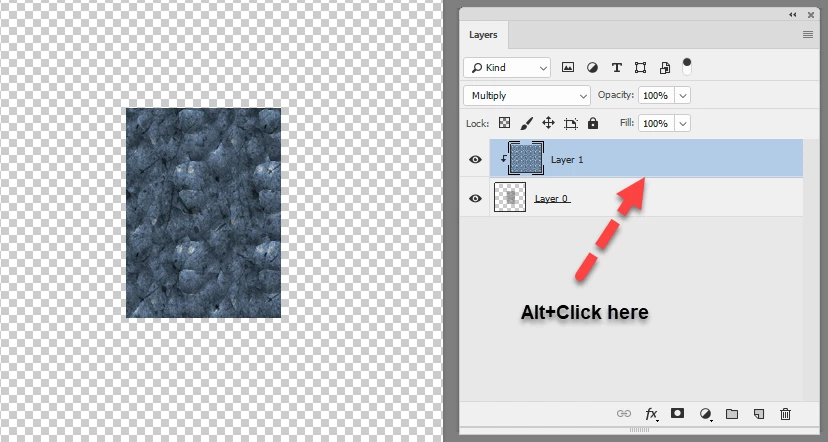
Reverse the order of the layers so the texture is at the top. Then clip the texture layer to the shape layer by Alt-Clicking on the border in the layers panel

Dave

2 replies

davescm
Community Expert
davescmCommunity ExpertCorrect answer
Community Expert
August 11, 2018

Hi

Reverse the order of the layers so the texture is at the top. Then clip the texture layer to the shape layer by Alt-Clicking on the border in the layers panel

Dave

Known Participant
August 11, 2018

Thank you for the reply!

This makes a nice cutout of Layer 2 (the texture) following the outline of Layer 1 (the object), but it renders Layer 1 invisible.

What I needed was to use Layer 2 as a texture for Layer 1.

I can get around this simply by making a copy of Layer 1 and then place it above the original Layer 1 and Layer 2.

But is there a simpler way to achieve the same effect (i.e. using only the original Layer 1 and Layer 2)?

JJMack
Community Expert
Community Expert
August 11, 2018

Oooh I see, my bad

Thank you!


You can also do in it the layer oder you  had with the layer mask mask methop I posted.

Using a make you can also cotrol where you do not want the texture note the Eyes and stripe below

JJMack
JJMack
Community Expert
Community Expert
August 11, 2018

Load layer 1 transparency as an active selection and add a layer mask to layer 2 tar layer 2 and click the add layer mask icon in the layer palette or use the layer menu

JJMack