Participant
September 25, 2019
Question

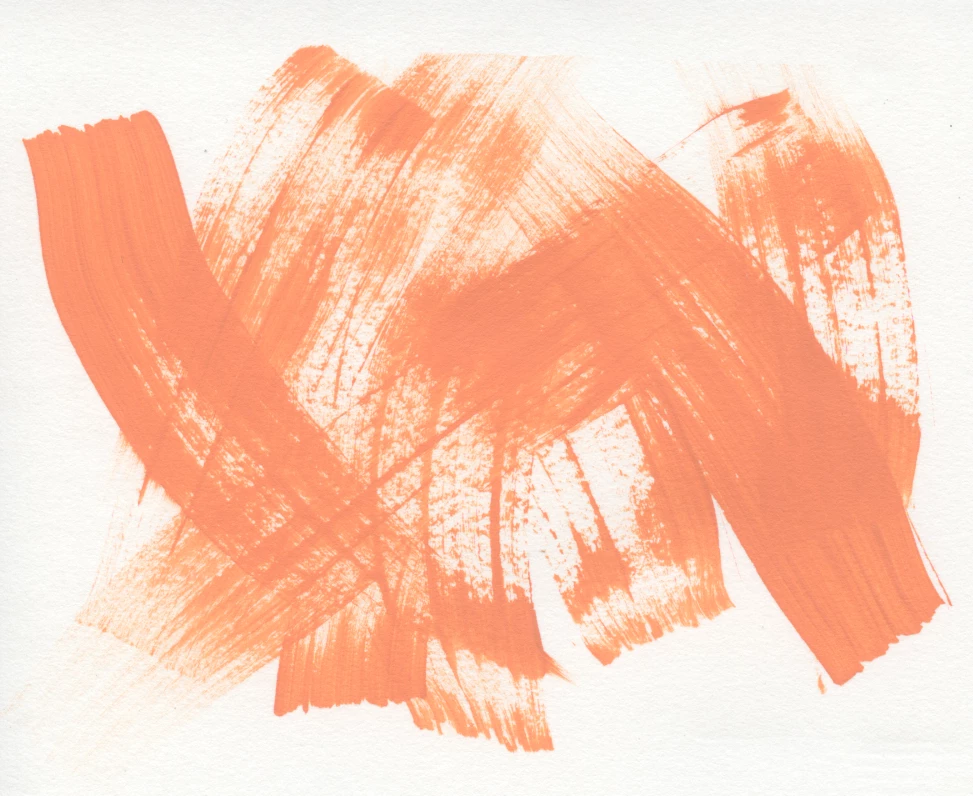
Making an acrylic brush stroke transparent.
  • September 25, 2019
  • 2 replies
  • 1173 views

How do I make the background of this scan transparent? I don't know what ot google for this I've thought of everything and nothing is coming up. I want the white background to be transparent without losing all the texture and white space within the stroke. 

This topic has been closed for replies.

2 replies

davescm
Community Expert
Community Expert
September 25, 2019

Hi

I like Mellisa's method.


An alternative :

1. Click on the lock to turn the image from a background to a layer

2. Use image calculations to blend the inverted blue channel with itself using color dodge and output as a selection


3. Use menu Layer >Layer Mask >Reveal selection


Optional :
If you find any trace of background is still causing an issue - output the calculation to a "new channel" instead of a selection. Then blend that channel with itself using Overlay  (see below) and output as a selection. Then add the layer mask as in step 3 above above.

Dave

melissapiccone
Community Expert
Community Expert
September 25, 2019

This is a tricky one. I used a blend mode to eliminate most of the background on white. Then I copied the green channel and used levels to make it mostly black, then selected the channel and made it into a layer mask. 


Double click on the layer icon to bring up layer style, use the blend if sliders in the blending options. To split the triangles, use the alt/opt. 


In the channels panel, right click on the green channel (the blue has too much background) and duplicate.


On the new duplicated channel, use levels (cmd/cntr + l) and make it mostly black.

 cmd / cntr click on the channel thumnail to select it, turn the RBG channel eye back on, switch to your layers and click the the new layer mask button to make your selection a layer mask on the brush layer. cmd / cntr + i to invert the layer mask. Turn off the bottom white layer.


Melissa Piccone | Adobe Trainer | Online Courses Author | Fine Artist