
Participant
June 22, 2019
Question

Manually expanding panels every time; how to get them to stay expanded?

  • June 22, 2019
  • 5 replies
  • 2098 views

Embarrassingly simple question here, but I've been toggling with the program for days and I can't seem to find the solution anywhere - whenever I close Photoshop, my tool panels all minimize, excluding the color wheel. I'm trying to get them to all stay open, so I don't have to expand everything every time I open the program.
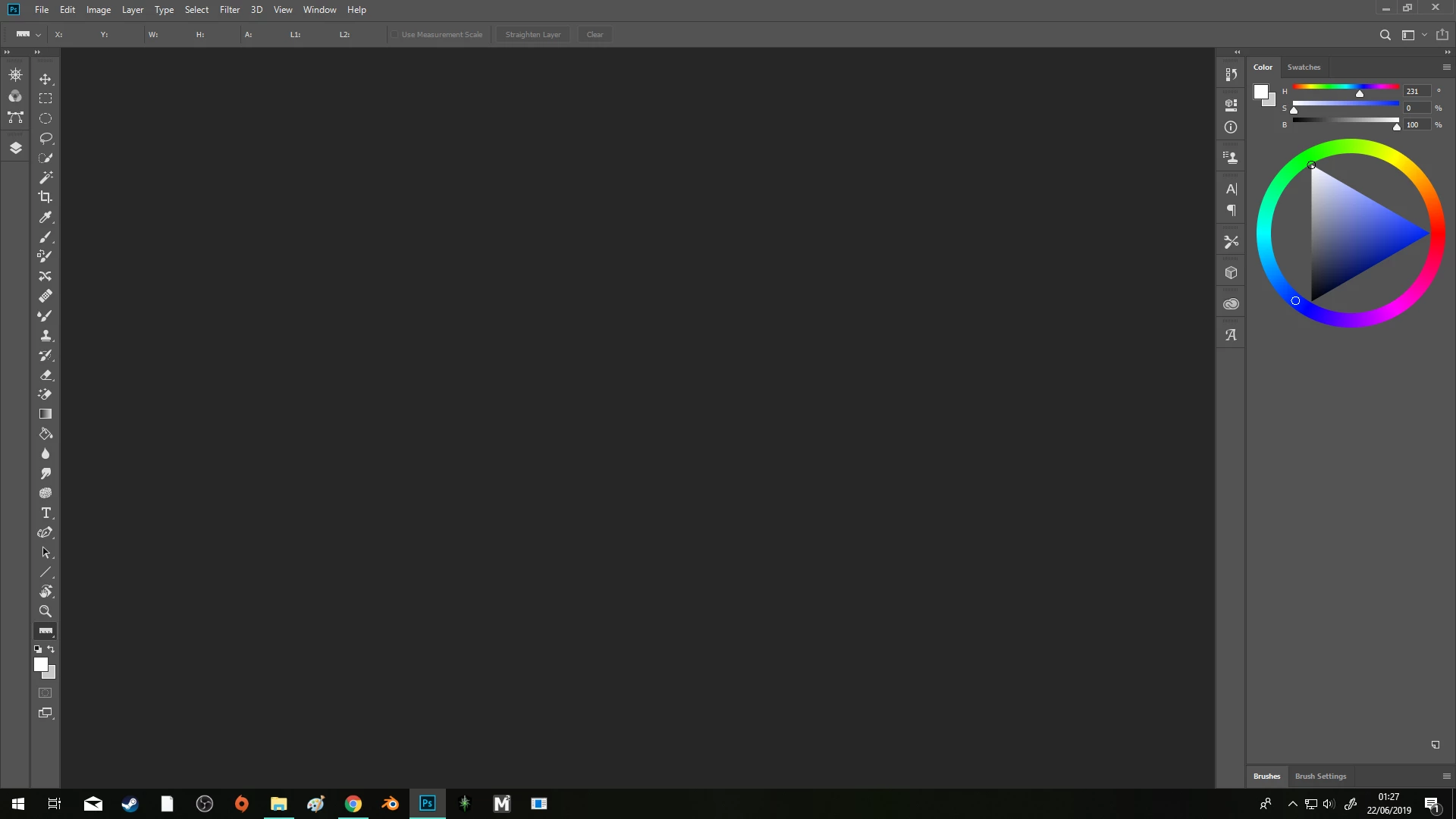
This is how it looks when I open it;
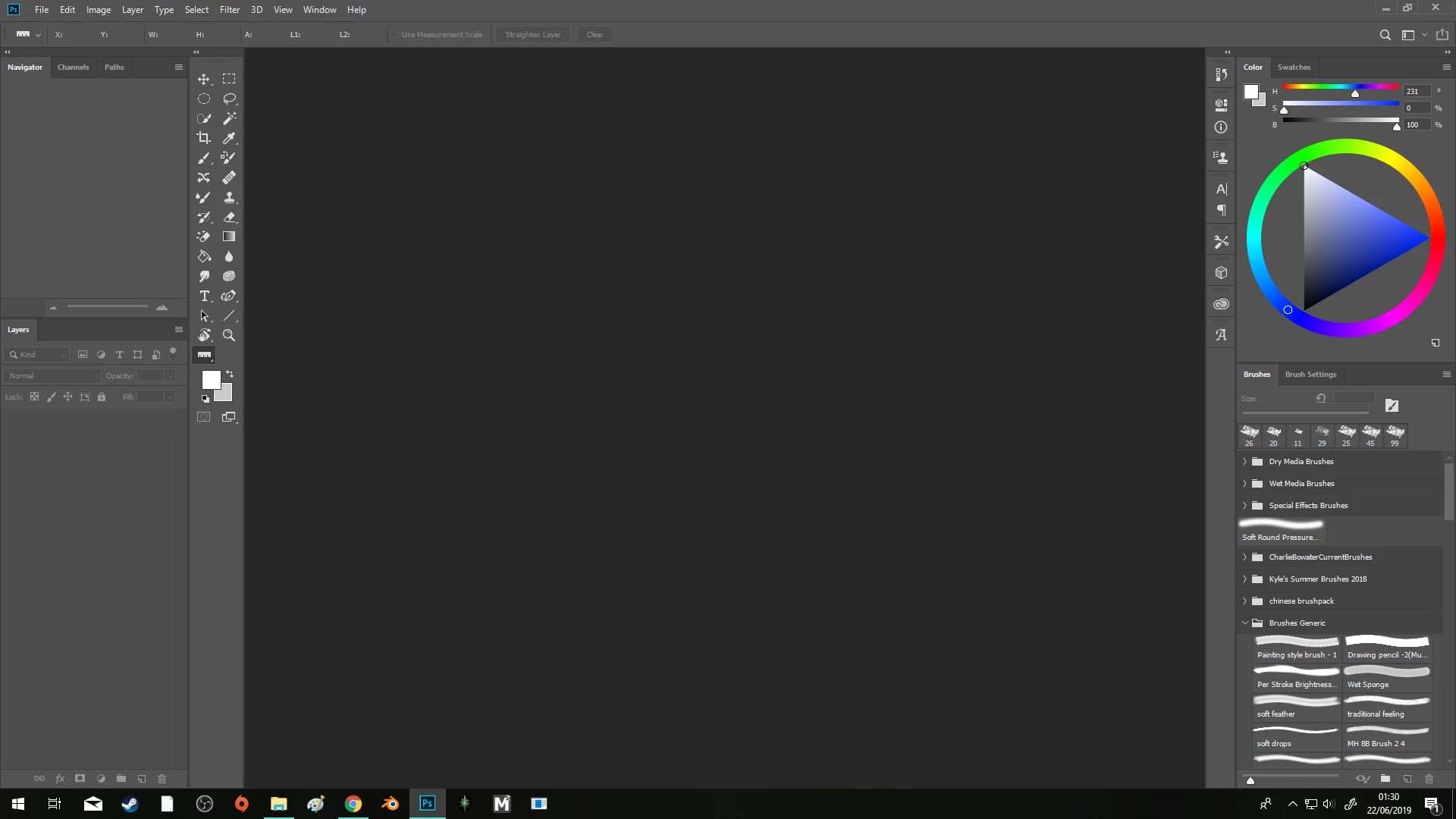
This is how I'm trying to get it to stay.

Very simple problem but I can't seem to find a solution. Can anyone help?

This topic has been closed for replies.

5 replies

Known Participant
June 3, 2021

Also, if you look at the image I attached with the previous post, I have two columns of panels on the right side. One that I want to keep always open (the one with navigation, history, layers, etc) and another one that I only expand when I need to. So I thought maybe the issue appeared when you have two columns of panels. So I moved the second column to the right side, expanded the now alone panel with Navigation et al, saved a new workspace, closed Photoshop, reopened again and... No way! the issue still happens!

Known Participant
June 3, 2021

This has been happening to me too recently with versions 22.x
Every time I open Phtoshop, the panel containing navigation, layers, history, etc appears collapsed despite the are open when I close Photoshop.
I have tried to save the workspace, save a new workspace and delete the old one, uncheck "Autocollapse Iconic Panels" but no way.

Also, I don't open Photoshop with the start screen but directly on the empty Photoshop desktop. I tried checking on the start screen option but thee is no difference, it still opens the interface with the panels collapsed so the issue is not related with starting with the start screen or not.

Trevor.Dennis
Community Expert
Community Expert
June 22, 2019

You need them both turned off.

Unless you are working on a single small screen, those settings are just about the single most annoying Photoshop UI feature.

hongchungAuthor
Participant
June 22, 2019

Hmm, okay I tried copying these settings and then closed/reopened PS but it's not making a difference :/

gener7
Community Expert
Community Expert
June 22, 2019

I detach the panels I want open and they stay that way until I reset the Workspace. There's much better control. I can resize as well as place them anywhere.

hongchungAuthor
Participant
June 22, 2019

I just tried this and thanks for the tip, it did work and they stayed open! My problem is that I prefer having things docked because when I'm drawing I often click about the screen and when things are undocked it can get really annoying accidentally moving them around, resizing them/closing them etc. This was a helpful tip though, thank you!

gener7
Community Expert
Community Expert
June 22, 2019

In that case, position the panels and make it a custom workspace and save it. If anything gets messed up, a simple reset puts everything back.

Only thing I can think since I can't figure a way to dock them.

Another plan is to have one monitor for the panels, another for the canvas, keeping them separate.

Gene

jane-e
Community Expert
Community Expert
June 22, 2019

Hi

I am not sure I completely understand, so I'll give two possible answers:

  • Save your workspace the way you want the panels arranged.

  • In Preferences > Workspace > confirm Auto-Collapse is off

Is it either of these? If not, please clarify.

~ Jane

hongchungAuthor
Participant
June 22, 2019

Hi Jane,

Thanks for your answer, unfortunately these are both solutions I've already tried. I've made new workspaces several times, none of them save the panel expansion. My extensions have been on these settings at all times, I've experimented with turning them off and on but it makes no difference; my panels are always collapsed when I start the program.