Kar209
Known Participant
October 9, 2012
Answered

Move/Nudge 1/2 a pixel?

  • October 9, 2012
  • 4 replies
  • 78514 views

Hey there                                                                                                              Level: Newbie   OS: Windows 7 64bit     Ps: Cs6

Is there a way I can move an object 1/2 pixel? Is there a modify key that I can use along with the arrow keys or something like that?

Thanx for your time!!

This topic has been closed for replies.
Correct answer sudarshan.t

A good question that is!

Earlier versions of Photoshop used to do this depending on zoom level. If you're zoomed in at 100% on canvas, one nudge will be 1pixel relative to your current object position. 200% will be 0.5 pixel and so on all the way till 3200% which nudges 0.03125px.

In Photoshop CS6, there is a handy little option that is (usually unnoticed) present in General Preferences.

Go to Photoshop Preferences > General > Snap Vector Tools and Transforms to Pixel Grid - uncheck this option as shown in screenshot below:
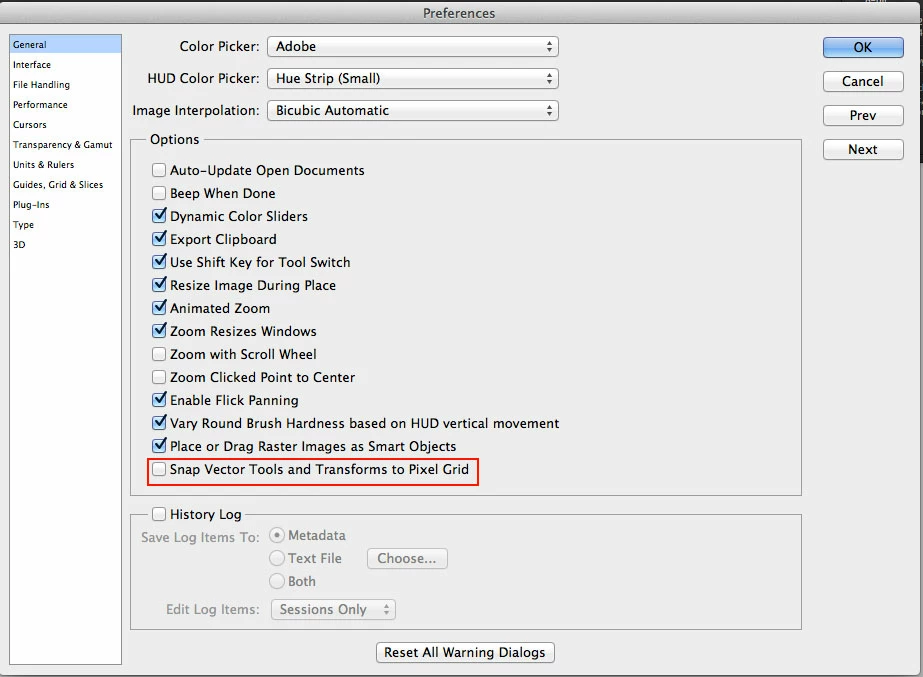
Once unchecked, Photoshop will behave like it did in earlier versions. Zoom level controls the nudge. 100% zoom is 1pixel nudge and 200% is 0.5pixel nudge.

Note that this behavior will work only with 'Free Transform' (Cmd + T) or (Ctrl + T) on your object. A normal nudge with Move tool (V) will not nudge 0.5pixel.

Trust this helps.

-ST

Message was edited by: Sudarshan Thiagarajan to add 'Free Transform' note

4 replies

Stephen Marsh
Community Expert
Community Expert
February 22, 2022

Although a 10 year old topic, it still deserves a reply. Obviously 1px is the smallest "true" unit. That being said, with anti-aliasing one can fake a sub-pixel shift.


There are examples using Photoshop's custom filter in this action set:


https://www.dropbox.com/s/yvzlr1fuznyf8iw/Custom%20Convolution%20Kernels.atn?dl=0


Participant
August 16, 2021

Bumping this for 2021. The pref for do not snap to grid no longer exists in the pref panel. Is there a new location for it?


Participant
February 22, 2022

Participating Frequently
December 4, 2022

Ive been trying to figure this out still. I have the snap vector tool unchecked, yet I still cant move anything by sub pixels, its still always full pixels and it is driving me nuts. I am using the free transfarm tool, and while I can set .1, or .5 or .6 or whatever in the X anf Y fields up top it makes no difference, the fractions dont do anything, 200.1, 200.3, etc, give the exact same result as just 200. 200.5 will round up to 2001. What am I missing and why is thisstill  not possible in 2022?

PECourtejoie
Community Expert
Community Expert
October 9, 2012

For Vector shapes, if you add one to their size, they will grow by half a pixel on either way (you might need to uncheck the snap, too)

For pixel layers, another way is to double the size of your documents (from 300 to 600PPI), nudge, then downsample. You will get dithering, though.

sudarshan.t
sudarshan.tCorrect answer
Inspiring
October 9, 2012

A good question that is!

Earlier versions of Photoshop used to do this depending on zoom level. If you're zoomed in at 100% on canvas, one nudge will be 1pixel relative to your current object position. 200% will be 0.5 pixel and so on all the way till 3200% which nudges 0.03125px.

In Photoshop CS6, there is a handy little option that is (usually unnoticed) present in General Preferences.

Go to Photoshop Preferences > General > Snap Vector Tools and Transforms to Pixel Grid - uncheck this option as shown in screenshot below:

Once unchecked, Photoshop will behave like it did in earlier versions. Zoom level controls the nudge. 100% zoom is 1pixel nudge and 200% is 0.5pixel nudge.

Note that this behavior will work only with 'Free Transform' (Cmd + T) or (Ctrl + T) on your object. A normal nudge with Move tool (V) will not nudge 0.5pixel.

Trust this helps.

-ST

Message was edited by: Sudarshan Thiagarajan to add 'Free Transform' note

Kar209
Kar209Author
Known Participant
October 10, 2012

My goodness. lol

I had no idea I was asking such an involved question.

I forget that Ps is mostly raster ... ( um, right ?? )

I thought of Inkscape where if I recall correctly all I need to do is to hold the Alt key and use the arrow keys in order to more percisely place an object ... such as by 1/2px

So, does that mean Illustrator will move 1/2 a pixel since it's vector like Inkscape? That is if you happen to use Illy as well

I'm wondering why something that seems so simple to me doesn't have a more occams approach to a more functional solution ... ??  ie: like Inkscape ... or, again is it b/c Ps isn't a vector only program?

Well, if you have noticed by my 1/2 witted response .... I'm a bit confused ... re: raster vs. vector ... but at least I'm heading down the path

THANK YOU everyone for your help I really appreciate your time!!

Be Well

conroy
Participating Frequently
October 11, 2012

hey there...

here's a big resounding NOPE ... lol ... I am still very new to Everything re: graphic design

it blows my mind how much there is to learn ... from math I never Aced in school to understanding lighting, color and so on and so on

but thank you!! i will keep that in mind.

it's just that i had made a square shape and then a circle that i needed to fit in the center ~ the circle left more space to one side than the other and so i needed to move/nudge it over just a tad ... i'm a perfectionist or maybe just a little too OCD to be satisfied w/anything less than perfection

i'll remember to keep my 1/2px moves down to a minimum

Take care

ps. what does 'eight quick' mean? 


The resampling and diminishing quality is a concern for pixel layers. A Shape layer is a vector object similar to what you find in Illustrator and will not be damaged by a 1/2 px move. It's rasterized appearance will change when moved by a fraction of a pixel because the edges will be antialiased differently, but it is a non-destructive change. You can move it to and fro, scale it up and down and rotate it this way and that, and then it can be returned to its original form, unlike pixel layers.