Participating Frequently
May 31, 2020
Question

Move tool not working?

  • May 31, 2020
  • 6 replies
  • 2506 views

Hello,

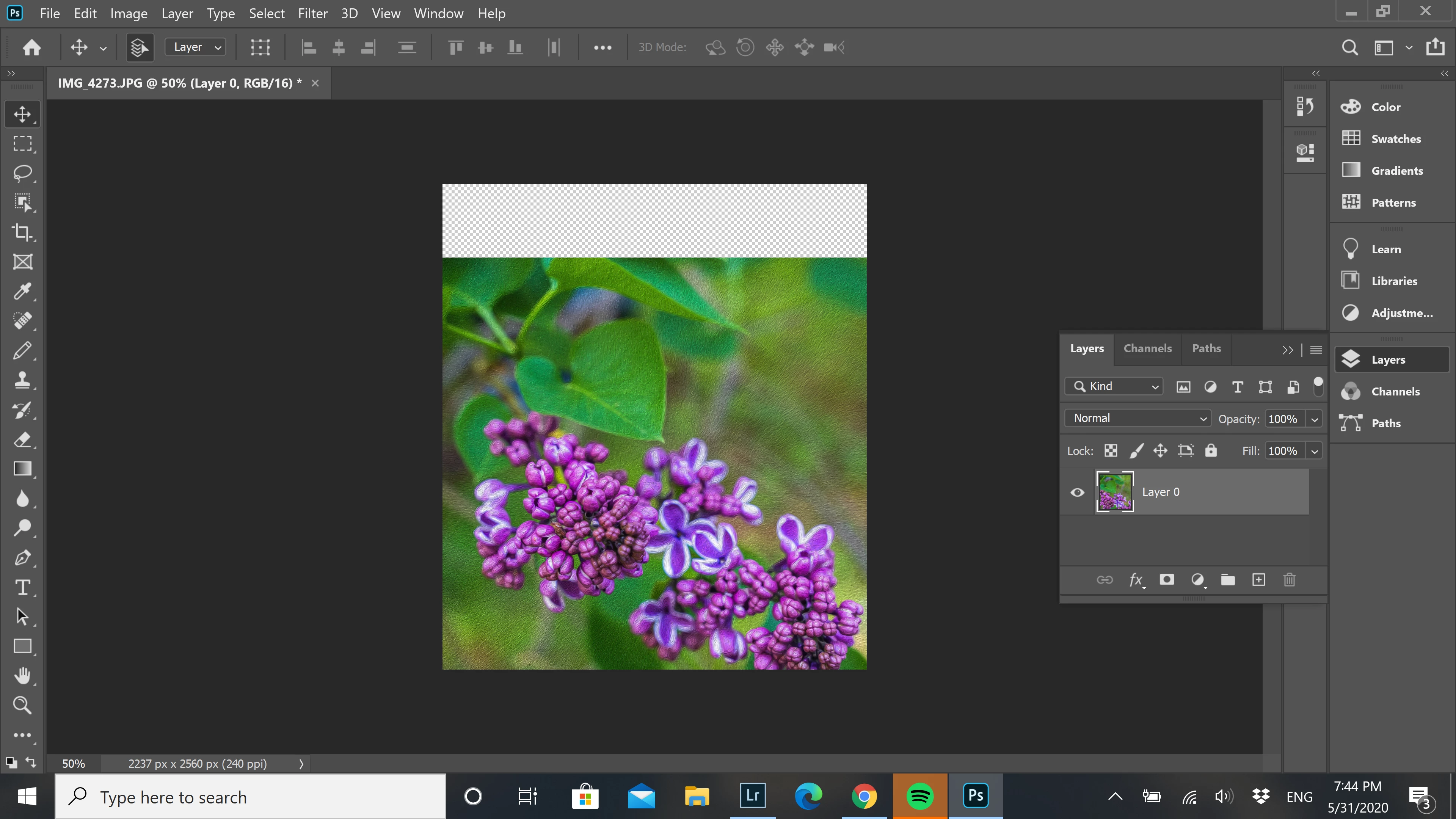
I'm trying to move an image around, just practicing learning tools.  I can't move the image the way it's supposed to work, but I get this instead.  I have no idea....can anybody help me?  Thanks.


This topic has been closed for replies.

6 replies

anitaf19845294
Participant
January 17, 2021

One thing that may work if you try everything else and its not working. Make sure you are selecting the object you are trying to move. I couldn't figure out why an object was not working despite trying all of these tricks. Then I realized it had a transparent background and I wasn't clicking exactly on the image but the transparent background. So, make sure you are clicking on the image in the layer you are selecting.

For example, I kept trying to click on the inside of the heart to drag and move it but because its transparent and only the red is part of the image I had selected, it would not move but kept forming a lined tool box. Once I clicked on the red it moved, no problem.

Conrad_C
Community Expert
Community Expert
June 1, 2020

The Move tool pop-up demonstration shows a layer that’s smaller than the canvas, but you’re moving a layer that’s the same size as the canvas. Because your image is the same size as the canvas, it has nowhere to go when you move it, so at least one side ends up sliding under the canvas edge, and on the other side it reveals any underlying layers or transparency. That’s what your screen shot shows.


If you want to see the same kind of movement you saw in the Move tool demo, you can either first reduce the size of the layer so that it’s smaller than the canvas, or you can choose Image > Canvas Size and increase the canvas size so that the layer has room to move without getting clipped on any side.


jane-e
Community Expert
Community Expert
June 1, 2020

Hi

You have one layer "Layer 0" and have moved the entire layer. That's how it's supposed to work. At some point you most likely had a background layer which got converted to a regular layer.


What are you trying to accomplish? We can help with that. First, though, use the Move tool to move the layer back so it fits in the image area. If you have not saved or closed, Undo a few times may work.


~ Jane

Participating Frequently
June 1, 2020

I'm literally just trying to move the image.  When you hover on the move tool and it gives a demonstration - that's what I want to do.  Yes, it was a background but when I used the move tool I got a message to convert it to a normal layer. Do you need me to show you anything else?  Thanks.

jane-e
Community Expert
Community Expert
June 2, 2020

In the Rich Tool Tips demo, they move the layer back to where it was before releasing the mouse, whereas you released the mouse and it's partially out of sight. You can use the Move tool again to reposition it on the canvas to where it was before.

c.pfaffenbichler
Community Expert
Community Expert
June 1, 2020


Why do you use the Narrow Options Bar? (Photoshop > Preferences > Workspace > Enable Narrow Options Bar)

Participating Frequently
June 1, 2020

Because I had reset preferences and hadn't fixed that yet.

c.pfaffenbichler
Community Expert
Community Expert
June 1, 2020

Is »Auto-Select« checked? 


Akash Sharma
Legend
June 1, 2020

Hi there,


Would you mind checking this article and let us know if that helps you in understanding the usage of Move tool? Link: https://helpx.adobe.com/in/photoshop/how-to/selection-tools-basics.html


Thanks,

Akash
