
Participant
August 3, 2018
Answered

New with Photoshop, confused by stacking order and layers

  • August 3, 2018
  • 3 replies
  • 1152 views

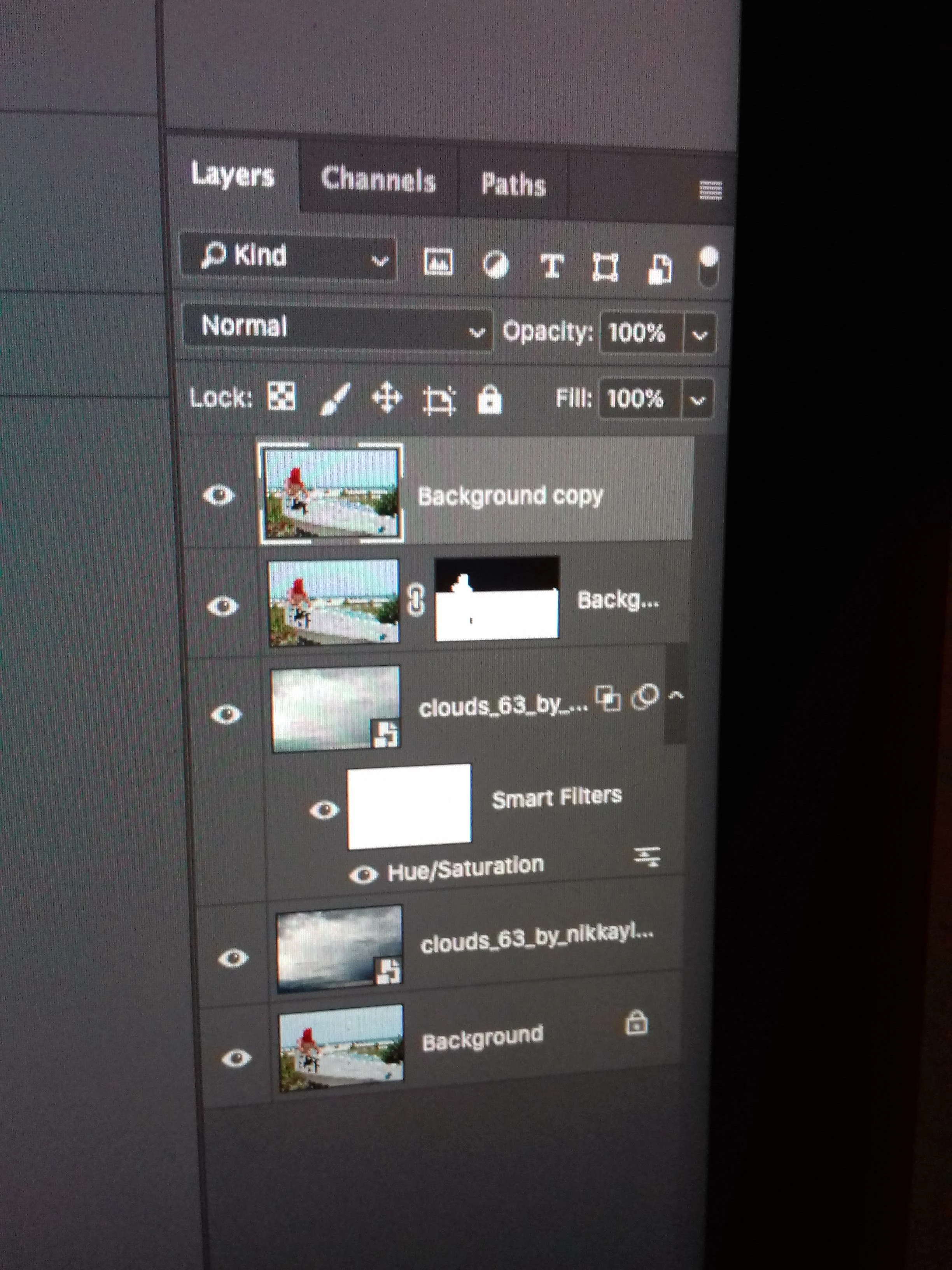
Hello, I am new to photoshop and have been watching lots of tutorials. It has been a bit frustrating as I am a slow learner and I don't seem to be getting the order of the layers correctly.

I am working on an image where I changed the sky, The Image I downloaded was already a smart object I believe.

After changing the sky I made a copy of the sky layer and applied some adjustments. Was it necessary to duplicate that layer?

Next I tried to remove some numbers on a boat from the image so I made a copy of the background layer and then I got very confused. If i place the background layer on top of the original background layer the patch tool will not work. If I place the background copy on top of all layers the changes to the sky will not be visible.

What am I doing wrong? Thanks
This topic has been closed for replies.
Correct answer Bojan Živković11378569

After changing the sky I made a copy of the sky layer and applied some adjustments. Was it necessary to duplicate that layer?

No, it wasn't necessary to duplicate layer to apply adjustments. You can use non-destructive adjustments from Layer > New Adjustment Layer > Hue/Saturation, for example.

Next I tried to remove some numbers on a boat from the image so I made a copy of the background layer and then I got very confused. If i place the background layer on top of the original background layer the patch tool will not work. If I place the background copy on top of all layers the changes to the sky will not be visible.

You can use Patch tool on separate, blank layer which should be above layer with content which you want to remove. Create blank new layer and check Sample All Layers in the Options bar. Patch will be on separate layer so you can change it/modify at any time.

3 replies

KShinabery212
Community Expert
Community Expert
August 3, 2018

The best way to explain layers to someone is to say think like a 'graffiti' artist.

Graffiti artists work in layers.  And you can see how they develop an image by overlapping areas, etc.

Photoshop is basically the same thing (ok to some extent).  But when I tell people who are new to Photoshop, they step back and then they get it.

Your top layer is always visible.

Let's connect on LinkedIn. https://www.linkedin.com/in/kshinabery/
Participant
August 3, 2018

Thanks,  good way to put it into perspective

Bojan Živković11378569
Community Expert
Community Expert
August 3, 2018

After changing the sky I made a copy of the sky layer and applied some adjustments. Was it necessary to duplicate that layer?

No, it wasn't necessary to duplicate layer to apply adjustments. You can use non-destructive adjustments from Layer > New Adjustment Layer > Hue/Saturation, for example.

Next I tried to remove some numbers on a boat from the image so I made a copy of the background layer and then I got very confused. If i place the background layer on top of the original background layer the patch tool will not work. If I place the background copy on top of all layers the changes to the sky will not be visible.

You can use Patch tool on separate, blank layer which should be above layer with content which you want to remove. Create blank new layer and check Sample All Layers in the Options bar. Patch will be on separate layer so you can change it/modify at any time.

Participant
August 3, 2018

Thank you for the clear explanation, indeed I needed to tick the "Sample all layers" box.

JJMack
Community Expert
Community Expert
August 3, 2018

Photoshop's background layer is a special layer.  It is the document bottom layer and it does not support transparency so the layer can not be masked its transparency is locked. All pixels are 1005 opaque. A copy of the background layer is a normal layer that does support transparency so it can be masked.  However without  a mask and without deleting pixels in the layer the layer is canvas size and all pixels are 100% opaque.  If you moved it to the top of the stack its pixels would cover the full canvas area and cover all lower layers pixels with normal blending.   To see any lower layer pixels you would need to mask the layer hide the pixels you do not want  visible.

JJMack
Participant
August 3, 2018

Thank you very much for your explanation, I appreciate it
