MXMGM34
Participant
October 29, 2020
Question

PHOTOSHOP 2021 - "LINE" TOOL ---> HOW DO YOU GET THE LINE TO SAVE

  • October 29, 2020
  • 5 replies
  • 8216 views

Hello, PS Wizzards.

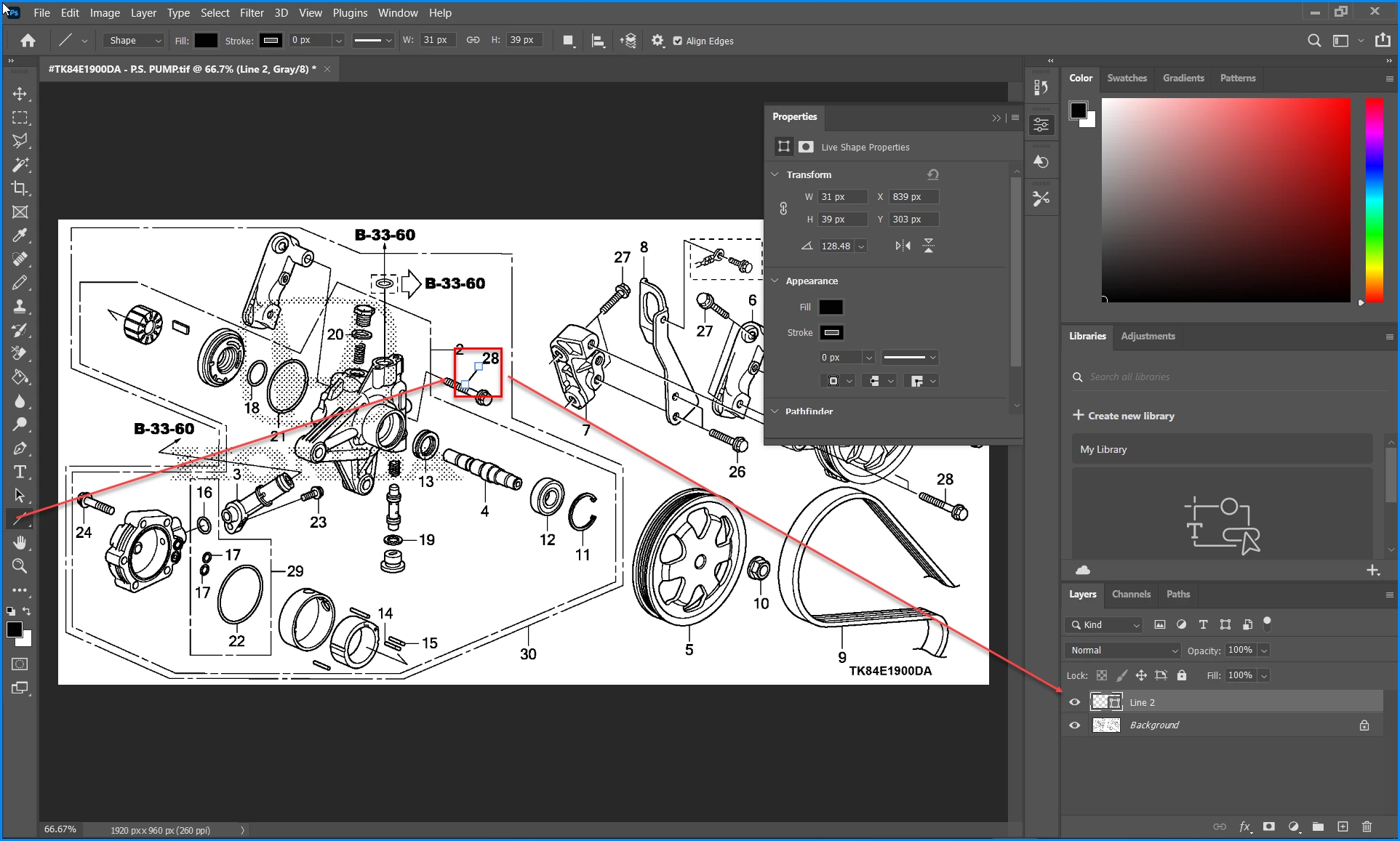
I just had my PS updated to the 2021 version and using the "shapes" function is somewhat different. I use PS to modify ".tifs" and use the "line" tool quite a bit. Before, you just drew a line and it remained in place after clicking somewhere else in the image. NOW, you draw the line (2 points show; start & end), but no matter what I do, it doesn't remain on the image. What am I doing wrong and why is PS 2021, so different? Can anyone help?
 

This topic has been closed for replies.

5 replies

Participant
September 7, 2021

I pay for updates I don't want or need as part of the subscription model of Adobe. Now I have to waste time working out how to draw a line again. Personally I'd rather just stick to older versions, than have to pay for new stuff I never use and then spend time re-learning how to do super basic stuff.

jane-e
Community Expert
Community Expert
September 7, 2021

@default3tvrnzn96aqw wrote:

Now I have to waste time working out how to draw a line again.

Personally I'd rather just stick to older versions


Hi Default,


You responded to a post from October 2020 and things have changed since then. Adobe brought back the ability to draw pixel lines and we now have a choice. See details here:

https://helpx.adobe.com/photoshop/using/line-tool.html


If you want to stick with older versions, then turn off auto-updates in the Creative Cloud app. You can also choose to keep older versions installed when you install a newer version. I do both of these.


~ Jane

Participating Frequently
February 13, 2021


It is now SO impossible to use Adobe CC 2021's "line" (shapes) tool, that I do EVERYTHING else in my drawing in Photoshop EXCEPT lines,  then export it as a TIF file, and use CorelDraw to (EASILY)  add in all sorts of things that SHOULD be a snap in Photoshop.


At least PS 2021 isn't taking 40 seconds to load any more (on my HOT ROD PC).


Why can't the geeks just LEAVE STUFF ALONE.   Obviously they combine having WAY TOO MUCH TIME on their hands, with [abuse removed by moderator] .


jane-e
Community Expert
Community Expert
November 22, 2020

Hi @MXMGM34 

Please see Adobe's official response and leave comment for the product developers here:

https://feedback.photoshop.com/conversations/photoshop/photoshop-220-where-is-line-weightwidth-and-pixels-options/5f9039ee917fbb3a9931cc53


@Mark.Dahm from Adobe says, "We are looking into ways to restore the functionality lost with the new line tool."


~ Jane

JJMack
Community Expert
Community Expert
November 22, 2020

It does not look good over there Adobe seems to want to you to stroke outside or along the path to get a line that throws the Arrowheads off target.


Adobe writes that they are thinking about 4 point lines. What is there to think about 4 point line have worked for decades. There were(are) some users that want a line tool more like AI or indesign, or  other Adobe Application. And they most like still do for what Adobe did to the Line tool surly is not what they want.   


The change line tool broke many user work flows, cost the time and money and now Adobe is looking into ways to restore the functionality lost.  I suggest they look at the prior version of Photoshop.  

JJMack
Participant
November 29, 2020

agree, agree, agree. I'm going back to 2020 (even though this year has sucked). I'm wasting time trying to draw a simple line. 

MXMGM34
MXMGM34Author
Participant
October 29, 2020

Thanks for the reply, JJMack! I saw all the details you pointed out, but my issue is how to make the line I draw stick to the position I draw it. If I hit enter, the line disappears. Take care.

JJMack
Community Expert
Community Expert
October 29, 2020

You can use the line tool in shape or path mode. And stroke line path by some number of pixels. In shape mode it will be a shape layer over your image layers  with strokes. if tool mode to combine path you can add additional lines. In Path mode should be  able to create the line path you want then click the shape button to make a shape layer that you can stroke the line paths.  If very convenient.  Adobe mess up the line tool IMO.

JJMack
MXMGM34
MXMGM34Author
Participant
October 29, 2020
Thanks for the recommendations, JJMacK!

I've already done what you recommended, but when I change the image to "bitmap" the line disappears. Go figure!

YES, I agree, ADOBE totally screwed-up the "line tool." Take care, JJMack! MGM
Confidentiality Notice: This transmission (including any attachments) may contain confidential information belonging to the sender and is intended only for the use of the party or entity to which it is addressed. If you are not the intended recipient, you are hereby notified that any disclosure, copying, distribution, retention or the taking of action in reliance on the contents of this transmission is strictly prohibited. If you have received this transmission in error, please immediately notify the sender and erase all information and attachments.
JJMack
Community Expert
Community Expert
October 29, 2020

Adobe change the Line tool in 2021. Removed the Pixels option and made the Path and Shape options of limit use. Closed line path can no longer be dragged out. Adobe removed Line weight 1 to 100px wide.  Only a line path can be dragged out. If you add Arrowhead(s)  There will be a close path. However the closed line path will have 0 width. So Line Selection, shape and mask are no longer possible to be made with the line tool. You can stroke the line tools closed path inside, or along. or outside the path.  If you stroke inside the Arrowhead(s) will be pointed the line path will not be stroked for a 0 width line has not inside.  If you stroke along or outside the path. The shape of the arrowhead(s) depends on the stroke options and will extent past the line end points you dragged out.  The line path will be strokes with a 1x or 2x width line stroke.

JJMack