Known Participant
July 25, 2017
Answered

Photoshop CC 2017 layer confusion

  • July 25, 2017
  • 4 replies
  • 1425 views

Hi,

I am using Photoshop CC 2017 Release.  I copied a screenshot from another application and pasted it into a new image in Photoshop.  I have been using the Line Tool to draw several arrows that I will use to call attention to different parts of the screenshot.  Every time I draw a new arrow, a new layer is created specifically for that arrow.  Now that I have seven arrows and I want to move or resize them, it is hard for me to figure out which layer corresponds to each particular arrow because the layer names are just Shape 1, Shape 2, etc.  I am wondering if I can do either of the following:

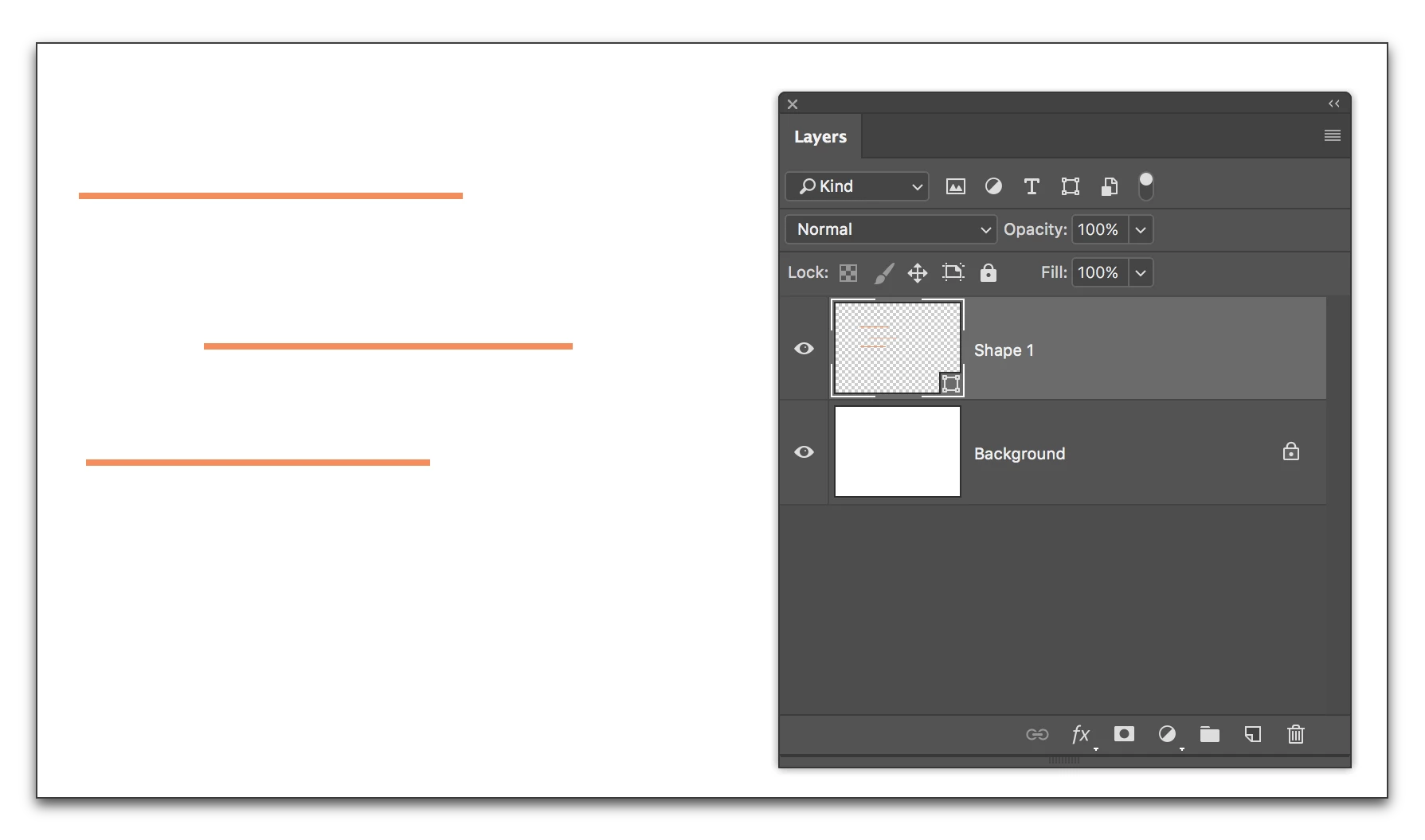
(1) Can I put all of my arrows (shapes) on the same layer, so I can just move or resize whichever one I choose without having to figure out which layer it is on.

... or ...

(2) If I select a layer in the Layers Panel, is there a way that I can select all objects / shapes that are on that layer?  At the moment, the best thing I have figured out is selecting a layer and then using the Direct Selection Tool and clicking on every one of my arrows until I find the one that I can actually select.

Any help will be greatly appreciated.

Thanks in advance,
Paul
    This topic has been closed for replies.
    Correct answer Barb Binder

    I just hold the Shift Control/Command key as I start my second (3rd, 4th, 5th) object to keep them on one Shape layer. You can let go while still drawing if you don't want Shift to constrain the mouse.

    EDIT: It's Shift! not Control/Command to add multiple shapes to one shape layer. I was just doing it on a job and realized I wrote the wrong modifier keys. Sorry!

    I forgot the second half of the question...

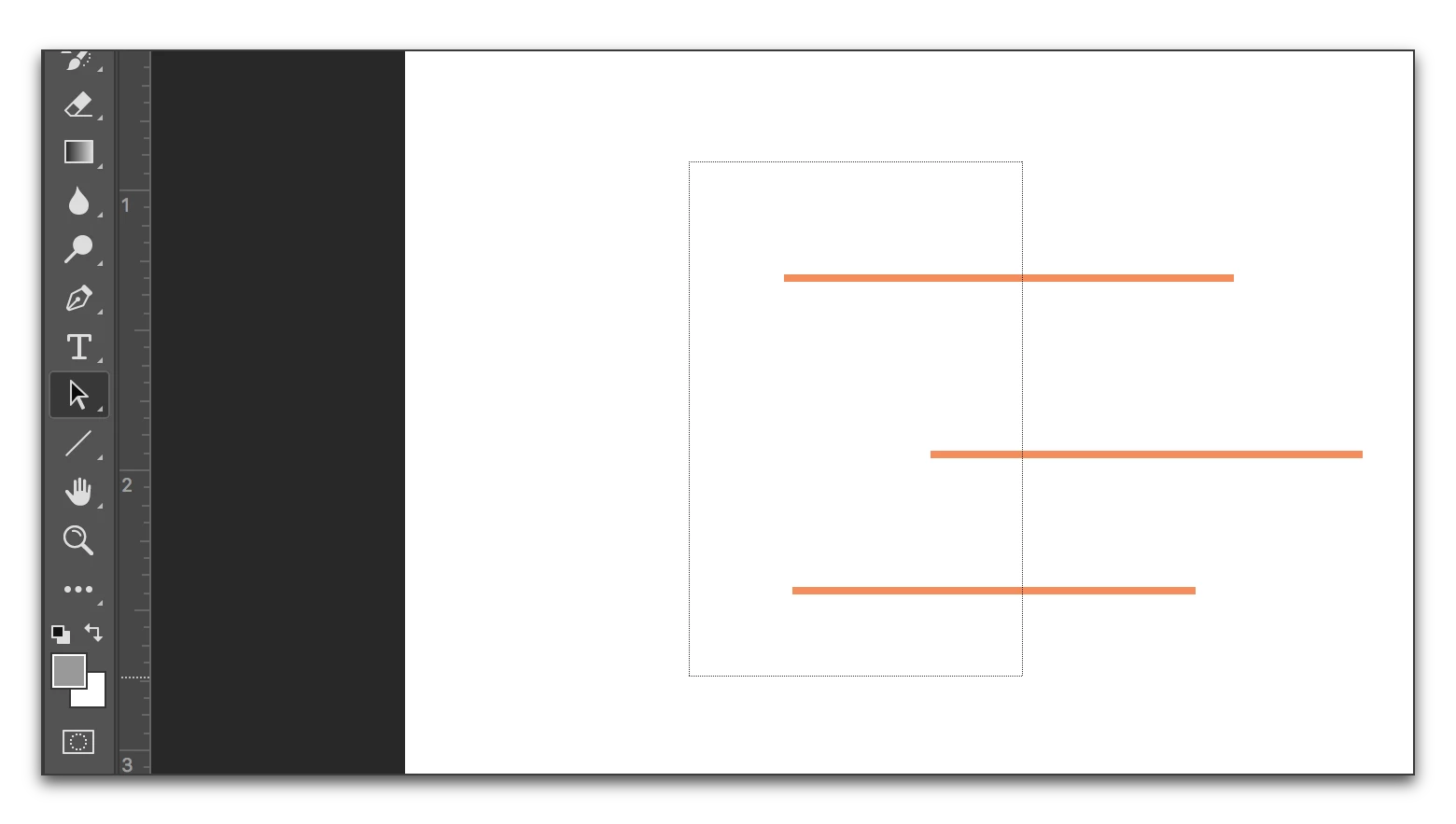
    1. Use the Selection tool (the black arrow not the Move tool) and draw a box around them:
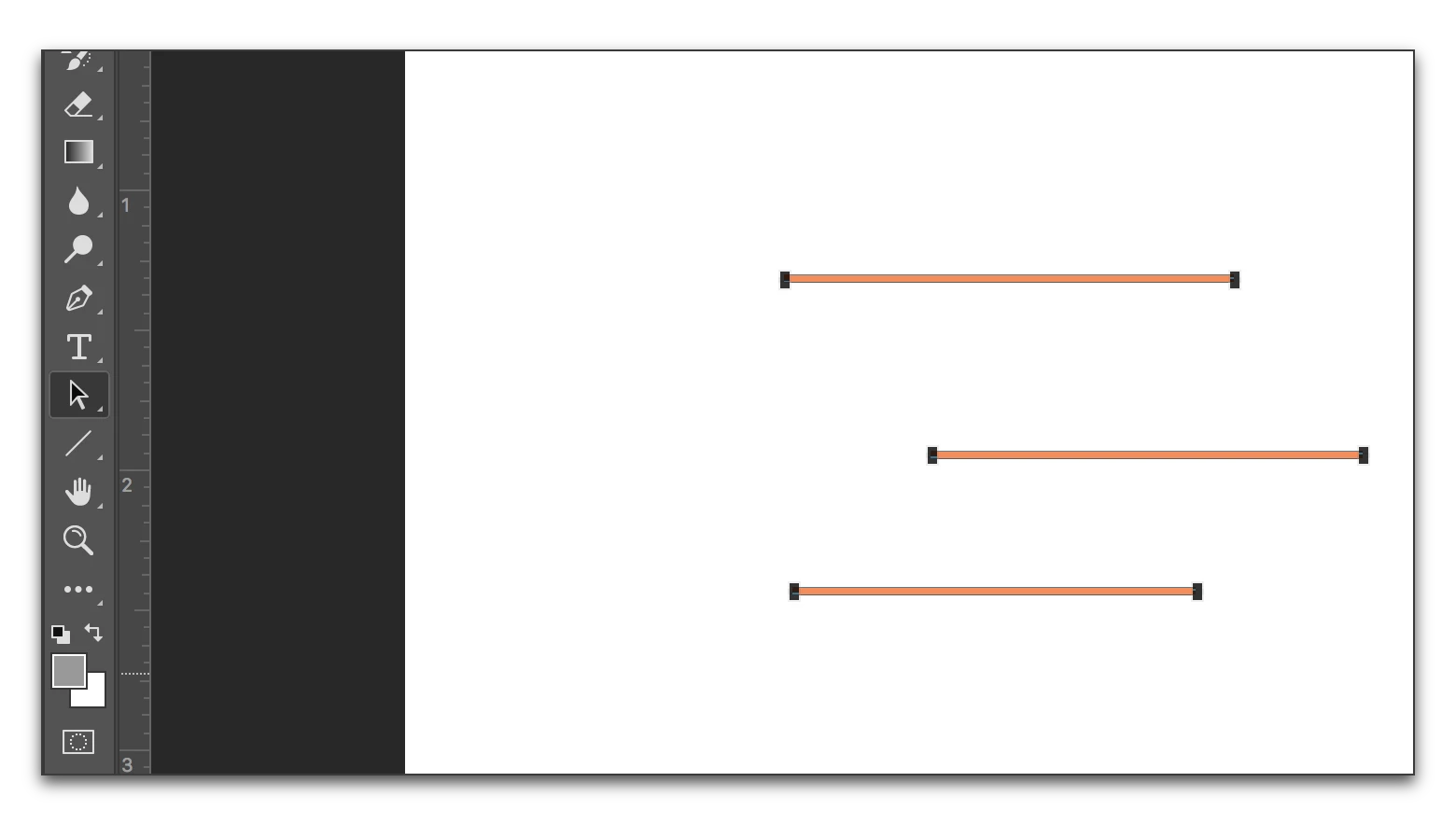
    2. When you let go, they will be selected.

    4 replies

    Barb Binder
    Community Expert
    Barb BinderCommunity ExpertCorrect answer
    Community Expert
    July 25, 2017

    I just hold the Shift Control/Command key as I start my second (3rd, 4th, 5th) object to keep them on one Shape layer. You can let go while still drawing if you don't want Shift to constrain the mouse.

    EDIT: It's Shift! not Control/Command to add multiple shapes to one shape layer. I was just doing it on a job and realized I wrote the wrong modifier keys. Sorry!

    I forgot the second half of the question...

    1. Use the Selection tool (the black arrow not the Move tool) and draw a box around them:
    2. When you let go, they will be selected.
    ~Barb at Rocky Mountain Training
    Known Participant
    July 26, 2017

    Thank you Barbinder, c.pfaffenbichler, Barbara Ash, and Michael - it was hard to choose which of your responses to choose as the correct answer because you all gave me slightly different ways to accomplish exactly what I want while making the task easier.  I really appreciate your help!

    Michael J. Hoffman
    Community Expert
    Community Expert
    July 25, 2017

    Hi Paul,

    Additionally, if you want to create your shapes all on one layer, just change the Path Operations settings in the toolbar. The default is to make a New Layer, but you can change it to Combine Shapes and all your arrows will be on a single layer.

    Mike

    barbara_a7746676
    Community Expert
    Community Expert
    July 25, 2017

    With the Path Selection tool active, you can choose All Layers. That way when you click on an arrow, the layer it is on will automatically activate.

    c.pfaffenbichler
    Community Expert
    Community Expert
    July 25, 2017

    But what a screenshot might have achieved in communicating the issue …

    To select a Layer with the Move Tool selected ctrl-alt click on the arrow you want to edit, then invoke Transform (cmd-T).

    (1) Can I put all of my arrows (shapes) on the same layer, so I can just move or resize whichever one I choose without having to figure out which layer it is on.

    If they are Shape Layers selecting them all and merging (cmd-E) should combine them.