ERAeternal
Participant
January 18, 2020
Question

Photoshop: Color Management Display Mismatch

  • January 18, 2020
  • 4 replies
  • 1506 views

This issue is strangely complicated, so I apologize beforehand... However I'm at the end of my rope as to how to fix this problem.

In short: I do most of my digital painting in another program, and use Photoshop for editing and fine-tuning. I save as a .png with wsRGB.

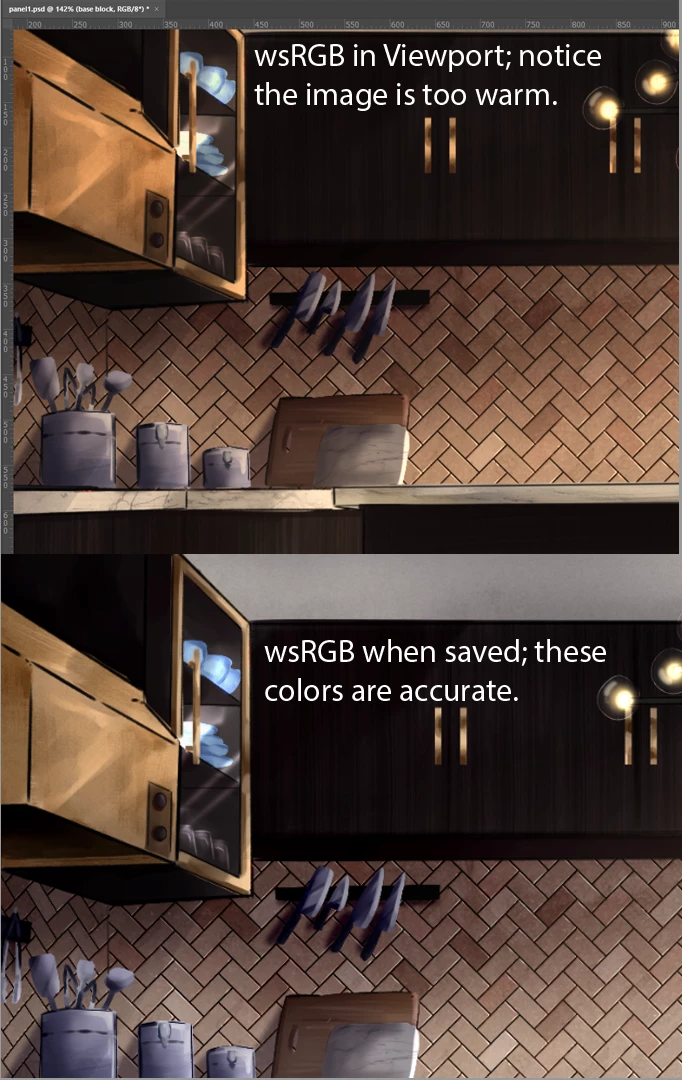
Basically: Saving with the wsRGB profile results in the correct colors, but they do not display correctly in the viewport, obviously making it difficult to make edits accurately. My working monitor's colors (2752H) display the true colors, but saving with this profile results in a much cooler toned image. In order to see what I'm going to be exporting out, I have to use my monitor's RGB but save with wsRGB.


While I have a workaround, I'd really much rather just be able to work in the profile I'm saving with, and be able to see what it's really supposed to look like. I recently upgraded my computer and have a new GPU, and to my knowledge this problem didn't start happening until then.


Images below (sorry they're kind of messy):


This topic has been closed for replies.

4 replies

D Fosse
Community Expert
Community Expert
January 18, 2020

Are you using a calibrator to make your monitor profiles?


If not, you may have received a defective or corrupt monitor profile, distributed through Windows Update. This is a quite common problem.


Photoshop needs to have a good monitor profile to work with, or it cannot display correctly. A calibrator is the only way to give you full control of this vital component, and every serious user should have one.

D Fosse
Community Expert
Community Expert
January 18, 2020

Dave gave you the long version, so here's the short wrap-up:


This is not "strangely difficult" at all - it's very simple and straightforward. But you are making it complicated by disrupting and breaking the native color management chain in Photoshop.


Don't do anything. This all works out of the box.


Photoshop is fully color managed. Most other software does not support color management at all. That means Photoshop is right, and the other non-color managed software is wrong.


Don't use the monitor profile for anything. Don't touch it! If you are using a calibrator, it handles everything automatically for you. It sets the profile up at system level, where Photoshop finds it and uses it, without any user intervention.


Most color management problems come from people doing something when they shouldn't. Sit back. This just works.


ERAeternal
Participant
January 18, 2020

Then why haven't I had this problem before? My colors used to look identical between all programs and I could save back and forth if I wanted to without any problems. This is a new issue which means something must be off. I did a new, clean install of Photoshop and deleted my old settings and the same is still happening.

If it's my monitor's color settings or a graphics driver or... something else, I'd just like to know why Photoshop is now giving me different results when before it did not. 

Legend
January 18, 2020

If it “worked” before when it should not, perhaps everything was set up wrong. Once it’s set up right you will see that only Color managed apps are correct. 

davescm
Community Expert
Community Expert
January 18, 2020

It looks like you are misunderstanding colour management. You don't change and experiment with colour profiles, you use the right one. So the document profile tells the colour managed application which colours are represented by the RGB (or CMYK) numbers at each pixel. wsRGB is irrelevant and was an experiment in wide gamut. The monitor profile should never be assigned to the document as that just disables colour management.  For the document - stick to Adobe RGB, sRGB or in certain images ProPhoto. If you download an image without a profile, from the web for example then assigning sRGB is often a safe start point. 

Just as important is a monitor profile, set in the system that describes , your monitor with its current settings, and a printer profile that describes your printer, ink and paper combination


If comparing to other applications , be aware that a properly set up Photoshop, or colour managed application displays colors correctly. Applications that do not use colour management (there are many viewers and painting applications that do not) do not display colours correctly. So a big question is , is your painting application color managed (i.e. does it use a document profile and the monitor profile when displaying colours on screen) and is it embedding the document profile in the saved document.  If it is then in Photoshop just setting colour management policies to "Preserve Embedded Profiles" will ensure correct display as long as your monitor profile is set correctly in the operating system.


This may help explain further :

Colour Management simple explanation

Digital images are made up of numbers. In RGB mode, each pixel has a number representing Red, a number representing Green and a Number representing Blue. The problem comes in that different devices can be sent those same numbers but will show different colours. To see a demonstration of this, walk into your local T.V. shop and look at the different coloured pictures – all from the same material.

To ensure the output device is showing the correct colours then a colour management system needs to know two things.

1. What colours do the numbers in the document represent? 
This is the job of the document profile which describes the exact colour to be shown when Red=255 and what colour of white is meant when Red=255, Green = 255 and Blue =255. It also describes how the intermediate values move from 0 through to 255 – known as the tone response curve (or sometimes “gamma”).
Examples of colour spaces are (Adobe RGB1998, sRGB IEC61966-2.1)
With the information from the document profile, the colour management system knows what colour is actually represented by the pixel values in the document.

  1. What colour will be displayed on the printer/monitor if it is sent certain pixel values?
    This is the job of the monitor/printer&paper profile. It should describe exactly what colours the device is capable of showing and, how the device will respond when sent certain values.
    So with a monitor profile that is built to represent the specific monitor (or a printer profile built to represent the specific printer, ink and paper combination) then the colour management system can predict exactly what colours will be shown if it sends specific pixel values to that device.

    So armed with those two profiles, the colour management system will convert the numbers in the document to the numbers that must be sent to the device in order that the correct colours are displayed.

So what can go wrong :

  1. The colours look different in Photoshop, which is colour managed, to the colours in a different application which is not colour managed.
    This is not actually fault, but it is a commonly raised issue. It is the colour managed version which is correct – the none colour managed application is just sending the document RGB numbers to the output device regardless without any conversion regardless of what they represent in the document and the way they will be displayed on the output device.

  2. The colour settings are changed in Photoshop without understanding what they are for.
    This results in the wrong profiles being used and therefore the wrong conversions and the wrong colours.
    If Photoshop is set to Preserve embedded profiles – it will use the colour profile within the document.

  3. The profile for the output device is incorrect.
    The profile should represent the behaviour of the device exactly. If the wrong profile is used it will not. Equally if the settings on the device are changed in comparison to those settings when the profile was made, then the profile can no longer describe the behaviour of the device. Two examples would be using a printer profile designed for one paper, with a different paper. A second example would be using a monitor profile but changing the colour/contrast etc settings on the monitor.
    The monitor profile is set in the operating system (in Windows 10 that is under Settings>System>Display >Advanced) which leads to a potential further issue. Operating system updates can sometimes load a different monitor profile, or a broken profile, which no longer represents the actual monitor.


Colour management is simple to use provided the document profile is correct, always save or export with an embedded profile, and the monitor/printer profile is correct. All the math is done in the background.


I hope that helps


Dave


Legend
January 18, 2020

What is the “other program”?

Is it colour managed?

what do you mean by a “viewport”?