
Inspiring
May 10, 2017
Answered

Photoshop deleted Parts of my image by itself????

  • May 10, 2017
  • 2 replies
  • 5041 views

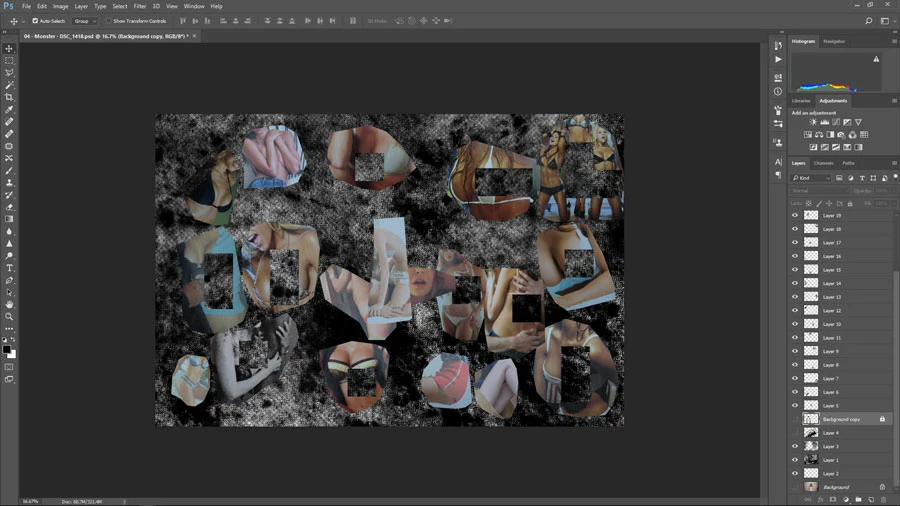
Suddenly there are randomly deleted parts on all my layers. I'm completely baffled. It was fine. Now they are gone. I returned to my Photoshop window after working elsewhere, and suddenly they were there. There are squares deleted from all of the layers.

How is this possible?
    This topic has been closed for replies.
    Correct answer c.pfaffenbichler

    If I remember correctly there may be faulty hardware involved at your computer, so you should run diagnostics if possible.

    Otherwise proceed with general trouble shooting.

    As for the damaged file itself you could try to see if the affected Layers maintained content under the transparency (Layer > Layer Mask > From Transparency, then disable the Layer Mask).

    2 replies

    Participant
    May 13, 2022

    Same thing happened to me just now. Random squares disappeared from all my layers suddenly, plus all my brushes and presets got wiped. I tried to go back in my history and revert the file to a previous save, but the empty squares remained. 
    Ran diagnostics on my computer but everything was normal...

    mayameri
    Participant
    May 24, 2022

    the same thing happened to me too, photoshop randomly cut out big parts of my layers as I saved the file. I just noticed it now as I opened the file again. I am baffled as to how that happened


    Participating Frequently
    June 22, 2022

    I’ve been having bizarre problems with Photoshop lately. Just now, while my paint brush was selected, I turned my head to look at the bigger screen and when I turned my eyes back to my Cintiq, half the drawing was gone! I tried to click back through “History” to see if I could get it back,… nope. All the layers in “History” showed me various distorted versions of that side of the drawing. So I saved what I had and quit Photoshop. Thinking that it might help but all it did was delete the “History” all together. Which I kinda thought was going to happen. Now I have to go and try to remember what I had drawn on that half... which was quite detailed. 

    c.pfaffenbichler
    Community Expert
    Community Expert
    May 10, 2017

    Does turning off »Use Graphics Processor« in the Performance Preferences (Photoshop > Preferences > Performance > Graphic Processor Settings) and restarting Photoshop have any bearing on the issue? (But first try whether stepping back in the History can restore the affected Layers.)

    What have you done for trouble-shooting so far?

    Restoring Preferences after making sure all customized presets like Actions, Patterns, Brushes etc. have been saved might be a good starting point:

    https://helpx.adobe.com/photoshop/kb/basic-trouble-shooting-steps.html

    Inspiring
    May 10, 2017

    Hi! I did try to reset preferences and turn off the GPU. I didn't have any preferences on this machine, so it is a clean slate after the reset. I thought it was a refresh issue, so I closed the file without saving and restarted photoshop. But there are actually holes in each of the layers. It's as though I hit a short cut key for "screw up entire file." I don't understand how the holes could all be diffrent shapes.