
Participant
January 24, 2011
Question

Photoshop eraser not working
  • January 24, 2011
  • 1 reply
  • 66812 views

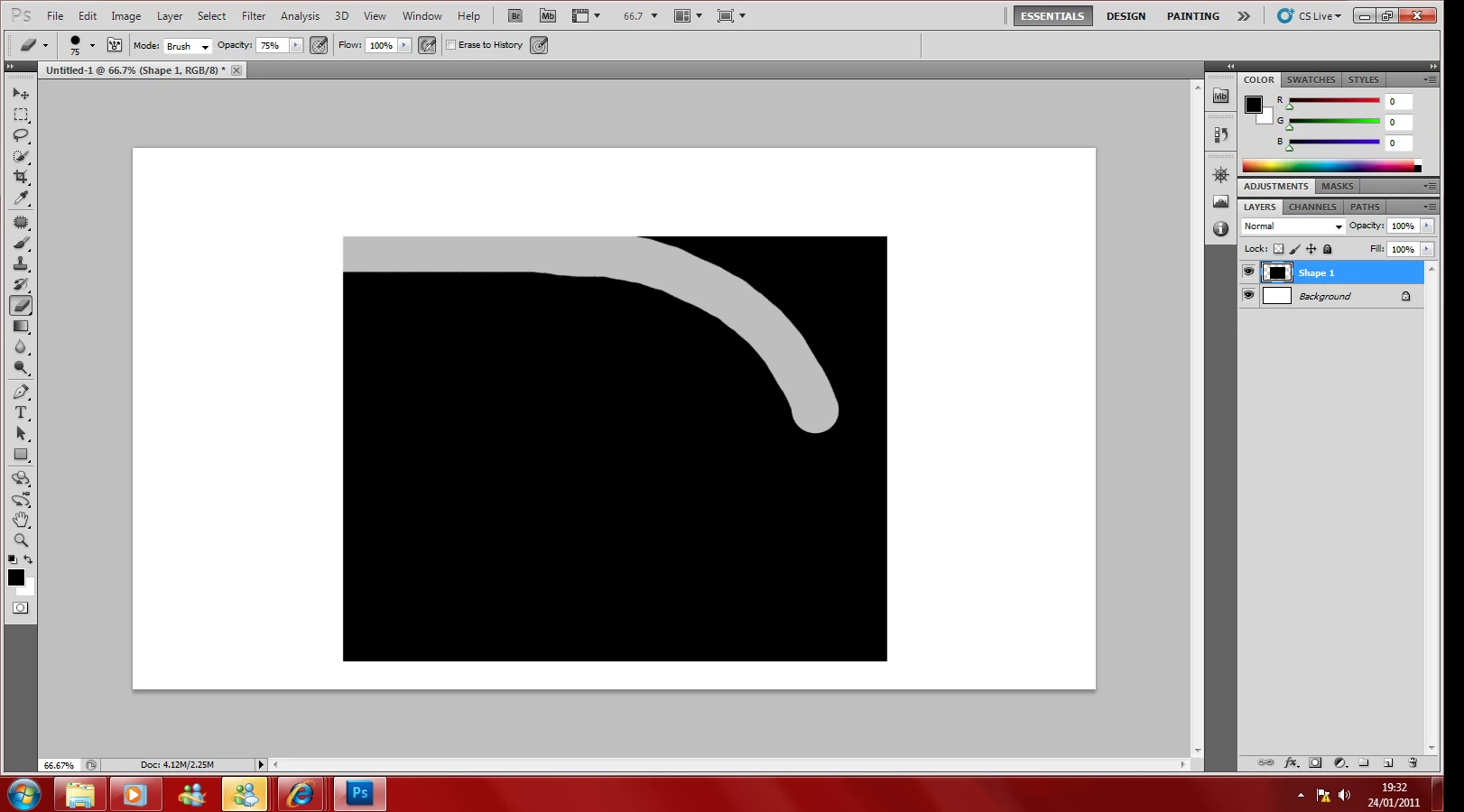
Ok I was just using photoshop, not doing anything differently and I went to use the eraser and set the opacity down a bit and put it over a picture but noticed doesnt erase and make the edges of the picture fade but makes a big line which has just lowered opacity instead of feathering it. It's very strange, have reinstalled Photoshop twice but nothing   Even tried different types of photoshop but to no avail.

    This topic has been closed for replies.

    1 reply

    Noel Carboni
    Legend
    January 24, 2011

    Looks to me to be working, from what you've described.  The Eraser tool, run on a layer, will change the opacity of the layer in the places you brush.

    Are you looking for a feathered edge at the edges of your brush stroke?  IF so, then you will need to change the Hardness of the brush being used to erase with.

    If I'm off base, perhaps you should describe what you're trying to accomplish in more detail.

    -Noel

    Participant
    January 24, 2011

    The hardness has feathered it and has helped yes, but the problem is if I keep the mouse held down and keep going over the area, usually the eraser will erase more and more over the same area but just keeps a constant opacity throughout the whole thing

    Noel Carboni
    Legend
    January 24, 2011

    Ah, you looking for Airbrush mode, then.  That's the little icon to the right of the Flow setting at the top of the Photoshop main window.

    Make sure your Opacity is set to whatever minimum level of opacity you want for the deepest erasure.  You can turn the Flow down to make it erase less aggressively.

    You should read up on how the Opacity, Flow, and Airbrush mode interact.

    You also might want to bring up the Brush panel (Window - Brush menu) and examine the settings in there (e.g., Spacing).

    Brushing in Photoshop has a huge amount of control.

    -Noel