
Inspiring
February 6, 2020
Answered

Photoshop How to Hide Gray Rectangle Background

  • February 6, 2020
  • 1 reply
  • 3790 views

When I open a photograph in Photoshop CC, there's a blank gray rectangle with the tool bar and control panes attached. How do I hide the rectangle? All I want to see is the photo on which I'm working.


Is that called an artboard? Whatever it is, I find the rectanble distracting and don't want to see it.


Many thanks,


Christopher B
Correct answer jane-e

Hi

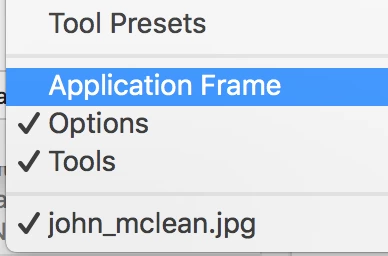
You can uncheck the Application Frame at the bottom of the Window menu to get the view you want. It's enabled by default.

~ Jane


1 reply

jane-e
Community Expert
Community Expert
February 7, 2020

Hi

If you are talking about the large gray area on the canvas, you can right-click it and choose Custom and make it white. If not, please clarify.

~ Jane


Inspiring
February 7, 2020

Thanks for you note. I would like to have the photo only and not any background. In an older version of Photoshop when I open a photo, the photo sits on its own. The tool bar and other panes are not connected. Here's a picture from an older version of Photoshop. 


Is there a way to have that as an opton?


Christopher


jane-e
Community Expert
jane-eCommunity ExpertCorrect answer
Community Expert
February 7, 2020

Hi

You can uncheck the Application Frame at the bottom of the Window menu to get the view you want. It's enabled by default.

~ Jane