
garyw1623995
Participating Frequently
July 11, 2018
Question

Photoshop layer mask feathering strange pattern in mask

  • July 11, 2018
  • 3 replies
  • 2776 views

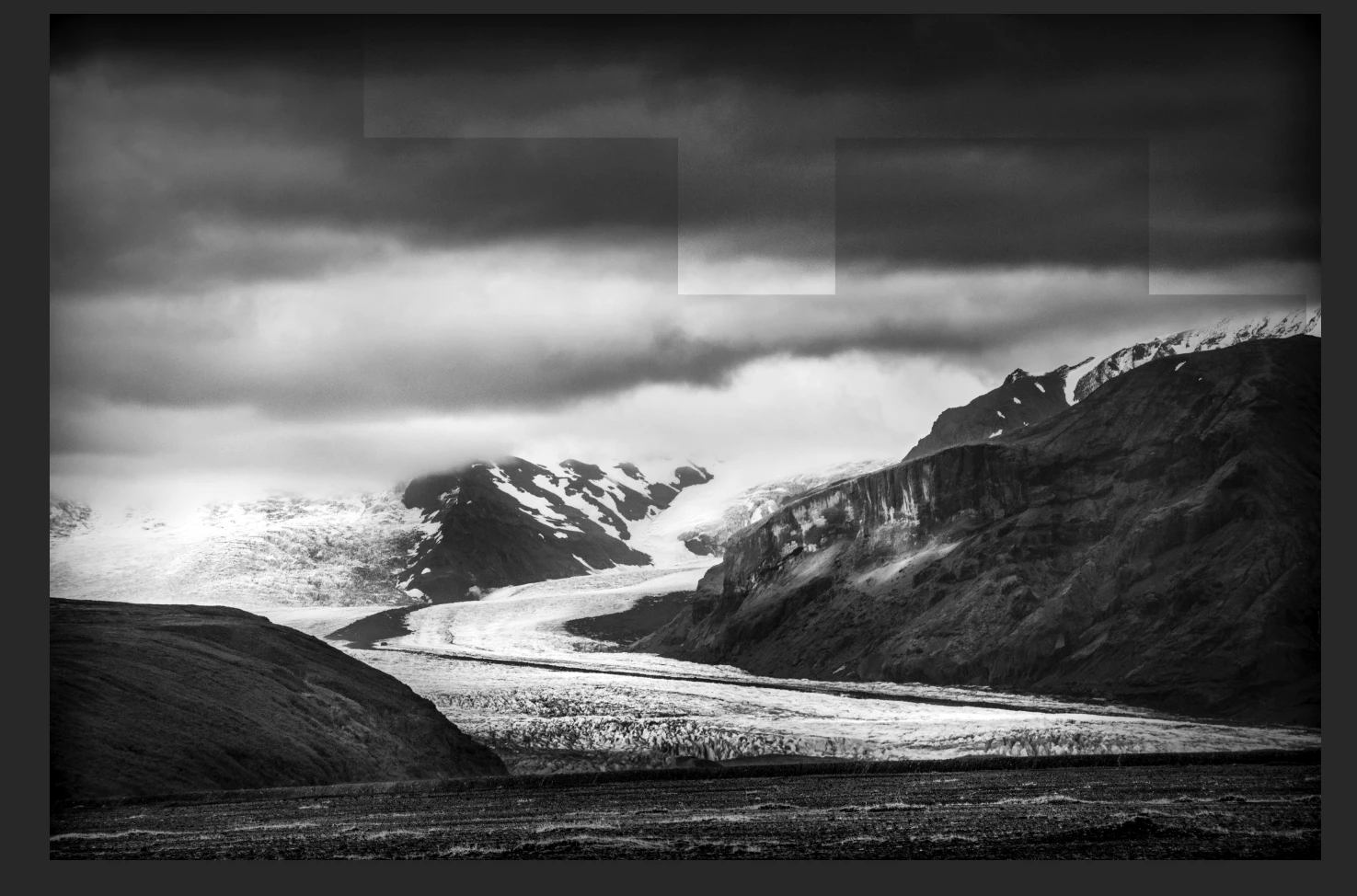
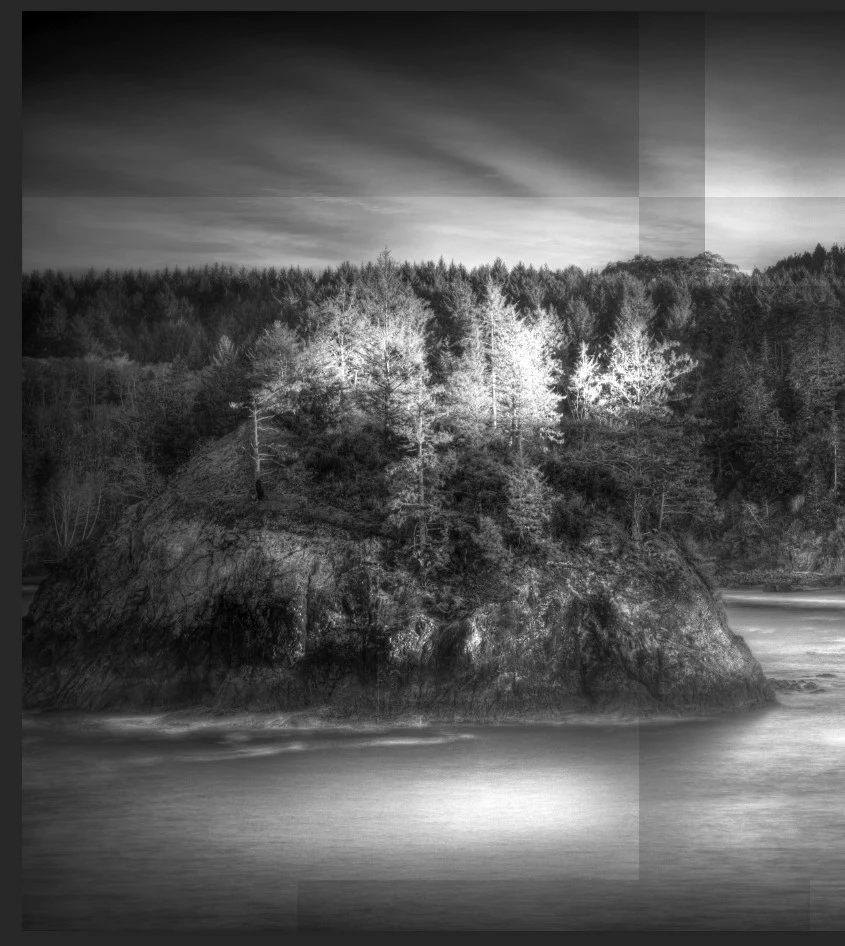
Using Photoshop when I use a tool to circle an object pick an adjustment layer and then feather the mask a strange random pattern appears in the layer or another layer that has a feathered mask. This problem has been consistent for over a year on two computers using Photoshop CC current version with a PC. The problem happens very soon after I complete the layer and start another task. To remove the pattern I have to delete that layer. Any help to resolve this would be appreciated.
    3 replies

    Trevor.Dennis
    Community Expert
    Community Expert
    July 11, 2018

    Garry I'd be interested where that glacier is?

    garyw1623995
    Participating Frequently
    July 11, 2018

    Iceland

    Michael J. Hoffman
    Community Expert
    Community Expert
    July 11, 2018

    Also, another good thing to do would be:

    Alt-click (Windows) or Option-click (Mac OS) the layer mask thumbnail to view only the grayscale mask.

    Do this when you see the odd patterns, and post a screen shot of the greyscale mask.

    Mike

    Michael J. Hoffman
    Community Expert
    Community Expert
    July 11, 2018

    Hi Gary,

    I've moved this discussion from Photoshop Fix (mobile app) to the Photoshop forum.

    To better understand what is happening, please show a snapshot of your complete workspace including the Layers panel. Also please try to capture the screen shot as you’re feathering the mask.

    Mike

    garyw1623995
    Participating Frequently
    July 11, 2018

    Thanks, Another photo with black squares on both sides that are a little hard to see plus the layer panel with the white boxes showing in brightness/contrast 2. I was working in brightness contrast 3 and the shapes just appeared in 2.

    garyw1623995
    Participating Frequently
    July 18, 2018

    Gary

    As a troubleshooting step, go to Preferences Performance - uncheck Use Graphics Processor and restart Photoshop. See if the problem re-occurs with that off.

    Dave


    Dave,

    I thought the Graphics Processor was the answer but today using a different Dell computer with the Graphics Processor not checked the lines appeared again in a new file. I was again using a mask on the brightness/contrast adjustment layer. The lines/boxes appeared shortly after I was done with that layer and while working on something else.  I have attached photos of everything I thought would be helpful to see this issue. I did include photo of just grayscale mask on adjustment layer. Any help would be appreciated. Is there some other place to post or email this issue and photos to get additional help? Thanks, Gary

    @