
Participant
February 23, 2018
Answered

Photoshop opened back to default and lost settings and actions

  • February 23, 2018
  • 4 replies
  • 5997 views

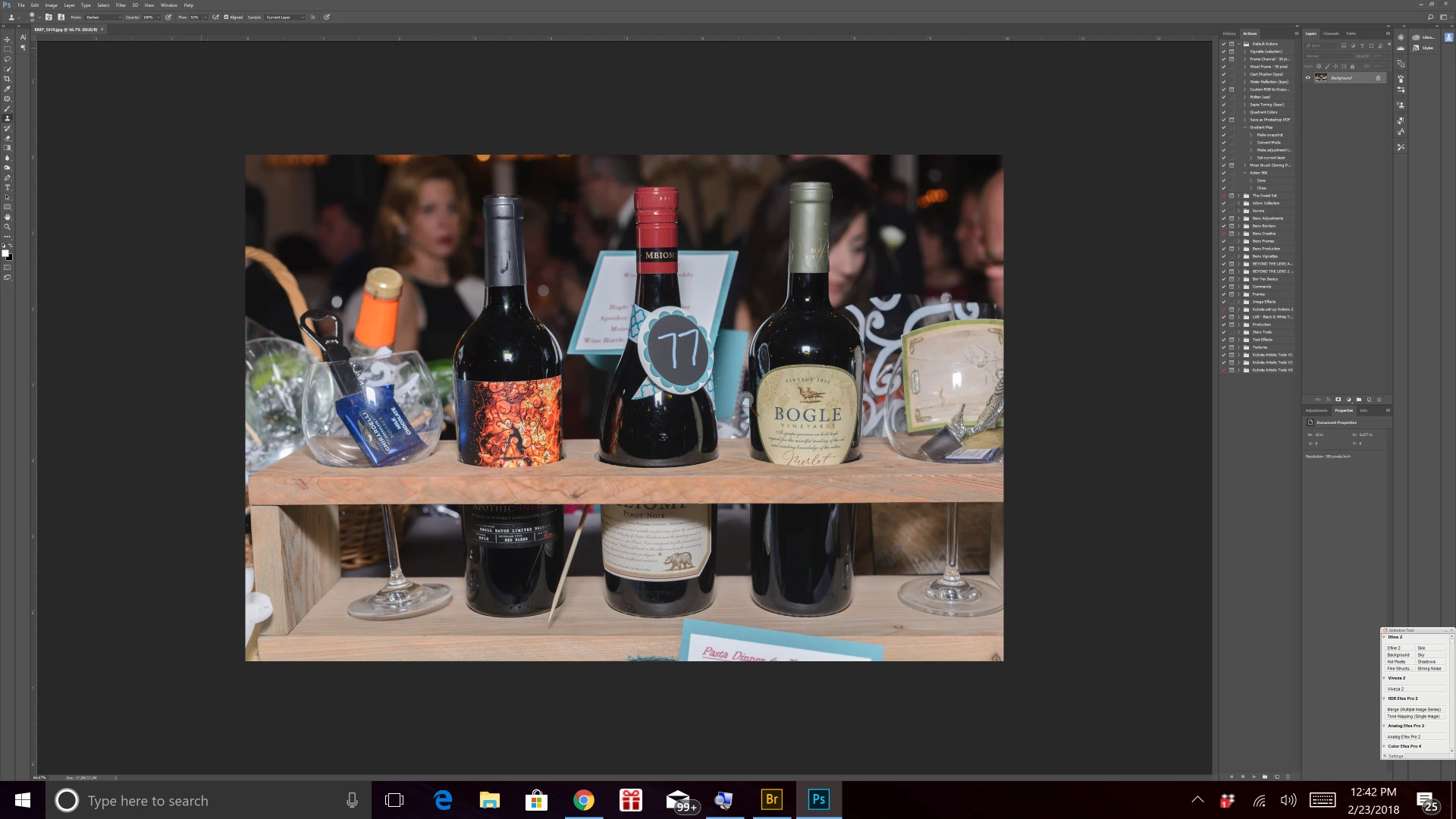
Photoshop closed unexpectedly and reopened back to default settings.  I lost all my actions as well as my screen resolution is miniscule. So I updated photoshop this morning and that did not help.  Cannot read the words on the screen.
This topic has been closed for replies.
Correct answer jane-e

kimm51392508  wrote

I lost all my actions as well as my screen resolution is miniscule.

As already stated, you have to save your actions (and swatches and brushes and gradients and shapes and more) or you risk losing them. For Actions, click on the name of the set (not the action) and choose Save Set from the Actions panel menu. Repeat every time you add or modify an action in the set. Then you can Load Actions from the panel menu and restore the actions in your custom folder. They have an .atn extension.

Be sure to do the same thing for other things you customize as well.

4 replies

Participant
June 30, 2020

So, my very expensive CS6 has just decided to lose all its settings and brushes. Now will also give me very limited options. The help menu takes me to a 'can not find' page. 

Is this seriously how Adobe MAKE you go to their ridicularly priced subscription option? 
If so, they can roll their wads of money and shove it up their backside. I've bled enough dough already. Looking for a Photoshop alternative for basic family/school/work solutions.


jane-e
Community Expert
jane-eCommunity ExpertCorrect answer
Community Expert
February 23, 2018

kimm51392508  wrote

I lost all my actions as well as my screen resolution is miniscule.

As already stated, you have to save your actions (and swatches and brushes and gradients and shapes and more) or you risk losing them. For Actions, click on the name of the set (not the action) and choose Save Set from the Actions panel menu. Repeat every time you add or modify an action in the set. Then you can Load Actions from the panel menu and restore the actions in your custom folder. They have an .atn extension.

Be sure to do the same thing for other things you customize as well.

Participant
February 24, 2018

I had all my purchased actions in a one spot so I just needed to reload them.  It was the actions that I have made along the way that are gone.  I assumed they were saved but apparently not.  I thought I could just reload the workspace action pallette but it didn't work.  From now on I just need to remember to save what I make.

Stephen Marsh
Community Expert
Community Expert
February 23, 2018

Sadly many people have lost their actions by not explicitly saving them.

Prepression: Photoshop – Custom Action File Backup & Migration

Participant
February 24, 2018

I had all my purchased actions in a one spot so I just needed to reload them.  It was the actions that I have made along the way that are gone.  I assumed they were saved but apparently not.  I thought I could just reload the workspace action pallette but it didn't work.  From now on I just need to remember to save what I make.

jane-e
Community Expert
Community Expert
February 24, 2018

Yes, save, save, save, and also test it as you go, Kim.

Create a folder (Set) and name it, then create and name the first action. Save the set (not the action).

From the panel menu, reset the Actions. Your set will disappear.

From the panel menu, load your action set back in.

Modify your action.

Reset Actions without saving your set. You lose the modifications.

Load your action back in

Modify it.

Save your set.

Create a second action in the same set.

And test this: if you save your set before you reset actions, you keep the second action. Otherwise you lose it.

I'm so sorry you lost the ones you had, but now you know!

Best,

Jane

davescm
Community Expert
Community Expert
February 23, 2018

Are you using the latest Photoshop (v19.1.1) with Windows 10?

If so the User Interface is scaled according to the Windows 10 settings at Windows > Settings > Display > Scale and Layout. You must use windows 10 version 1607 or later.

If you are using an earlier version of Windows, e.g.  Windows 7 or Windows 8 the the interface size can be set In Photoshop > Edit > Preferences > Interface  > Text > UI Scaling but is limited to 100% or 200% (on Windows 10 that setting does nothing)

Dave

Participant
February 23, 2018

Yes, windows 10 64 bit.  My screen resolution is 3840 x 2160.  I updated to the most current version of photoshop this morning.

davescm
Community Expert
Community Expert
February 23, 2018

Ok

Type winver into the Windows search box and check you are using Windows 10 version 1607 or later (the current version is 1709)


If you are then go to Windows settings (not Photoshop)  > Display > Scale and Layout and set your interface scale. Photoshop will pick it up and scale accordingly

Dave