Devon, CMI
Participating Frequently
February 1, 2019
Question

Photoshop png or smart object bug

  • February 1, 2019
  • 2 replies
  • 941 views

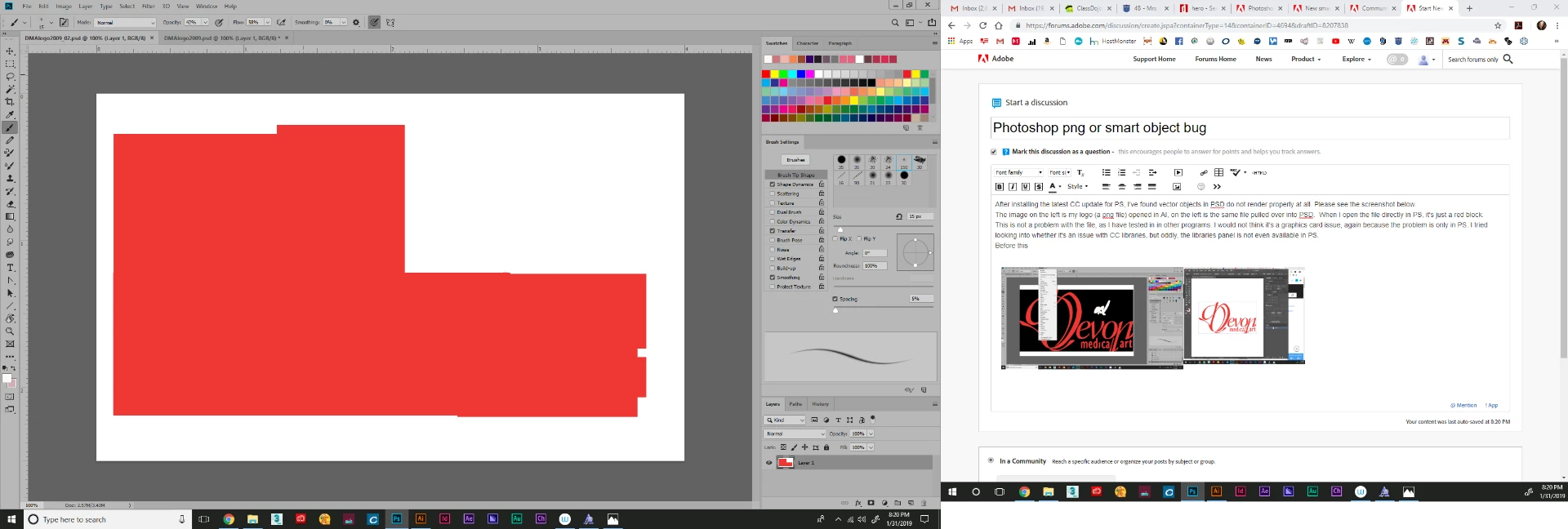
After installing the latest CC update for PS (Jan 2019), I've found vector objects in PS do not render properly at all.

In the first screenshot below, the image on the right is my logo (a png file) opened in AI, on the left is the same file pulled over into PSD.  When I open the file directly in PS, it's just a red block (see second screen shot.)

This is not a problem with the file, as I have tested in in other programs and it displays fine in my windows image preview. I would not think it's a graphics card issue, again because the problem is only in PS. I tried looking into whether it's an issue with CC libraries, but oddly, the libraries panel is not even available in PS on the windows rollout.

Before this big problem, I noticed my layer thumbnails where not displaying properly, but just as blocks of color.

Troubleshooting help would be appreciated.

    This topic has been closed for replies.

    2 replies

    c.pfaffenbichler
    Community Expert
    Community Expert
    February 1, 2019
    the image on the right is my logo (a png file) opened in AI, on the left is the same file pulled over into PSD.

    Say what?

    Why would you open a pixel image in Illustrator to then drag it into Photoshop?

    As for the png can you post it?

    Does it have additional Channels?

    When I open the file directly in PS, it's just a red block (see second screen shot.)

    The title does not contain ».png« but ».psd« so what have you done exactly?

    Trevor.Dennis
    Community Expert
    Community Expert
    February 1, 2019

    The Devon graphic looks like it has had a white background selected and removed.

    A file opened as a PNG won't have any vector content, so as c.p. says, there was no point in using Illustrator.

    However it could have had transparency, but the is evidence of lighter coloured aliasing, which suggests it was a raster layer at some point.

    If the graphic does exist as a vector object, then what I do is combine it with any other layers that are part of the overall graphic, and make them a Smart Object. And then drag that SO to a CC Library.  That makes it always available.

    [EDIT]  I meant to say that when uploading screen shots, can you leave them at full res, and think about what is visible or hidden behind open menus and panels etc.  Things like zoom ratio in the Status Bar, and document tab along with image mode and bit depth. 

    Devon, CMI
    Participating Frequently
    February 1, 2019

    Thank you for trying to help, Trevor.  I'm sorry if my original post was unclear, but of course I can work with the logo artwork in AI and by other means.  I had only intended to demonstrate a problem with my PS display.  If you are able to offer help, please see my reply to Daniel Lane.

    Daniel E Lane
    Inspiring
    February 1, 2019

    Lets just figure out the .AI file into photoshop instead. the PNG is just a whole bunch of yuck. Never going to be as clean anyway...

    Can you give a screen shot of your illustrator project alone with the layers expanded so we can see what's happening in there? It would be hugely helpful...

    Devon, CMI
    Participating Frequently
    February 1, 2019

    Thanks for trying to help, Daniel.  As I said, the problem is not with the png file. The problem is with my PS display.   I'm a professional artist who's used PS for 15 years, please trust me that I am demonstrating a problem that is isolated to my PS display. 

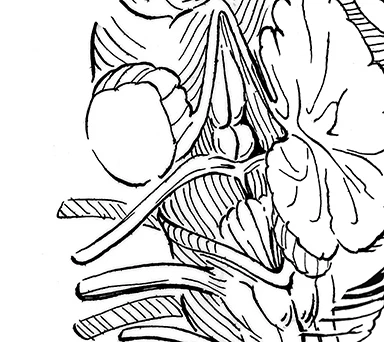
    My Devon logo is artwork originally created in AI and I use it in several places as a png with an alpha channel.  The original AI file is fine, the png is fine in other programs.  I was just using that as an example to demonstrate the problem. I'm starting to think PS is having a specific problem with files with alpha channels. See the new screenshot below.  On the left, I've opened 3 png files in PS (all with alpha channels.) On the right, I've opened the very same three PNG files in windows photo viewer.  I've also opened the very same logo png file that is displaying as a red block in PS.  If you look at the shoulder anatomy image on the far left, you'll see some squiggles with white blocks around them.  This is what happens when I use the paintbrush in that file. My strokes are pixelated and the white blocks appear spontaneously. I have tested drawing with the paintbrush in a new PS file and there are no problems.

    I have already tried the following:

    • Un/reinstalled PS from CC
    • Disabled my graphic processor in preferences > performance (did not correct the problem)
    • Updated my graphics card drivers anyway (no effect)
    • Obviously, restarted my computer several times
    • I use a Wacom pen tablet and over the years have noticed glitchy behavior, but nothing like this

    Your considered help would be appreciated.

    c.pfaffenbichler
    Community Expert
    Community Expert
    February 1, 2019

    Once again: Can you provide the png?

    Why the alpha Channel?

    How exactly did you export it from Illustrator?

    edited