Participant
June 1, 2013
Answered

Photoshop won't let me draw

  • June 1, 2013
  • 6 replies
  • 86888 views

I cannot find anything on the internet or even here about it. I have tried everything and it still won't let me draw.

This website is so confusing and it took me half an hour to get here....Has anyone else had the same problem and fixed it? Or is having the same problem and know what I'm going through...

I have an assignment due very soon and I need all the time I can get to complete it but this is happening...


HELP ME!!!

This topic has been closed for replies.
Correct answer EricaLynneLarson

Hi there VAnJL.

A couple of things could be happening here...

1: You have an area selected and need to deselect it

Do you see the tiny shape of marching ants in the image below? If you have any selections on your canvas—even as small as a pixel or two—you will only be able to draw/paint inside of the selection.
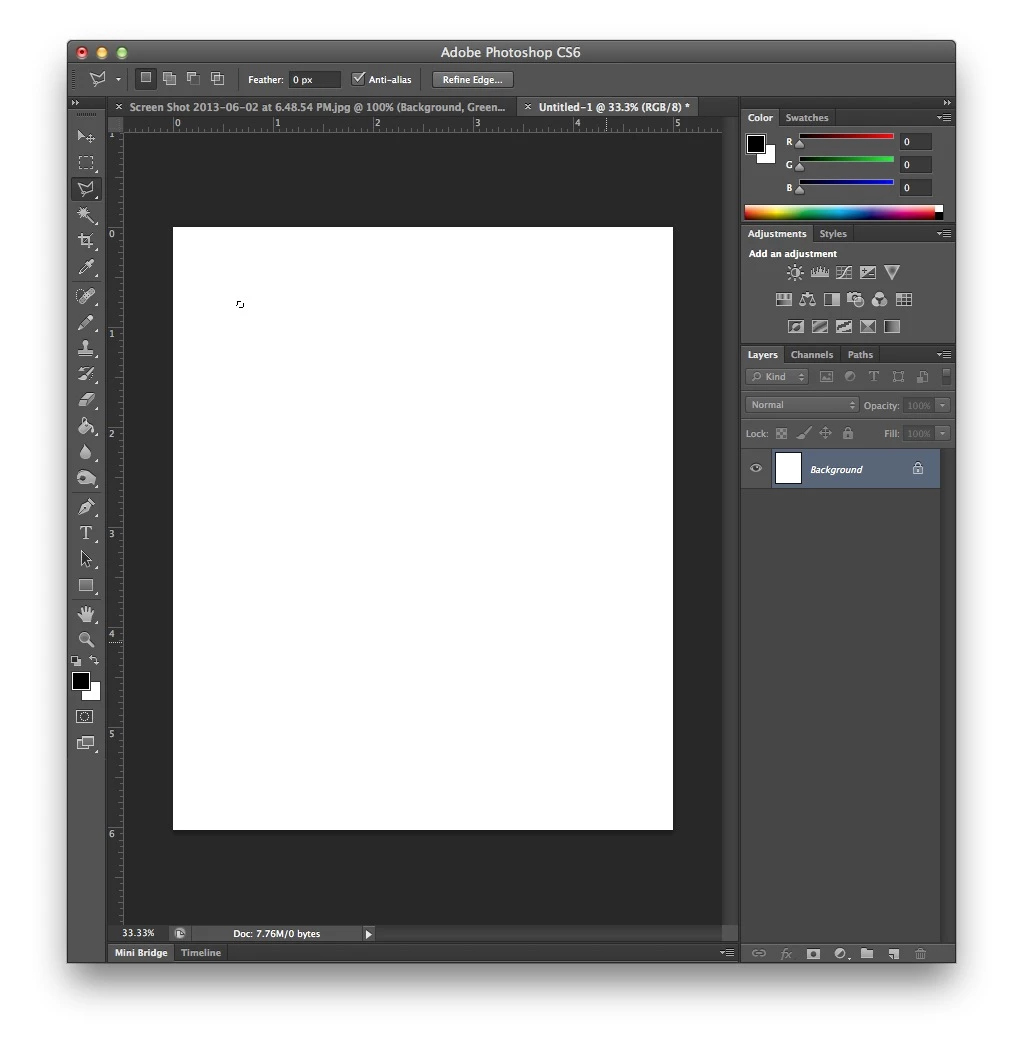
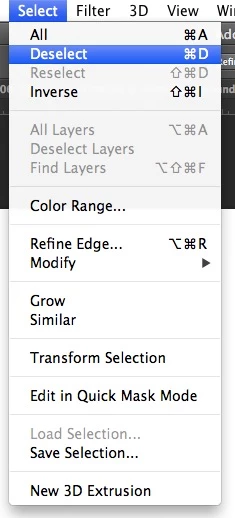
To deselect any selections on the canvas, hit command D, or go to Select > Deselect. You should then be able to paint anywhere on the canvas.
2: You have a buggy tool and need to reset it

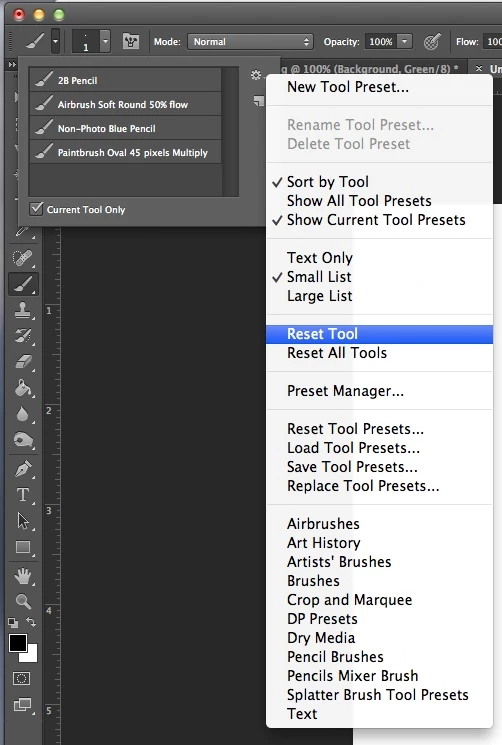
Sometimes something simply goes wrong with a tool. When it happens, you can select the tool, click on the tool's icon in the upper left corner of the window, then click on the gear in the subsequent window that opens. From there, choose, reset tool.
3: You have a buggy tool and need to reset your Photoshop preferences

To do this, follow the directions outlined in the video below. Resetting your prefs will usually solve any strange tool behaviors.

I hope one of these methods solve your problem!

6 replies

briane62083972
Participant
February 6, 2024

This keeps happening to me on the iPad app. I can select the brush tool, select a color,  but yet I can't draw. 

Participant
November 23, 2023

I beleive I am having similar problems as you I am in the process of drawing a peice and everytime I go to draw over my sketch on a SEPERATE layer to do my line art, it creates this white rectangle over what I drew and wont go away unless I turn the layer off and on again. It creates that white rectangle with every brush stroke I make, making progression on this projedt very difficult. If anyone has a salution to this, It would be very appreciated.

Maeroj
Participating Frequently
July 12, 2021

I could not get my Lenovo Active 1 touch screen pen (which has a Wacom driver) or my Huion Inspiroy H620X (which just had its pen replaced) to draw in Photoshop on my Lenovo Yoga 720 15IKB. The mouse worked and the pen and tablet were were choppy in Krita.


I was sure nothing was selected.


I reset the Brush tool.


I could not find the correct driver for the Active Pen 1 but I had an old one installed that was working okay. I know if I need the right one soon I'm going to have to really dig again for it. I have also had to disable my touch screen because it broke today, so I won't be doing that test any time soon. I will update this comment when I get the screen replaced and don't have to worry about keeping peace with my digitizer.


After uninstalling both the Wacom and Huion drivers, restarting, reinstalling just the Huion driver, and restarting again the tablet began to work fine.


I have read once or twice that Wacom doesn't play well with other drawing device drivers, even if it's another Wacom device. The latter was never a problem back when I had the correct driver for my Active Pen 1 and my Wacom tablet installed.


Hope this helps.

January 1, 2020

My pen nib gets stuck !! I just push it in and wiggle it around for a sec then I can draw again, dunno why but nothing else was wrong with the tablet / program I was using. Check your pen nib ! Worked for me.

Participant
November 3, 2020

Other programs work fine unfortunatly for me. 

EricaLynneLarsonCorrect answer
Adobe Employee
June 3, 2013

Hi there VAnJL.

A couple of things could be happening here...

1: You have an area selected and need to deselect it

Do you see the tiny shape of marching ants in the image below? If you have any selections on your canvas—even as small as a pixel or two—you will only be able to draw/paint inside of the selection.

To deselect any selections on the canvas, hit command D, or go to Select > Deselect. You should then be able to paint anywhere on the canvas.

2: You have a buggy tool and need to reset it

Sometimes something simply goes wrong with a tool. When it happens, you can select the tool, click on the tool's icon in the upper left corner of the window, then click on the gear in the subsequent window that opens. From there, choose, reset tool.

3: You have a buggy tool and need to reset your Photoshop preferences

To do this, follow the directions outlined in the video below. Resetting your prefs will usually solve any strange tool behaviors.

I hope one of these methods solve your problem!

Gelw0Author
Participant
June 3, 2013

I figured out the problem. Thanks for trying to help me though

Adobe Employee
June 3, 2013

If you don't mind me asking, what solved the problem? It could help users in the future.

Mylenium
Legend
June 1, 2013

You need to provide system information and a better explanation of what you are trying to do. Your post is pretty generic and it is unclear what you are trying to do or how you do it. Explain the exact steps you are taking, your document settings, what tools you use and so on.

Mylenium

Gelw0Author
Participant
June 2, 2013

I open photoshop, make a new document, click the drawing tool and proceed to draw. When I do that, either I can't see the line I just drew, or I see it then it disappears like someone is pressing undo. I made completely sure that I was doing everything right and I'm not accidently pressing something or I haven't got any un-needed things marked.

I use a wacom tablet, even without that plugged in I still can't draw with my mouse.

Inspiring
June 3, 2013

the drawing tool

And... what tool is that? There is no "Drawing Tool" in the Photoshop Toolbar. Do you mean the Pen Tool?