
Participant
March 4, 2019
Answered

Photoshop won't open files, free transform, or open the layer adjustment panel.

  • March 4, 2019
  • 3 replies
  • 6584 views

Just did the 20.0.2 update and now I can't open files, only click and drag them in. I tried to add a graphic to work with in a new layer, I can't scale the new graphic, if I type in the amounts manually it immediately bounces back to the import size. I can't move the graphic anywhere in the page, it just bounces back to where it was. When I try to open the layer adjustments panel, it won't appear. I tried uninstalling, reinstalling a previous version, same results. I updated again, same results. If I try to get the layers adjustment panel to open, the graphic layer just disappears entirely. Same if I try to transform the graphic using the mouse and keyboard shortcuts.

These are my computer specs:
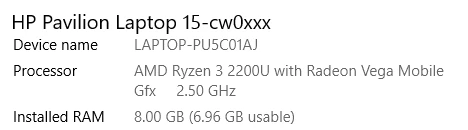
This topic has been closed for replies.
Correct answer Michael Bullo

Have you tried resetting the preferences?

Preferences in Photoshop

"Press and hold Alt+Control+Shift (Windows) or Option+Command+Shift (Mac OS) as you start Photoshop. You are prompted to delete the current settings. The new preferences files are created the next time you start Photoshop."

3 replies

Participant
February 11, 2020

Im tired of having to reset my preferences every three weeks to fix this stupid problem.

Participant
March 5, 2019

Ah that's it!! Thank you!!!

Michael Bullo
Community Expert
Community Expert
March 5, 2019

Fantastic. Happy to help.

Michael Bullo
Community Expert
Community Expert
March 4, 2019

The latest version of Photoshop is 20.0.3. Can you upgrade to that?

Participant
March 4, 2019

Hi Michael,

Yes, I did. Sorry it was when I updated to 20.0.3 I tried to edit my post but it didn't save my changes it seems.

Michael Bullo
Community Expert
Michael BulloCommunity ExpertCorrect answer
Community Expert
March 5, 2019

Have you tried resetting the preferences?

Preferences in Photoshop

"Press and hold Alt+Control+Shift (Windows) or Option+Command+Shift (Mac OS) as you start Photoshop. You are prompted to delete the current settings. The new preferences files are created the next time you start Photoshop."