Scár
Participant
December 12, 2017
Answered

Pigeon Editing Problems

  • December 12, 2017
  • 1 reply
  • 1067 views

Hello guys I have a problem with editing this pigeon so that it look like this for example:
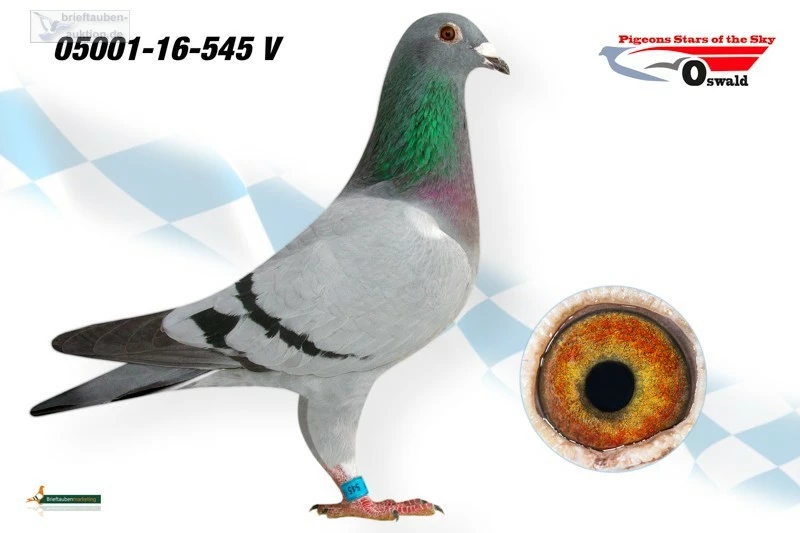
the closest that i came was this one :
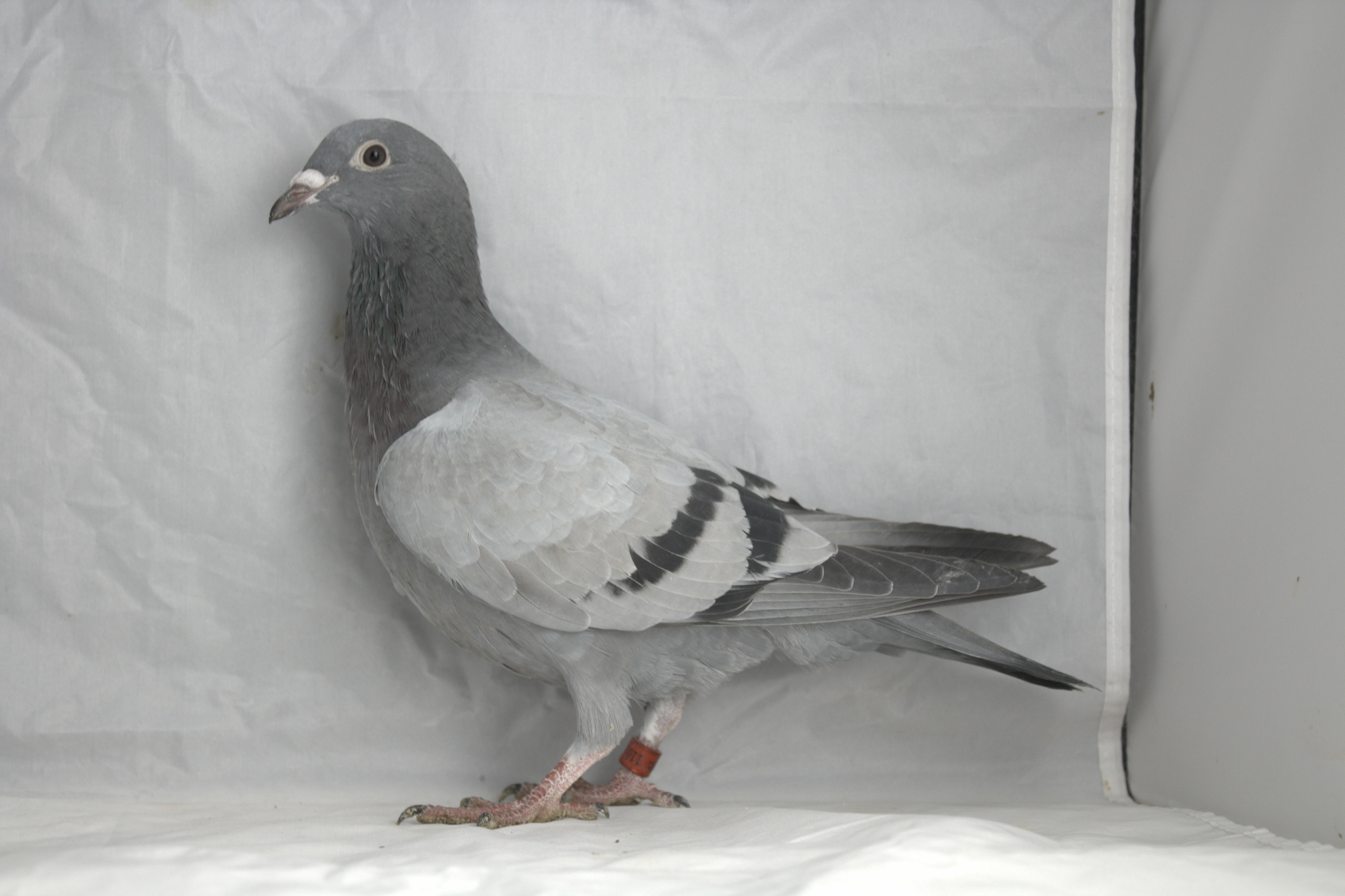
Its looking Weird end very edgy. I am using Photoshop cs6 and i tried to do the bottom one with puppet Warp

if someone know how to help me or somthing like that i would realy appriciate it because it would realy help me and my father out

Thanks in Advance

    Correct answer davescm

    Hi

    For some reason , your second image is not showing - however -I've you are not getting smooth edges have you:

    a. Ensured that the shape layer (your template) contains filled pixels in the shape of the pigeon and transparency around it? White around it will not work for clipping.

    b. Ensured that the pigeon layer above it is clipped. Alt-Click on the border between the layers , in the layer panel, and a small downward arrow appears (as in the screenshot in my last post)

    Dave

    1 reply

    davescm
    Community Expert
    Community Expert
    December 12, 2017

    Hi

    If you want to match the bottom pigeon to the top pigeon shape then:

    a. Draw round the top pigeon with the pen tool and create a shape with a fill

    b. Clip your pigeon image to that shape (Alt click between the layers in the layers panel between the two layers). This will make the shape act as a mask

    c. Pull the pigeon into the shape of the mask with the transform tools and puppet warp. The edges will be clean due to the clipping mask using the shape below.

    If you want a slightly different shape then just adjust the path for the shape tool after step a. to get the shape you want - then follow b & c.

    Draw with Pen tools in Photoshop

    Dave

    Scár
    ScárAuthor
    Participant
    December 12, 2017

    Thank you for youre answer but i am not realy that good with the pen tool so i tried it with this template

    But after using that my picture still looks like this

    i am realy struggeling on this pigeon editing.. yours looks so professional and so clean..

    davescm
    Community Expert
    davescmCommunity ExpertCorrect answer
    Community Expert
    December 13, 2017

    Hi

    For some reason , your second image is not showing - however -I've you are not getting smooth edges have you:

    a. Ensured that the shape layer (your template) contains filled pixels in the shape of the pigeon and transparency around it? White around it will not work for clipping.

    b. Ensured that the pigeon layer above it is clipped. Alt-Click on the border between the layers , in the layer panel, and a small downward arrow appears (as in the screenshot in my last post)

    Dave