July 25, 2019
Answered

Pixelated image after changing canvas size in Photoshop

  • July 25, 2019
  • 2 replies
  • 2490 views

- I opened a PNG file which has some transparency and is 401x82 px.

- I wanted to add empty space above and below, to get the width/height ratio I wanted.

- I used  Image > Canvas Size  to change the image size to 401x111 px.

- This worked, and it extended the transparent background.

- As far as I understand, this should not stretch or affect the image content itself (or pixelate it).

- I saved as PNG, using defaults.

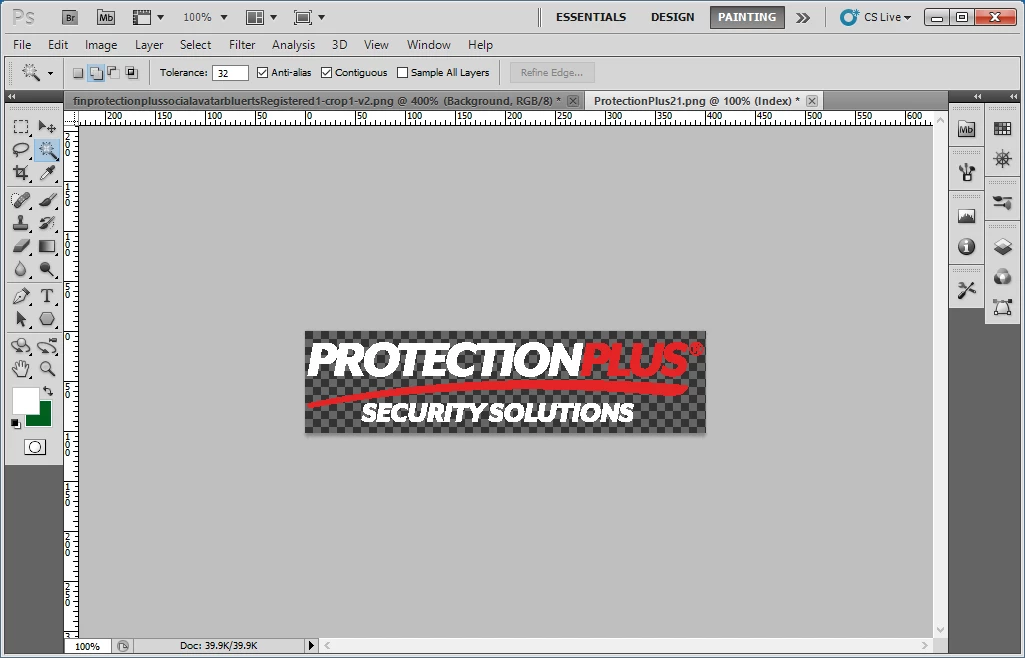
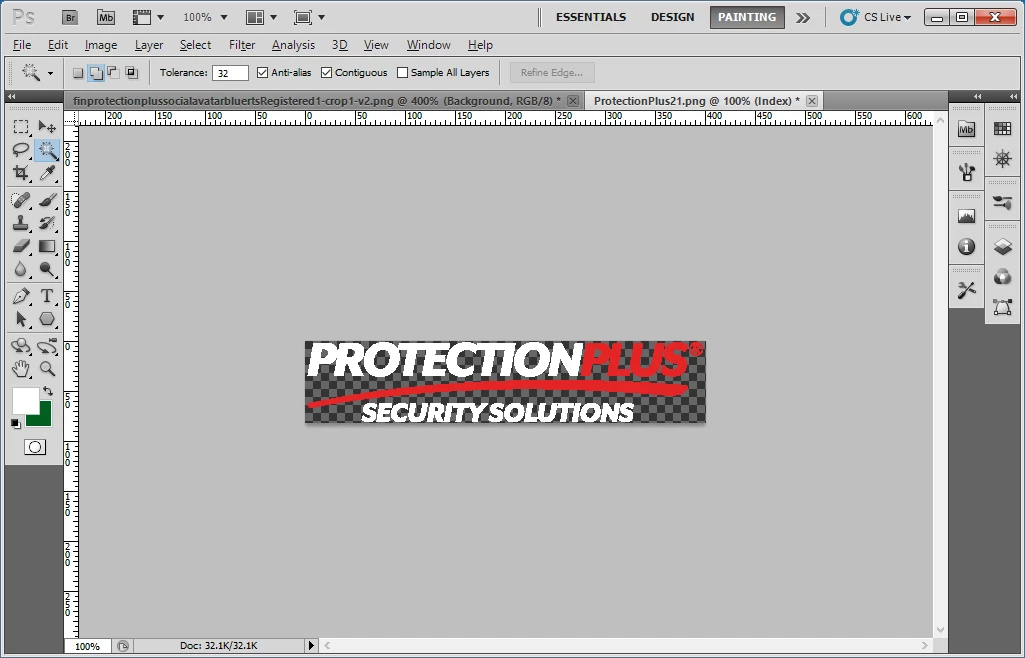
- It came out more pixelated than the original.  I'm viewing it at the same size as the original.

I'm using Adobe Photoshop CS5 v12.
    This topic has been closed for replies.
    Correct answer Mike_Gondek10189183


    I copied your settings PNG24, Bicubic Smoother, increased canvas size and  did not get that result. Below is what I got. Open image below in Photohsop.

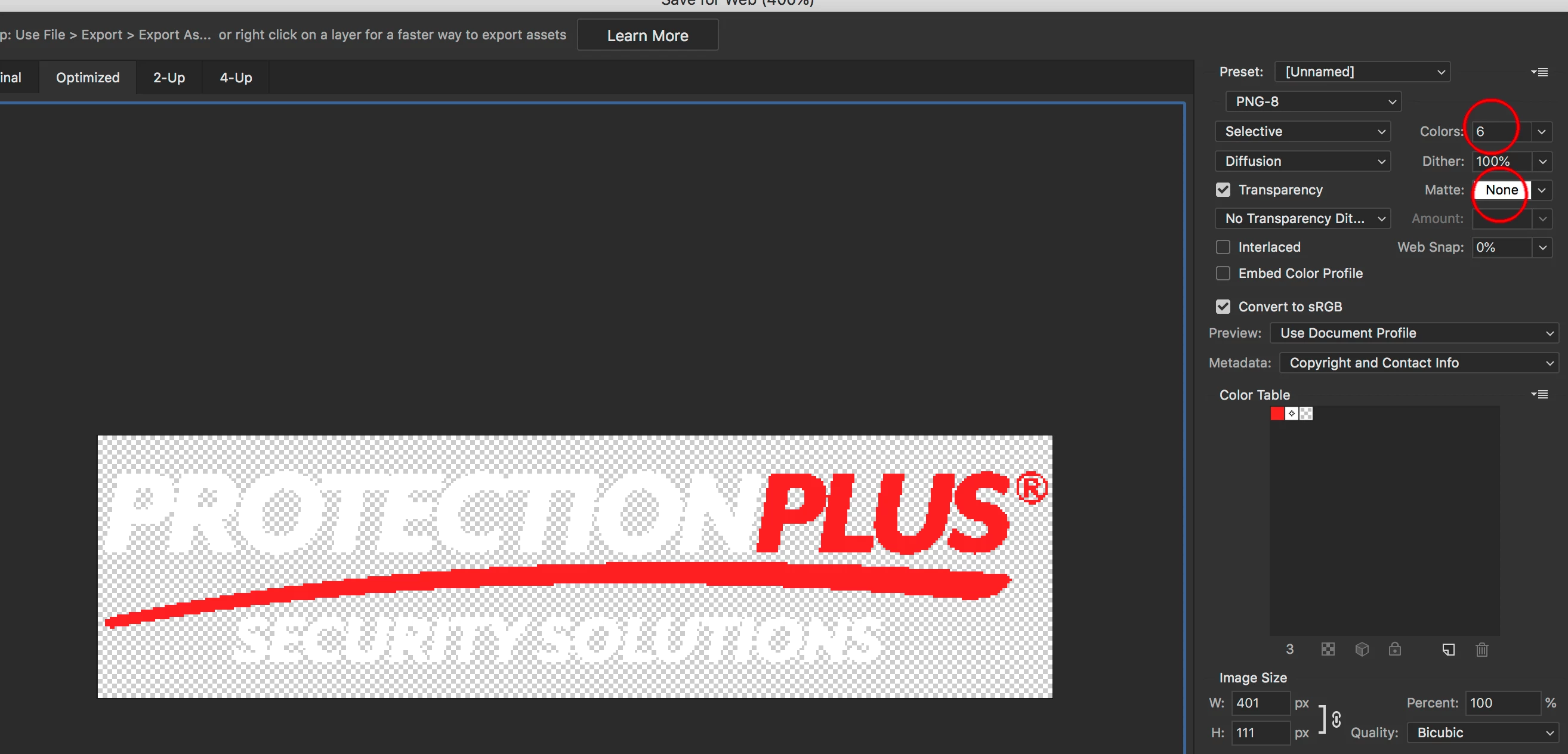
    Earlier you showed examples with indexed color, which leads me to suspect you used PNG-* settings that reduced colors.

    I do not see your issue having to do with increasing canvas size, but the png settings you used.

    The 2nd image you posted ProtectionPlus21-resized1.png, is RGB not indexed, but the transparency of any colors has been removed. The pixels are either 100% or 0% transparent.

    You are using an older version of Photoshop CS5, try PNG-8 with atleast about 24 colors for this image, as PNG-24 might have some bugs.

    2 replies

    Mike_Gondek10189183
    Community Expert
    Community Expert
    July 25, 2019

    After you added the canvas size, did the preview look bad.

         No - Then something in how you made the png corrupted this.

         Yes - Not sure  what could be the issue yet as this looks worse than align to pixel grid issue

    In CS5 if I remember correctly,  File >> Save for web , you can see the preview before you save, and is better for making web images. In newer verisons is  File >> Export >> Save For Web

    Please post the original and final files (using dropbox, google drive or similar), so we can see if you have live type antialising issue or etc.

    July 25, 2019

    I did use Save for web.  I just noticed that as soon as I open the original image in PS (via drag & drop) and view it at 400%, it looks bad already, before I changed the canvas size.  If I view the image in Irfanview and enlarge it the same way, it looks fine.  The original file is a PNG.

    Mike_Gondek10189183
    Community Expert
    Community Expert
    July 25, 2019

    If you used save for web, why would you not share with us your settings??? Hard to review with the transparency checkered pattern shown, might be better to post the original image and he after image.

    c.pfaffenbichler
    Community Expert
    Community Expert
    July 25, 2019

    - It came out more pixelated than the original.  I'm viewing it at the same size as the original.

    Please post the two images or screenshots of both taken at View > 100%.

    July 25, 2019

    Here are the 2 images.  I enlarged them beyond 100% to make it easier to see the pixelation.

    c.pfaffenbichler
    Community Expert
    Community Expert
    July 25, 2019

    I specifically asked for screenshots taken at View > 100% (or the images themselves).

    And please include the document bar in which the name, color mode and magnification is indicated in the screenshots.