lucillen46641511
Inspiring
August 13, 2017
Answered

Preset brush still has a light gray backgound

  • August 13, 2017
  • 3 replies
  • 4023 views

hi all,

i've read the forums and tried all the suggestions and none seem to work.

i create my preset brush, i have the traditional black/white background foreground, and when i create a new document, cap locks off, choose the brush, use the brush on a brand new document and i still get a gray background.  this is driving me crazy! ive googled it and i cannot seem to get the answer.

i use Adobe Cloud, so everything is up to date for photoshop, but i cant figure this out,

please help. what the hell am i doing wrong? the best part is ive made presets before and didnt have this issue or i might have dont remember.

thanks again
This topic has been closed for replies.
Correct answer lucillen46641511

Would you care to elaborate to possibly help others with the same issue? Running off in a huff because we accused you of something you are adamant you didn't do is not helpful. Others might possibly have the same issue.

The only way to get gray in the brush to have added it when you created the brush. Now, if there something else going on that we could not discern from your screenshots, then that's a different story. Perhaps sharing will help others with similar issues.


im not running off in a huff, i know what i did and i just dont like u insinuating i did something i didnt do. if i did something wrong i have no problem admitting it.

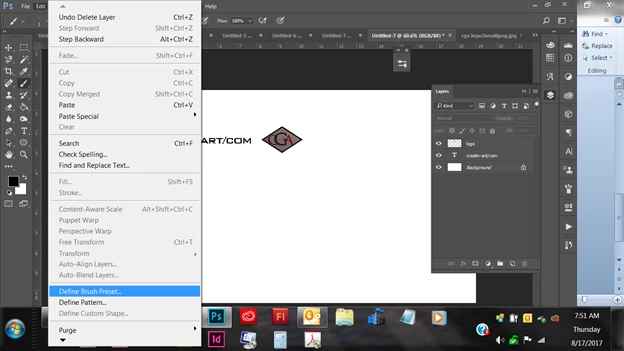
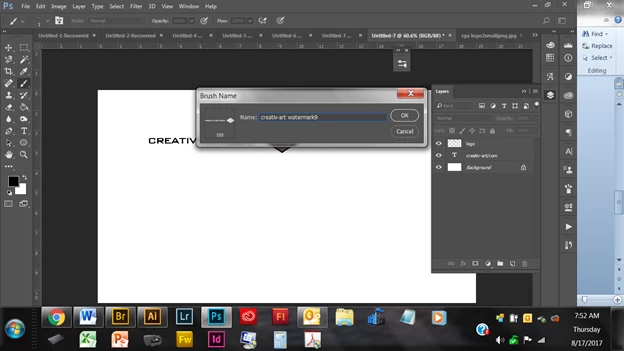
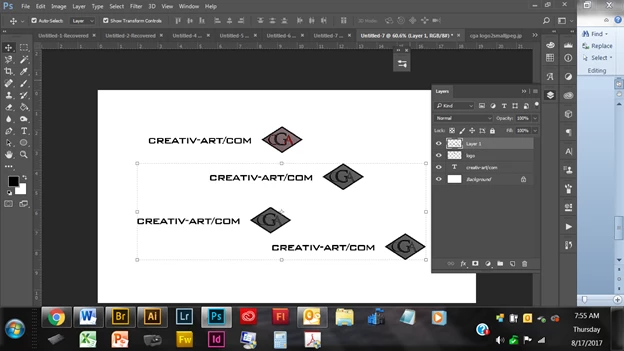
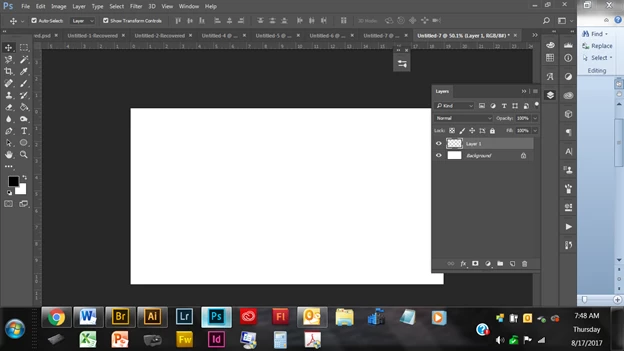
i got it to work. heres the screenshots step by step what i did

the brush that i created is the 3 together, for some reason it worked correctly, NO MORE GRAY... dont know what was wrong.

3 replies

melissapiccone
Community Expert
Community Expert
August 15, 2017

You are getting gray because you saved it with your brush. Simple as that. Your brush should be just the black parts, nothing else. Remake it.

Melissa Piccone | Adobe Trainer | Online Courses Author | Fine Artist
lucillen46641511
Inspiring
August 15, 2017

sorry melissa that makes no sense. how did i save the gray with my brush??? i created the 'brush' with a white background and a transparent and i still get the light gray

melissapiccone
Community Expert
Community Expert
August 15, 2017

I can see it... make a new white layer and place it below the rest - the gray is there. Make your brush with black and white, no transparency so you can see what you are doing.

Melissa Piccone | Adobe Trainer | Online Courses Author | Fine Artist
Trevor.Dennis
Community Expert
Community Expert
August 14, 2017

You say you have defined a new brush preset, but not what it consists of.  Unless the brush is 100% black, it will show as grey.

What does the preset look like against a transparent background before you define it?

[EDIT]

I was being stupid when I asked about the transparent background.  I stamped down a full black brush at 50% opacity.  What I should have done is stamp down shades of dark grey close to black, at 100% opacity.  So defining the left column as a brush preset, and painting with it, gives the results in the right hand column.

Or this (with 25% spacing).

lucillen46641511
Inspiring
August 14, 2017

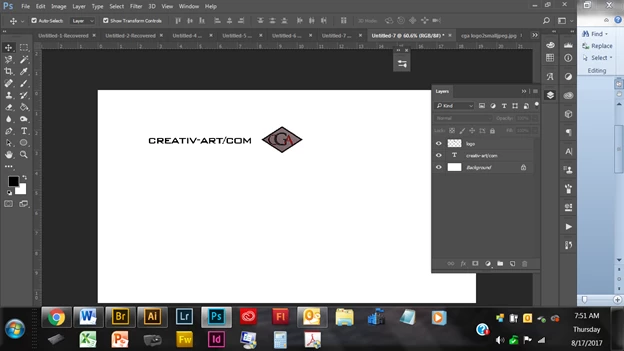
ok i really must be missing what you are saying,  screenshot below of what i created for a brush, it includes the words "CREATIVART@CREATIV-ART.COM and MY LOGO.

i did it on a transparent background and i still get the gray as u can see below. I DO NOT want that gray

as u can see (hopefully) when i use the brush that i created i get a light gray background. you know what never mind ill just deal with it. thanks anyway

c.pfaffenbichler
Community Expert
Community Expert
August 15, 2017

Is the first screenshot the file that is the basis of the Brush tip?

If so it seems to show that you created a grey area.

Start over again with a white bacjkground and keep the layered file.

c.pfaffenbichler
Community Expert
Community Expert
August 13, 2017

i've read the forums and tried all the suggestions and none seem to work.

But you did not tell which the suggestions were – »all« does not exactly seem a clear statement here.

Please post a screenshot including all pertinent UI elements (Brush Panel, Layers Panel, Options Bar etc.) of the image in which you paint.

Also one of the brush tip you created that proofs you created it with true white and black (Colour Samplers and the Info Panel).

lucillen46641511
Inspiring
August 13, 2017

all the suggestions on found on this forum, i.e,

1. make sure to start new document, and press B for brush

2. make sure color mode is on RGB

3. make sure its on B/W background/foreground

4. Use/click brush tool rather than use the B

Here are some screenshots. let me know what else u need.

thanks

c.pfaffenbichler
Community Expert
Community Expert
August 13, 2017

Could you post a screenshot of the image you used to create the Brush tip?

If you apply Layer Style > Stroke (Outer) to the Laye you crushed on does the grey area figure in?

Why a Brush and not a Pattern?