KevenA
Known Participant
July 5, 2016
Answered

“Pressure for Opacity” and “Pressure for Size” hotkey (or in the custom shortcuts feature)?

  • July 5, 2016
  • 3 replies
  • 33114 views

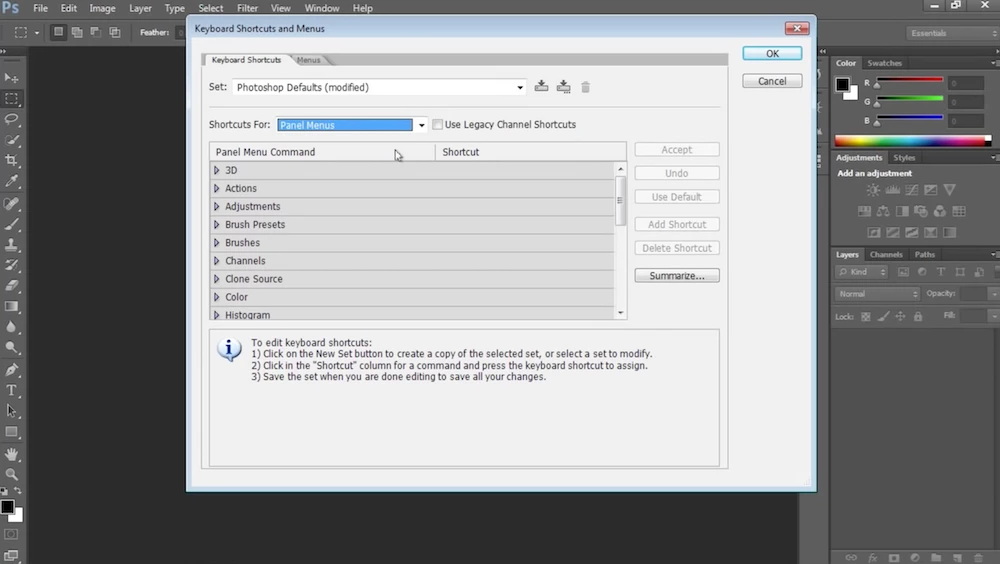
I am setting up Photoshop commands/tools/functions on a Wacom graphics tablet and would really like to have the "Pressure for Opacity" and "Pressure for Size" options as shortcuts—which would be really important to have. There isn't a keyboard shortcut assigned to either of them by default and I tried searching in the custom shortcuts feature, but haven't found anything. It is maybe there, but there is no search box for the custom hotkey feature (which would be super useful to have) and going through all of them would take hours.

Where are "Pressure for Opacity" and "Pressure for Size" in the custom keyboard shortcuts feature in Photoshop?

You can check out the pictures below, to better get what I am referring to.

Regards.
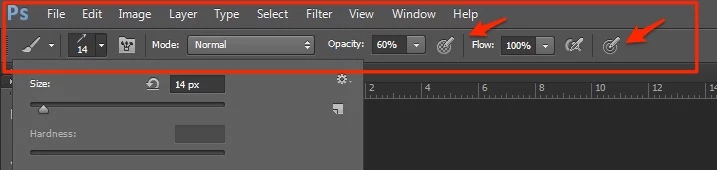

(Not my screen.)
This topic has been closed for replies.
Correct answer Jeff Arola

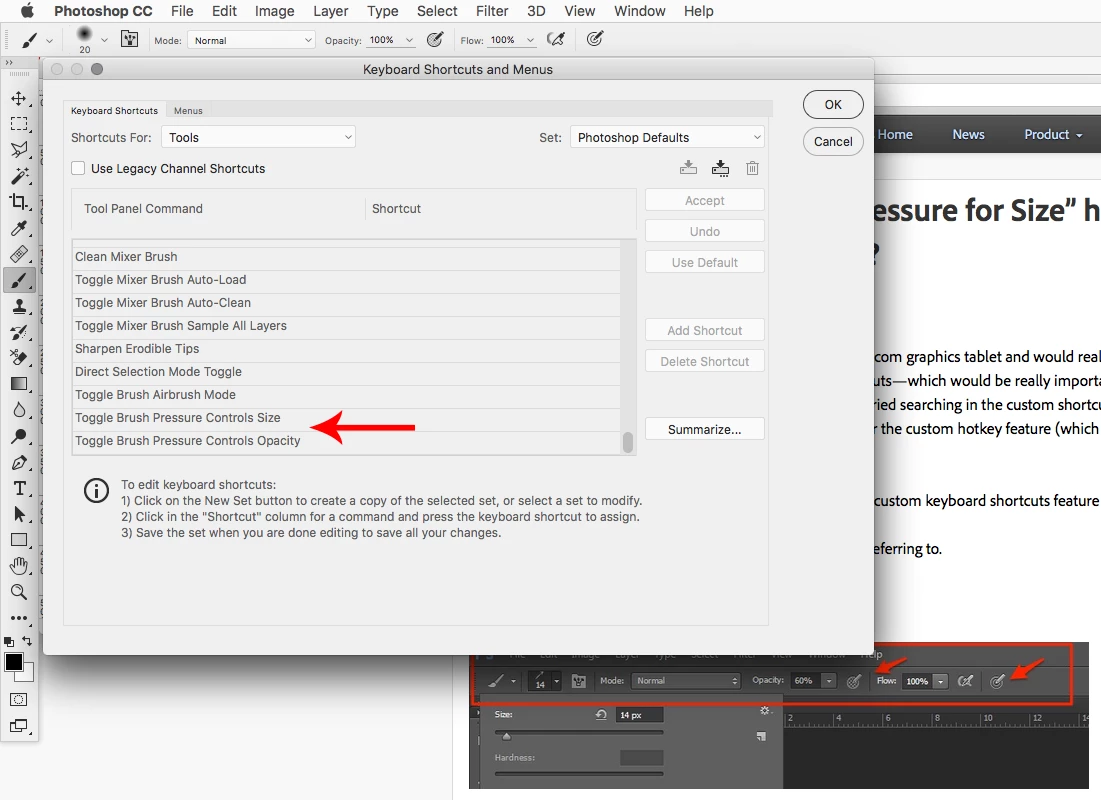
If you have the latest photoshop cc 2015.5 you can assign keyboard shortcuts. for the Override Opacity and Size buttons in

the tool options bar.

Under Shortcuts for Tools.

3 replies

Jeff Arola
Community Expert
Jeff ArolaCommunity ExpertCorrect answer
Community Expert
July 6, 2016

If you have the latest photoshop cc 2015.5 you can assign keyboard shortcuts. for the Override Opacity and Size buttons in

the tool options bar.

Under Shortcuts for Tools.

KevenA
KevenAAuthor
Known Participant
July 6, 2016

I'm not on my Photoshop computer right now, but the options you showed are right below the "Toggle Brush Airbrush Mode", which means that that is probably exactly it!

You are in "Tools", but what section of that window did you find it? Is it completely at the bottom of the list?

Will try it out first thing tomorrow morning!

Trevor.Dennis
Community Expert
Community Expert
July 5, 2016

Another approach.  Select the Pressure affects size brush, and in the presets panel > Transfer, set Opacity to Pen pressure.

Save it as a new brush preset, and name it accordingly

All four states are now there from the bottom button on your pen

Red = none

Green = size

Cyan = opacity

Magenta = size and opacity

They are also there in the recently used presets at the top of the panel, but will look the same unless you set the presets at particular sizes you will remember.  Personally I wouldn't bother.  Just select them from the right click (bottom pen button) panel.

KevenA
KevenAAuthor
Known Participant
July 6, 2016

Thanks for the suggestion, but I've assigned "Space" to move around the image while editing and "Ctrl+Alt" for size and contour (move cursor up or down) on my pen. Both are sooo useful.

JJMack
Community Expert
Community Expert
July 5, 2016

The only way I can think of is to use action or scripts with shortcuts assigned to the actions and script(s).  These would use tool Preset you have added to you Photoshop's configuration Actions and scripts can select tools presets.

JJMack
KevenA
KevenAAuthor
Known Participant
July 5, 2016

I'm not on a computer with a working Photoshop. Thanks for the help, but I don't know if that will work. What I need to do is activate the "Pressure for Opacity" and "Pressure for Size" buttons so that I can activate and deactivate them on a graphics tablet.

If I could assign a keyboard shortcut to them, I could then link them to my tablet, but I can't find where they are in the custom shortcuts feature (or maybe another way).

JJMack
Community Expert
Community Expert
July 5, 2016

Ah, okay. So seeing from your screenshots, you would need a third keyboard shortcut to activate both of them? Most importantly, would pressing one of the two/three keyboard shortcut deactivate any one of them, or would a fourth keyboard shortcut—to have a brush where neither is activated—be needed?


You could write a script that would have a shortcut  key  for.  Each time that shortcut key was used the script would cycle to the next one of the four states. None, Opacity, Size, Both.  You could  instead have four simple actions and four shortcut where you use the shortcut key for the settings you want.  It is not hard to do. For Example:

JJMack