Participant
August 3, 2017
Answered

Problems with copy/paste and selections in photoshop cc

  • August 3, 2017
  • 1 reply
  • 5929 views

Hi everyone

I've been having some troubles with Photoshop and would very much appreciate it if anyone can help me. I've searched several topics and tried different things but nothing seems to work.

  • Copy paste shortcuts don't work (using a mac). I've tried restoring preferences, deleting photoshop and reinstalling it. I've also checked the preferences in photoshop itself the shortcuts are indeed still cmd+c and cmd+v but it still doesn't work.
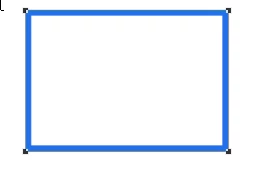
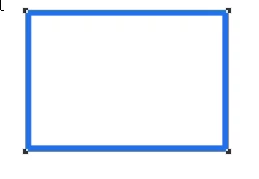
    • Examples: When I use the rectangle tool and try to copy paste it will do nothing except (nothing appears in the screen or layers panel though):
    • When I try to copy and paste an image or other item it will not do anything (not even the paste as seen above). It doesn't create a new layer or anything. The only way to get the same item is by either alt and drag or duplicate layer but this is not my preferred way of copy pasting.
  • When I used to click something in photoshop it would show the selection of the item (i could resize or see the outlines of the item I selected). Now I don't see anything at all. I have no idea what I'm selecting (is visible in layer) and I can't immediately change the size etc unless i use transform.

Am I doing something wrong?

Thanks in advance for any help given!
This topic has been closed for replies.
Correct answer davescm

Hi Sarah

From your description Photoshop is working correctly.

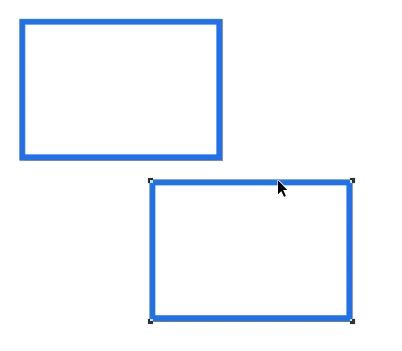
If you use the rectangle tool to draw a rectangle shape then use CtrL+C then Ctrl V you will paste a new path in exactly the same position and on the same layer as the old.

Before:

After

But the path has been duplicated on the same shape layer and you can drag it with the black arrow

Similarly if you make a selection Ctrl +C and Ctrl+V  you will paste into the old layer in the same position .

To get your copy onto a new layer  the simplest way is to use Ctrl+J (Cmd+J on Mac) to make a new layer via copy

Dave

1 reply

davescm
Community Expert
davescmCommunity ExpertCorrect answer
Community Expert
August 3, 2017

Hi Sarah

From your description Photoshop is working correctly.

If you use the rectangle tool to draw a rectangle shape then use CtrL+C then Ctrl V you will paste a new path in exactly the same position and on the same layer as the old.

Before:

After

But the path has been duplicated on the same shape layer and you can drag it with the black arrow

Similarly if you make a selection Ctrl +C and Ctrl+V  you will paste into the old layer in the same position .

To get your copy onto a new layer  the simplest way is to use Ctrl+J (Cmd+J on Mac) to make a new layer via copy

Dave

SarahLiaAuthor
Participant
August 3, 2017

Thanks! It does indeed work as you say with the rectangle tool. Is there any reason why this doesn't work the same with pictures/images? When I copy paste there it does not copy the image, not even on top of the image either.

davescm
Community Expert
Community Expert
August 3, 2017

Unlike a shape layer which can contain multiple sub paths, a pixel layer can only hold one value for each pixel. So copy and paste does work - but unless you change layers it has put the copied pixels back onto the pixel layer in exactly the same place as it copied from. Hence no apparent change.

Dave