Participating Frequently
December 14, 2016
Answered

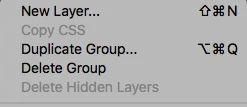
"Delete hidden layers" is greyed out in Photoshop CC.

  • December 14, 2016
  • 2 replies
  • 8118 views

Hi guys, for some reason "Delete hidden layers" is greyed out.

No layers are locked and I am not on a hidden layer. Anybody had the same issue?

Thanks in advance!
    This topic has been closed for replies.
    Correct answer cosmicone

    Thank you! I will do!


    there is a solution for this

    1 select all layers in layers panel

    command + option + A (mac)

    ctrl + alt + A (windows)

    2 lock and unlock all layers

    3 after all layer is unlocked this comand becomes active

    2 replies

    Inspiring
    January 11, 2021

    This worked for me

    gener7
    Community Expert
    Community Expert
    December 14, 2016

    Seems like normal behavior to me.

    I have a file that has the top layer's visibility off. (eyeball icon off) That makes it a "hidden layer". So then the Delete Hidden Layers command is active. I do not have to be on that layer.

    If I make the layer visible by clicking the eyeball back on, none of my layers are hidden, so Delete Hidden Layers is dimmed.

    It means you have no hidden layers in your document. Do you?

    Gene

    Participating Frequently
    December 14, 2016

    Thanks,

    gener7
    Community Expert
    Community Expert
    December 14, 2016

    That is odd. Maybe Photoshop's preferences are corrupted.

    If you have Photoshop CC, then reset them here:

    If you have CS6 or earlier, hold down cmd-opt-shift and launch Photoshop and you should see Delete Settings File? Answer "Yes" and see if that works.
