


Participant
February 28, 2018
Answered

"Not a PNG file" error

  • February 28, 2018
  • 11 replies
  • 192808 views

Hi,

I recently (yesterday) bought a subscription and downloaded Photoshop cc 2018.

I cannot open a PNG file, this is what it says:
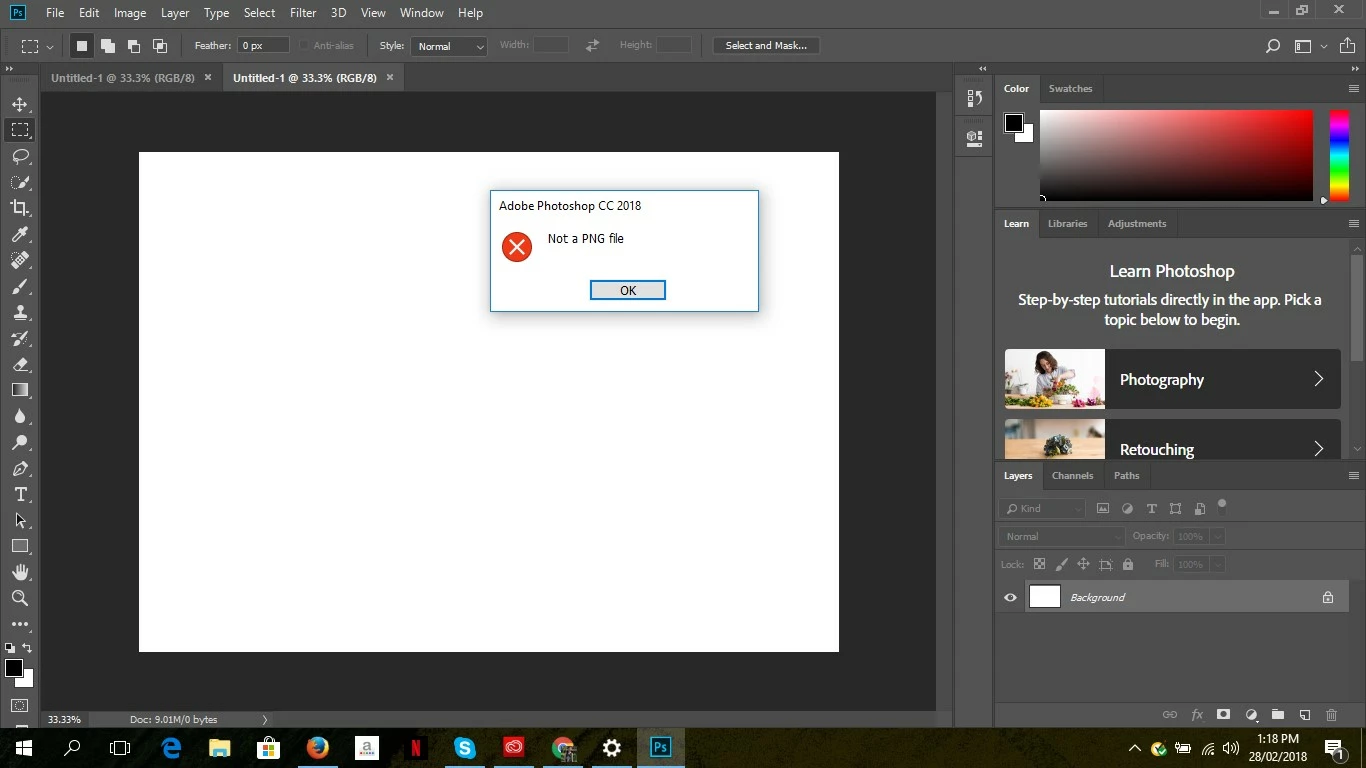
I cannot continue editing without the PNG file I am trying to open.

1. I have tried opening this same file on my other laptop which also has Photoshop cc 2018 installed and it opens perfectly.

2. I have tried uninstalling and then reinstalling but it still doesn't work.

3. I am using windows

This topic has been closed for replies.
Correct answer eaquino1985

You have a very valid point, thank you!

11 replies

Participant
December 28, 2020

1. Before opening in PS, open the file with 'paint'.

2. Save the file by opting 'save as' in the file menu. Save it in 'png' and rename it.

3. Now open the renamed file with PS. Wow!


Stephen Marsh
Community Expert
Community Expert
October 30, 2019

Just in case this helps anyone:


https://prepression.blogspot.com/2017/09/exiftool-automatically-adding-missing.html?m=1


The extension can be either missing or invalid and ExifTool should sort it out.

Participant
June 5, 2019

I had this same error. Work arounds are super annoying and it sucks there isn't a fix to this. I just changed the extension to .JPEG and it opened - which is very confusing. That should work if you don't need any alpha channel.

davescm
Community Expert
Community Expert
June 5, 2019

What's to fix?  You obviously had a jpeg file with the wrong file extension.

Dave

amanh42537203
Participant
February 12, 2019

This is very simple. I just tried it and it worked!

.

.

.

.

.

.

Just Open the file in paint and save it to another location as a PNG file.

Just drag and drop it to PS and it'll work.

Thank you!

Known Participant
October 22, 2018

I found the solution.

Today I got this very same problem. I tried to open a .png file I dowloaded from the internet in my PS to use as a reference. All I got was the "Not a PNG file" box.

I'm using Win10, and the photo viewer shows the image with no problem. However, Photoshop didn't let me to open it.

davescm​ had a good hunch on what was going on:

Hi

Open the file with a text editor/hex editor and see what the first characters say. Those first characters show the file type.

For png they will be ‰PNG , for jpeg  ÿØÿá

I opened it in notepad, and fairly enough the start of the file read ÿØÿá meaning it was a .jpg file. So the extension was wrong.

I went to the file explorer, and turned on the file name extensions:

Now I can see the incorrect .png in the end

and I just changed it into .jpg instead.

Clicked Yes and tadah! Now it works!

Hopefully this will help someone having the same issue!

Participant
December 6, 2018

I opened the image using Paint and saved as a .png and it worked. I don't know why, but it worked.

davescm
Community Expert
Community Expert
August 3, 2018

Hi

Open the file with a text editor/hex editor and see what the first characters say. Those first characters show the file type.

For png they will be ‰PNG , for jpeg  ÿØÿá

Edit : Sorry - I've just realised you are seeing this on more than one file. In that case the adice from gener7 is the best.

Dave

Participant
February 24, 2023

This was brilliant--thank you! I was having the same issue...file says PNG (even when looking at type in properties window of file explorer), yet it would not open. Upon inspection in Notepad, it seems to be a WEBP image. Here are the first characters:

RIFFˆ› WEBPVP8L|›

Participating Frequently
August 2, 2018

This is suddenly happening to me today. I do NOT want a workaround. I want it fixed. Now.

It's not just happening on one image. It's all images.

gener7
Community Expert
Community Expert
August 2, 2018

Supply pertinent information for quicker answers

The more information you supply about your situation, the better equipped other community members will be to answer. Consider including the following in your question:

* Adobe product and version number

* Operating system and version number

* The full text of any error message(s)

* What you were doing when the problem occurred

* Screenshots of the problem

* Computer hardware, such as CPU; GPU; amount of RAM; etc.

Participating Frequently
August 2, 2018

Photoshop CC 2018

Mac OS High Sierra

Not a PNG file
Trying to work in photoshop

  Model Name: iMac Pro

  Model Identifier: iMacPro1,1

  Processor Name: Intel Xeon W

  Processor Speed: 3.2 GHz

  Number of Processors: 1

  Total Number of Cores: 8

  L2 Cache (per Core): 1 MB

  L3 Cache: 11 MB

  Memory: 32 GB

  Boot ROM Version: 15.5064.0

LisaLouLouLou
Participant
June 6, 2018

I had this same problem, except I am on a Mac. Since Macs will allow files without extensions to be used, I tried deleting the extension and Photoshop then opened it. It says it's a Photoshop .psd file even though it was saved as a PNG. I suggest trying to change the file extension to .psd and see if you can open it. I hope that helps.

gener7
Community Expert
Community Expert
June 6, 2018

For Mac users, simply open the suspect file in Preview.app, then select File > Save and the correct extension will be applied. I use it most when .jpeg is appended to what is really a .png file.

ASPM-San Diego
Participant
July 8, 2019

Similarly, on a PC/Windows machine, try opening the file in MS Paint and do a "Save As..." hope this helps.

mglush
Community Expert
Community Expert
February 28, 2018

One other thought--

When you have the "Open" dialog box open -- there is a little drop down menu at the bottom. Change the selection to All files, an see if you can open the png.

Michelle

Dan Rodney
Community Expert
Community Expert
February 28, 2018

To me, that type of error seems like one of the following:

  • a corrupted file
  • It's a different type of file, just named .png. Someone could have renamed the file extension without actually converting the file. For example, they took file.jpg and just renamed it file.png
— Adobe Certified Expert & Instructor at Noble Desktop | Web Developer, Designer, InDesign Scriptor
Participant
February 28, 2018

I understand what you are trying to say, but as I have said - this opens perfectly on my other laptop. So the possibility of it being a corrupted/different kind of file would be zero.

Thank you!

gener7
Community Expert
Community Expert
February 28, 2018

Why not rebuild it? Open it in the laptop that will take it.

Make a "non-destructive change" such as toggling q on your key to enter/exit quick mask. That makes it a changed file.

Save it and try opening it in your other PC

Gene