Participant
November 7, 2016
Question

Refine Edge tool still broken

  • November 7, 2016
  • 4 replies
  • 4747 views

since version 2015.5 the refine edge tool (which is now part of the 'select and mask' window) doesn't work, it unselects areas and adds transparency.

this bug occurred in version 2015.5 (with the new 'select and mask' tool) and since then, 2015.5.1 and the new 2017, haven't been resolved.

nothing seems to work. I tried to update my Nvidia card (GTX970), deselect 'Use Graphcis Processor', delete config file, uninstall and re-install photoshop - nothing helped (just to be clear, I don't have custom brushes / presets /actions in Photoshop).

I tried the help center (live chat) three times, each time they said its a known issue and it will be fixed 'in the next update'. well, Photoshop updated twice (2015.5.1, 2017), but this tool is still broken. I cant get any work done.

any advice?
    This topic has been closed for replies.

    4 replies

    Inspiring
    November 10, 2016

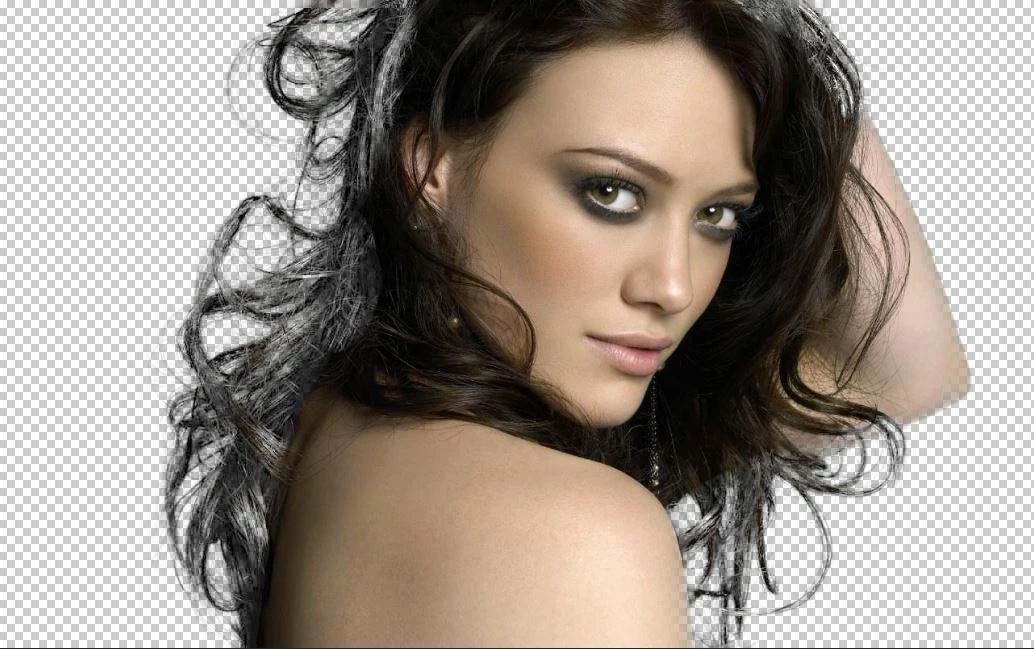
    I have now also tried to mask the portrait (apologies to the copyright holder!)  I get very similar results when viewed in Photoshop, but which look much better when saved as a jpg

    Below is a grab of the screen when in Photoshop, some of the models hair is very transparent

    Saving as a jpeg produced the following

    The hair looks much better

    Terri Stevens
    Legend
    November 11, 2016

    That's a really nice mask. A lot of hair looks transparent when cut out and if you look at a strand of real hair it is semi transparent-so it is bound to look strange if you punch holes in it. A good trick is to increase the density of the hair by duplicating the masked image and using 'multiply' mode . You will find by adjusting opacity the hair looks more solid.

    davescm
    Community Expert
    Community Expert
    November 11, 2016

    I think that is one of the differences we see between the old refine edge and the new (aside from the odd strange selection area artefact ).

    The old seems to give a softer mask and the new a much more "contrasty" edge. The tip in the guide Trevor linked was a good one - to put the image against the new background whilst masking.

    PmPhotographic mentioned issues with decontaminate - I rarely use it - I don't think it works well. Brushing colour on a separate layer is much more effective.

    Dave

    Inspiring
    November 7, 2016

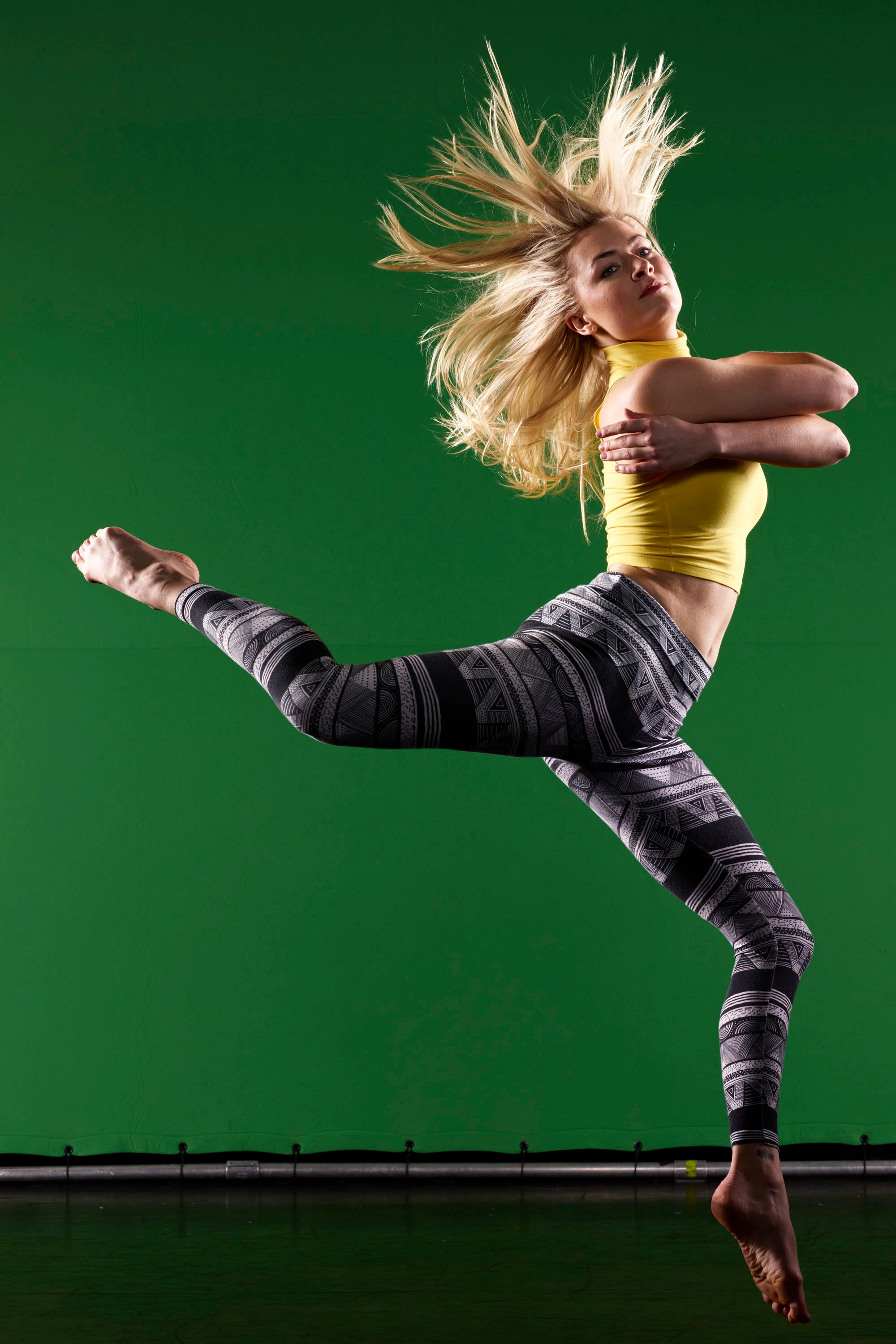
    Well, at least its not just me....  I've also just been trying to mask out some head shots, and like you just can't do it.  The select tool now can't tell the difference between a green background and a highlighted blond hair.  The refine edge tool at times seems to do nothing as far as I can tell, but sometimes works.  Also, the view modes do not always seem to work, both 'onion skin' and 'on black' have at times shown the original image, rather than an extracted one

    Edit, I found that if I selected 'black and white' that the refine edge tool worked well.

    I'm running Win 10 on a workstation with an Nvidea M2000 card

    I also think its running slower than before too

    Is this the same for everyone, or does it work for some, and not others?

    Pete.Green
    Community Manager
    November 9, 2016

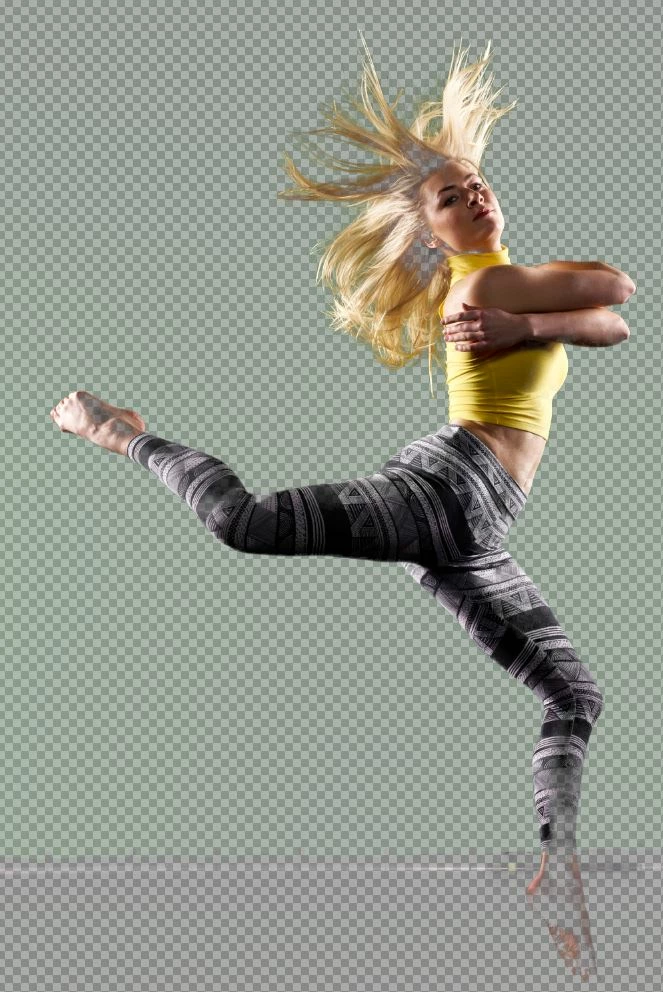
    I just wanted to add my results with these images, each one took me around 5 minutes to complete. This was all done using Select and Mask from start to finish. It looks like my results were quite a bit better than what you were able to come up with. What is your selection workflow PmPhotographic?

    Regards

    Pete

    Pete.Green
    Community Manager
    November 9, 2016

    I think one step that might be helpful, that perhaps is being left out, is the ALT/Option + click with the Quick Selection tool to specify which areas are to NOT be selected. Such as the background and green around the dancer, or the gray background of the model.

    Does this help improve initial quick selection results?

    Workflow would be:

    1. Start with no selection
    2. Open select and mask
    3. (with quick selection tool selected) Option-click the area to NOT be part of the selection
    4. Then start +brushing with the quick selection tool to select the subject.
    5. Use refine edge brush around the edges of the image and over parts of the hair. Note, adjusting the size of the brush can be helpful here. I usually put about HALF of the brush cursor edge within the subject's edge, and HALF of the brush outside of the subject's edge and follow that edge-line where needed.

    Regards

    Pete

    Terri Stevens
    Legend
    November 7, 2016

    Not an image that works well with Select and Mask, although with a nice grey background you'd expect it would.. This is what I got after about 10 minutes with some additional steps-far from perfect. Probably with more time invested it could be improved but far from ideal.

    dylanaverAuthor
    Participant
    November 7, 2016

    Thank you Terri, for talking the time and mask the picture with your system.

    yes, select and mask tool is far from perfect, but the transparency bug is a real deal breaker.

    Terri Stevens
    Legend
    November 7, 2016

    I must admit I'm a little disappointed with Select and Mask 2017. Like you I'm using an Nvidia card but am actually finding the performance is slower now than with CC2015.5. They have included the high quality checkbox so you can work in a draft mode but it's slower than ever before. I think High Quality was always on in CC2015.5 and draft mode just kicked in when you depressed the mouse button during painting, but that arrangement caused people a lot of performance problems so they seemed to have separated the high quality view and it has not worked. I also find my Nvidia driver produces a screen flash when using the bracket keys to change the brush size which gets annoying. I'm not a great believer in automated tools for masking and still use the old fashioned methods like calculations and apply image but can appreciate how infuriating Select and Mask is if you don't have 40 minutes to do something the formal way.

    War Unicorn
    Community Expert
    Community Expert
    November 7, 2016

    You can try to use the old Refine Edge tool for the time being. Hold down Shift while going to Select > Select and Mask on the menu bar. Remember to have a selection already made. Also remember: Refine Edge has been deprecated. It's only a matter of time before it disappears after they get a hold of Select and Mask.

    Mainly, I've always stuck with the outer edges of an object I've wanted to refine. Even the old Refine Edge had a habit of "punching through" an object that should be solid.