
Participating Frequently
August 21, 2019
Question

Remove transparency and just leave shape

  • August 21, 2019
  • 3 replies
  • 2520 views

Hi

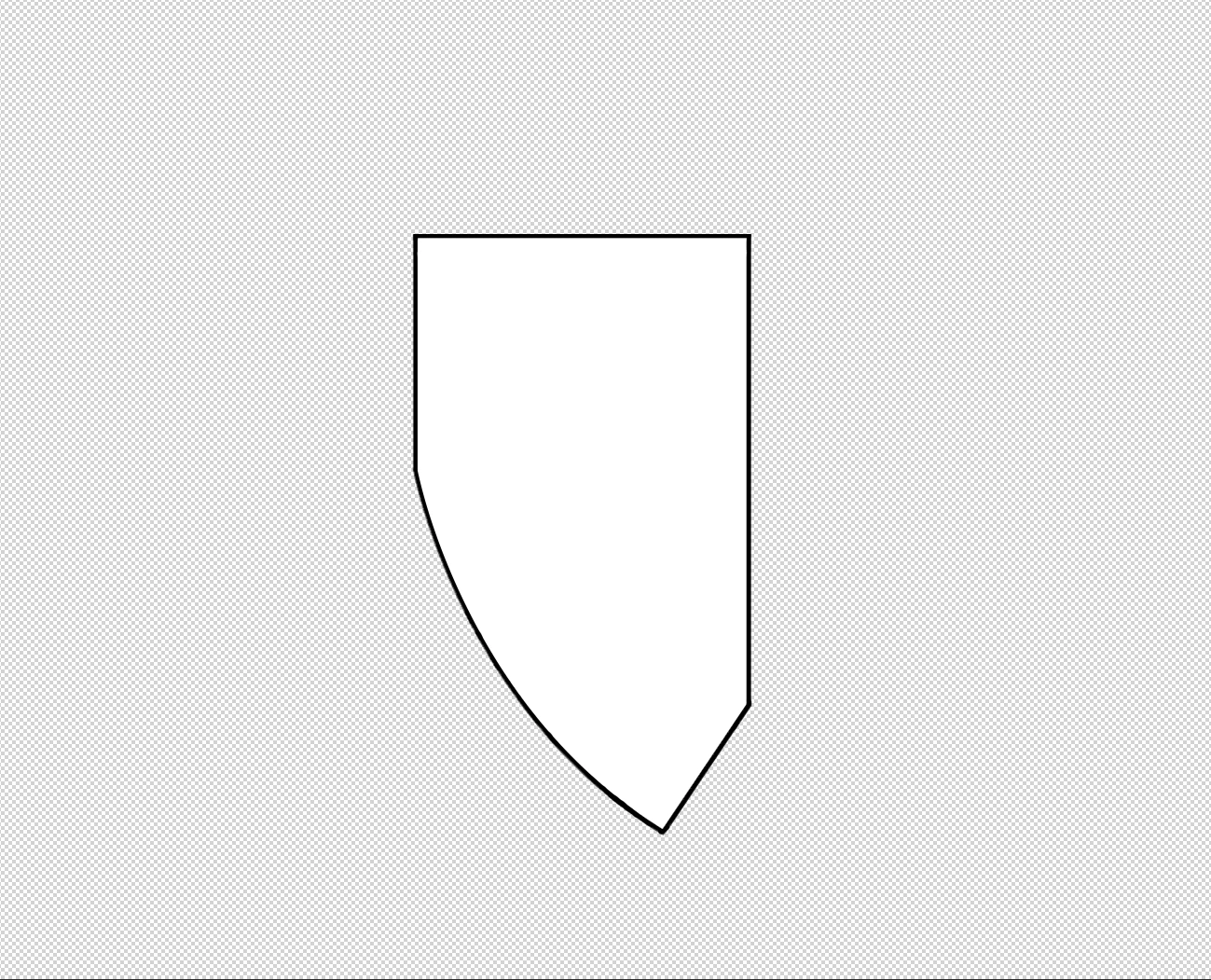
I am trying to remove the transparent background of this png so that the only thing remaining is the white shape. So when I open file it has no transparent background. I need it like that as the tool I am importing the shape into is recognizing the transparent part as 'something' and this is causing issues when I try and line it up with another shape. Have tried trim, copy and paste to new canvas.....any suggestions????
This topic has been closed for replies.

3 replies

jane-e
Community Expert
Community Expert
August 21, 2019

joyh3928363  wrote

I am trying to remove the transparent background of this png so that the only thing remaining is the white shape.

Hi Joy,

Can you explain the part about “the tool I am importing the shape into is recognizing the transparent part as 'something'” and tell us what you are trying to do and what the issues are that it is causing?

All images are rectangles. If you are trying to create a png with an irregular shape (the white part only), that can’t happen.

~ Jane

Participating Frequently
August 21, 2019

ok so I cannot make the file just my strange shape....it will always make it a rectangle? Do you know of any product where I can get it to cut it to just the shape

jane-e
Community Expert
Community Expert
August 21, 2019

Hi Joy,

Adobe Illustrator will do that.

Can you tell us your goal?

~Jane

davescm
Community Expert
Community Expert
August 21, 2019

The file you posted does not have a transparent background - it has a solid layer with the checkerboard pattern.

Select the shape

Invert the selection

Edit > Clear

Export to png using File >Export >Save for Web and ensuring "Transparency" is checked

Dave

davescm
Community Expert
Community Expert
August 21, 2019

Haha - Ged posts faster than I do

Dave

August 21, 2019

Hi

That PNG does not have a transparent background, just select the white part then go to Select > Modify and Contract by 1px next hit Ctrl + J to copy it to a new layer and then go to File > Export > Export As

Participating Frequently
August 21, 2019

I have done exactly as you have said and when I open the file in word I still get a box around my shape like this...so it is transparent but the extra stuff is still there and I need just the shape to appear. I am obviously missing something here :-)

Participating Frequently
August 21, 2019