
bens25887466
Participant
July 11, 2017
Question

removing a background from (inside and outside) an image

  • July 11, 2017
  • 3 replies
  • 1988 views

Hi all,

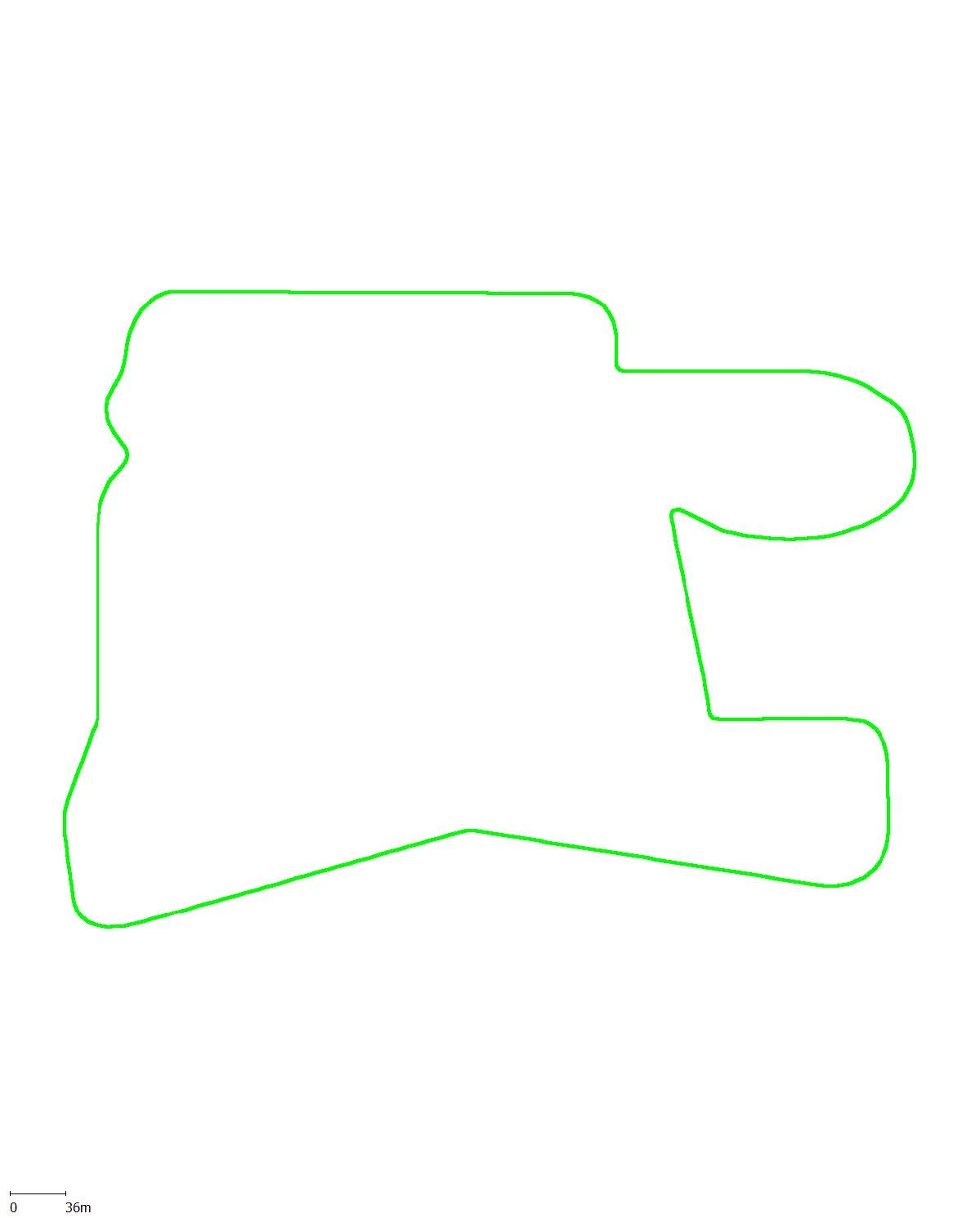
I want to remove the plain white background from inside and outside and image so i can insert it (without a background) into adobe acrobat and have a background appear underneath the remaining image. Very new to photoshop, ive attached the image in question. I looked at a couple of tutorials on youtube but i couldnt get the quick selection tool to remove both the inside and outside background. Also im not sure if i can actually save the image without the internal background??
Cheers,

Ben

    This topic has been closed for replies.

    3 replies

    Participant
    June 13, 2020

    I can delete or change the background of the photos for you. It is also very cheap. Here is my link: https://www.peopleperhour.com/hourlie/remove-the-background-for-20-images/658260?ref=member

    Trevor.Dennis
    Community Expert
    Community Expert
    July 11, 2017

    I'm going to suggest coming at this from another direction, because the green line is not terribly clean, and removing the white is going to leave you with a messy graphic.  So I would select the white outside the green line with the Magic Wand, and invert the selection (Shift Ctrl i).  That will give you the green line with the white interior.

    Use Select and mask and add some Radius and a fair bit of smoothing, and OK it.

    Copy the selection to a new layer, and you have a nice clean template.

    Ctrl click this layer to load it as a selection again, and Edit > Stroke on a new layer choosing Inside — I used 6 pixels.

    Turn off the other layers to give you transparency > crop away the unwanted area, and save out to PNG.

    If you were a Photoshop pedant — sadly like some of us on this forum — you'd convert the selection to a work path (bottom of the Paths panel.

    ou could then clean up the path putting the points in better positions....

    ...and fix some of the minor issues like the two steps in the top line, and the dented curve top right corner.

    Then use Layer > New Fill Layer > Solid Color to make the path into a shape layer, and give it no fill, and a six pixel stroke.  This would be perfectly scaleable to any size you like with no loss of quality.  If you want to use it again, save it as a new custom shape.

    JJMack
    Community Expert
    Community Expert
    July 11, 2017

    Trevor how is CC 2017 Path support working on your machine. If I try to stroke a path on my machine CC 2017 crashes.   I also have a Problem in CC 2015.5 stroking a path with the quick selection tool.  I find I need to keep using CC 2014. I just installed the latest Windows 10 preview a couple of days ago so so my Windows releability histry is short.  I just tried to stroke a path with CC 2017.  CC 2017 still crashes on me.  Actually produces three crashes Photoshop.exe and two in Adone Spaces Helper.exe in library module libcef.dll. I read disabling OpenCL works around the bug.  It does not on my machine. And the Nvidial Gforce experience application is not on my machine I use a Nvidia Quadro adaptor not a gforce adaptor.

    JJMack
    Trevor.Dennis
    Community Expert
    Community Expert
    July 12, 2017

    JJ, I can't say that I have found any issues to date

    Paint brush fully hard

    Same again with simulate pressure

    Smudge 10%

    I've tried most of the tools without any problems.

    I've seen the libcef.dll error on this forum before, and there is an Adobe help page

    Photoshop crashing due to libcef.dll

    Do you have the NVIDIA Geforce Experience installed?  I don't picture you as a gamer, but I know you have grand children, and I get the impression you are a soft touch with them.  

    OK, just read your post again, and I see you don't have it installed.  What are your GPU > Advanced > Drawing mode settings?  Have you tried rolling back the Quadro drivers?  Do you use a 30 bit display, or have it checked in Preferences?

    Have you seen this post from RK?

    Adobe "Spaces Helper process", how disable it?

    davescm
    Community Expert
    Community Expert
    July 11, 2017

    Hi

    Right click on the layer in the layers panel. From the menu that opens choose Blending Options. Then in the dialogue pull the Blend If This layer slider to the left

    Dave

    bens25887466
    Participant
    July 12, 2017

    Thanks Dave