Known Participant
June 12, 2017
Answered

Replace my design In All Mockups With 2 SmartObjects

  • June 12, 2017
  • 4 replies
  • 9375 views

I have 10+ mockup with hundreds designs need to replace smart objects and save jpg.

I just look around on the forum and found this : RePlace My Design In All Mockups SmartObjects

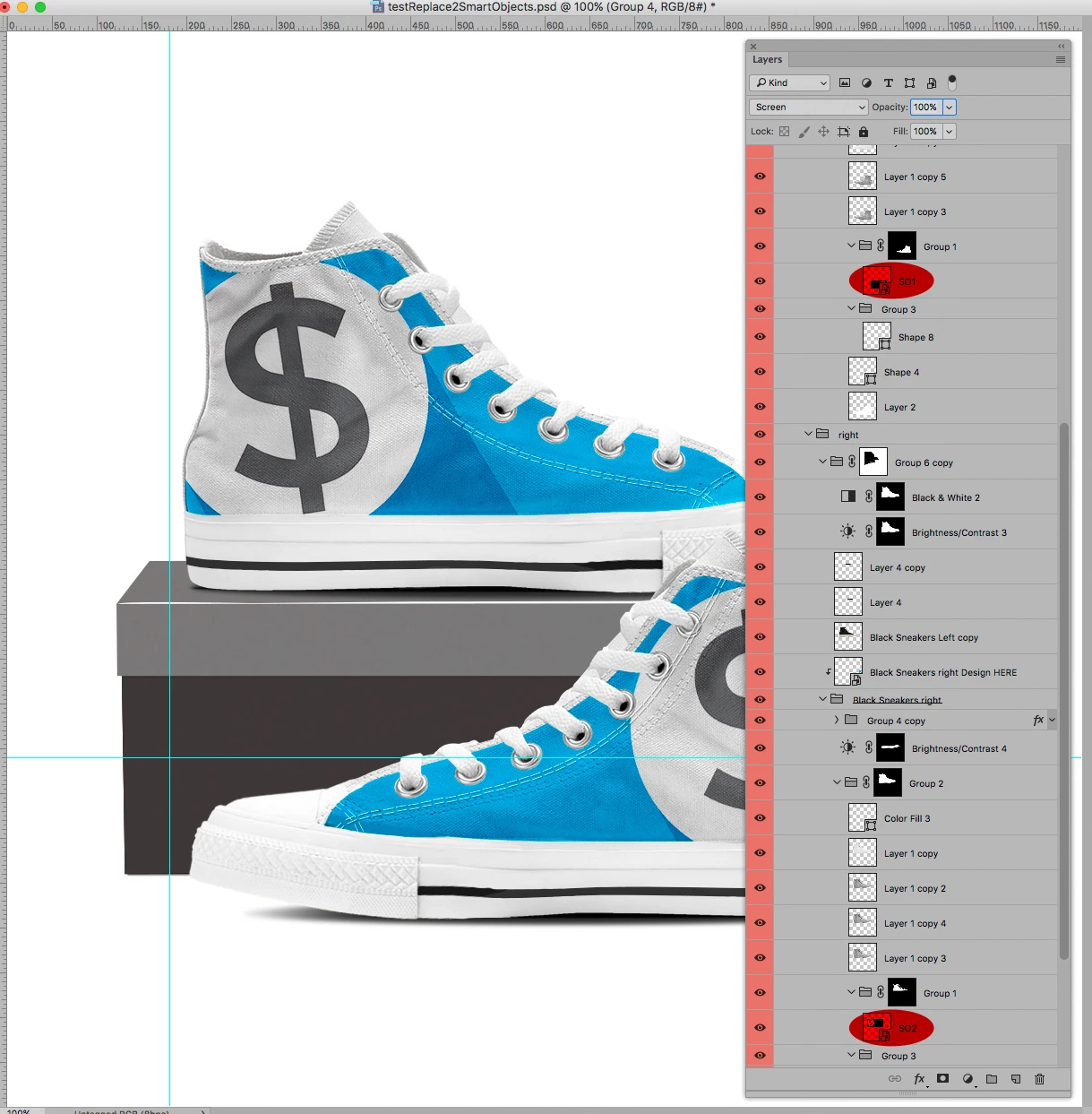
My problem is a bit different. I have 2 smartObjects for each mockup (left side + right side).

The script on that topic work fine for mockup with only 1 smart object but not working 2+ smartobjects.

Here is my file :

1st Mockup: UPDATED.psd - Google Drive

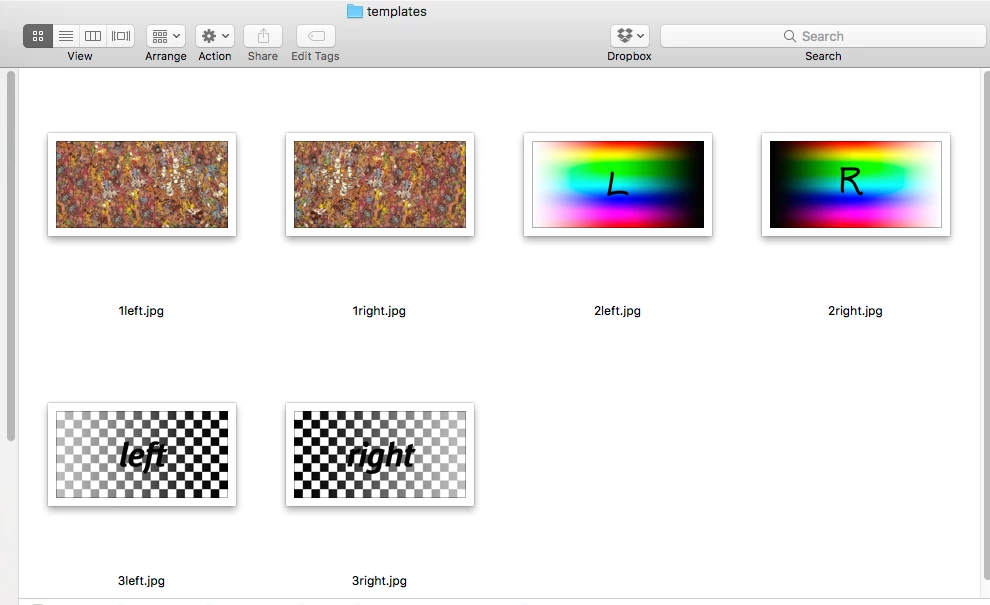
Image1+2:

left.jpg - Google Drive

right.jpg - Google Drive

Please help. Sorry for my bad english.

This topic has been closed for replies.
Correct answer c.pfaffenbichler

With below Script selecting all the files in this folder

and with this file open

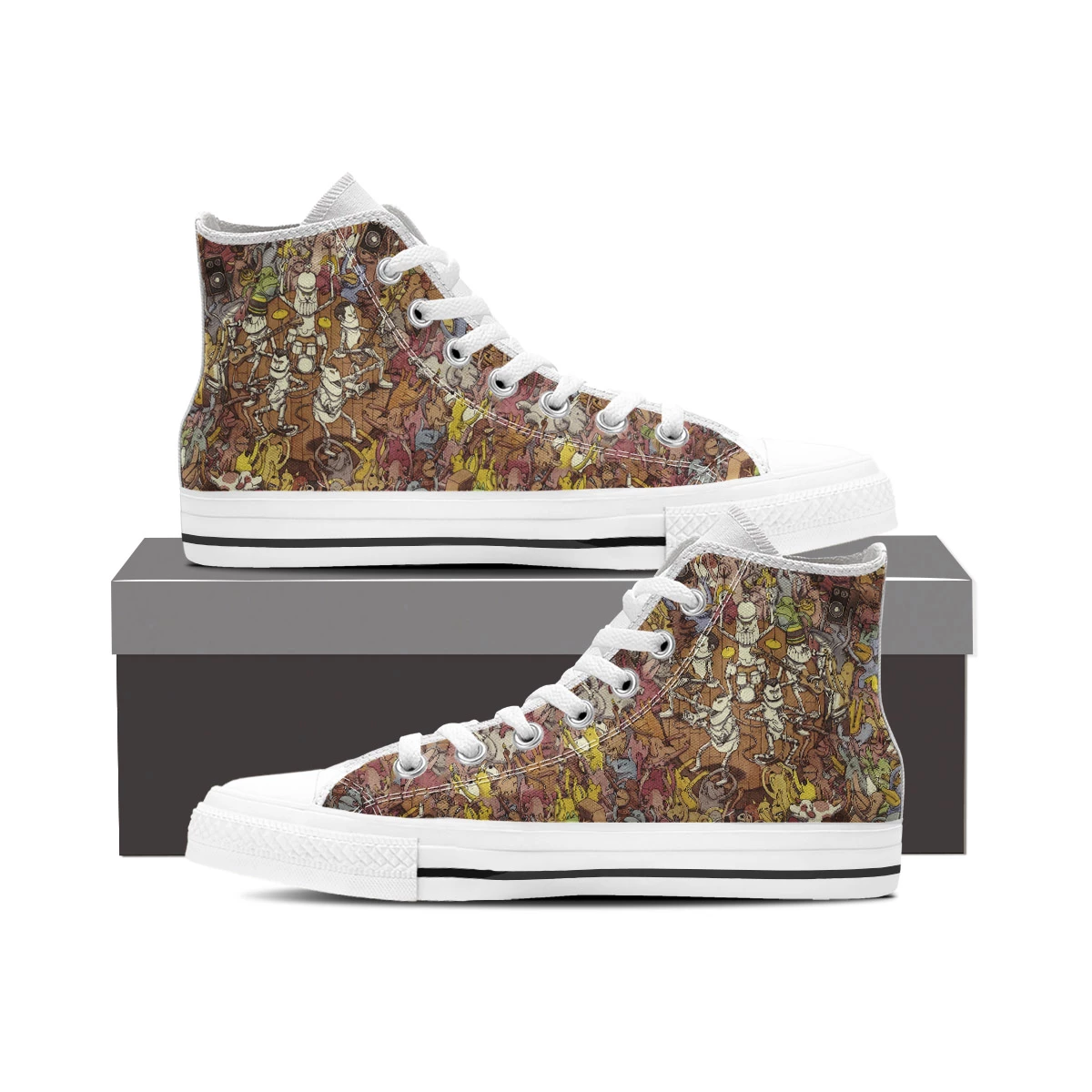
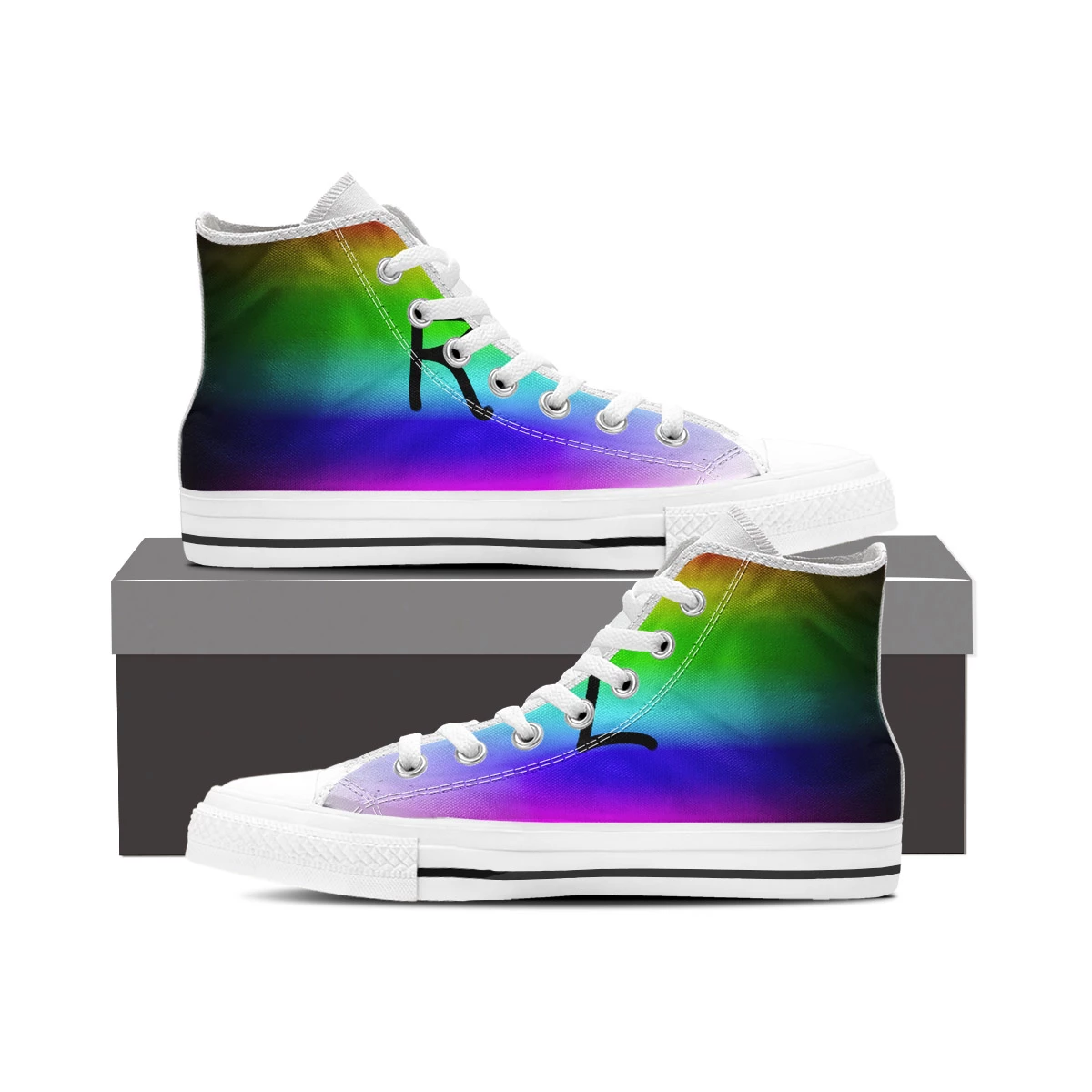
which contains Smart Objects called »SO1« and »SO2« I get these results:

I discarded the Folder selection and went with editing the activeDocument but amending the code accordingly if necessary should not be too hard.

Edit: I updated the identification of the corresponding images.

// select umages that have "left" and "right" in their names to replace smart objects callled "SO1" and "SO2" and save jpg-files;

// 2017, use it at your own risk;

#target photoshop

if (app.documents.length > 0) {

// select files;

if ($.os.search(/windows/i) != -1) {var theDesigns = File.openDialog ("please select files", "*.psd;*.psb;*.tif;*.jpg", true)}

else {var theDesigns = File.openDialog ("please select files", getFiles, true)};

if (theDesigns.length > 0) {

// get left and right;

var theLefts = new Array;

var theRights = new Array;

for (var d = 0; d < theDesigns.length; d++) {

if (File(theDesigns).name.indexOf("right") != -1) {

  if (File(File(theDesigns).parent + "/" + File(theDesigns).name.replace("right", "left")).exists == true ) {

  theLefts.push(String(File(theDesigns).parent + "/" + File(theDesigns).name.replace("right", "left")));

  theRights.push(theDesigns)

  }

  };

};

// if equal number of left and right;

if (theLefts.length > 0 || theLefts.length == theRights.length) {

replaceTwoSmartObject (app.activeDocument, theLefts, theRights);

};

}

};

////// replace smart object content if only one smart object exists //////

function replaceTwoSmartObject (theFile, theLefts, theRights) {

var myDocument = theFile;

var theSmartObjects = collectSmartObjects2017();

var check1 = false;

var check2 = false;

for (var c = 0; c < theSmartObjects.length; c++) {

if (theSmartObjects[0] == "SO1") {

  theLeftSO = theSmartObjects

  check1 = true

  };

if (theSmartObjects[0] == "SO2") {

  theRightSO = theSmartObjects;

  check2 = true

  };

};

// if the smart objects have been found;

if (check1 == true || check2 == true) {

var theName= myDocument.name.match(/(.*)\.[^\.]+$/)[1];

var thePath = myDocument.path;

// psd options;

psdOpts = new PhotoshopSaveOptions();

psdOpts.embedColorProfile = true;

psdOpts.alphaChannels = true;

psdOpts.layers = true;

psdOpts.spotColors = true;

// jpg options;

var jpegOptions = new JPEGSaveOptions();

jpegOptions.quality = 9;

jpegOptions.embedColorProfile = true;

jpegOptions.matte = MatteType.NONE;

// work through the array;

for (var m = 0; m < theRights.length; m++) {

// replace smart object;

theLayer1 = replaceContentsByIdentifier (theLefts, theLeftSO);

theLayer2 = replaceContentsByIdentifier (theRights, theRightSO);

var theNewName = theRights.name.match(/(.*)\.[^\.]+$/)[1].replace("left", "");

//save jpg;

myDocument.saveAs((new File(thePath+"/"+theName+"_"+theNewName+".jpg")),jpegOptions,true);

}

};

myDocument.close();

};

////// get psds, tifs and jpgs from files //////

function getFiles (theFile) {

if (theFile.name.match(/\.(psd|tif|psb|jpg)$/i) != null || theFile.constructor.name == "Folder") {

return true

};

};

////// replace contents //////

function replaceContentsByIdentifier (newFile, theSO) {

selectLayerByID (theSO[1], false);

//app.activeDocument.activeLayer = theSO;

// =======================================================

var idplacedLayerReplaceContents = stringIDToTypeID( "placedLayerReplaceContents" );

var desc3 = new ActionDescriptor();

var idnull = charIDToTypeID( "null" );

desc3.putPath( idnull, new File( newFile ) );

var idPgNm = charIDToTypeID( "PgNm" );

desc3.putInteger( idPgNm, 1 );

executeAction( idplacedLayerReplaceContents, desc3, DialogModes.NO );

return app.activeDocument.activeLayer

};

////// collect smart objects, probably based on code by paul, mike or x //////

function collectSmartObjects2017 () {

// the file;

var myDocument = app.activeDocument;

// get number of layers;

var ref = new ActionReference();

ref.putEnumerated( charIDToTypeID("Dcmn"), charIDToTypeID("Ordn"), charIDToTypeID("Trgt") );

var applicationDesc = executeActionGet(ref);

var theNumber = applicationDesc.getInteger(stringIDToTypeID("numberOfLayers"));

// process the layers;

var theLayers = new Array;

for (var m = 0; m <= theNumber; m++) {

try {

var ref = new ActionReference();

ref.putIndex( charIDToTypeID( "Lyr " ), m);

var layerDesc = executeActionGet(ref);

var layerSet = typeIDToStringID(layerDesc.getEnumerationValue(stringIDToTypeID("layerSection")));

var isBackground = layerDesc.getBoolean(stringIDToTypeID("background"));

// if not layer group collect values;

if (layerSet != "layerSectionEnd" && layerSet != "layerSectionStart" && isBackground != true) {

var theName = layerDesc.getString(stringIDToTypeID('name'));

var theID = layerDesc.getInteger(stringIDToTypeID('layerID'));

if(layerDesc.hasKey(stringIDToTypeID('smartObject'))) {theLayers.push([theName, theID])}

};

}

catch (e) {};

};

return theLayers

};

// based on code by mike hale, via paul riggott;

function selectLayerByID(id,add){

add = undefined ? add = false:add

var ref = new ActionReference();

    ref.putIdentifier(charIDToTypeID("Lyr "), id);

    var desc = new ActionDescriptor();

    desc.putReference(charIDToTypeID("null"), ref );

       if(add) desc.putEnumerated( stringIDToTypeID( "selectionModifier" ), stringIDToTypeID( "selectionModifierType" ), stringIDToTypeID( "addToSelection" ) );

      desc.putBoolean( charIDToTypeID( "MkVs" ), false );

   try{

    executeAction(charIDToTypeID("slct"), desc, DialogModes.NO );

}catch(e){

alert(e.message);

}

};

4 replies

c.pfaffenbichler
Community Expert
c.pfaffenbichlerCommunity ExpertCorrect answer
Community Expert
July 2, 2017

With below Script selecting all the files in this folder

and with this file open

which contains Smart Objects called »SO1« and »SO2« I get these results:

I discarded the Folder selection and went with editing the activeDocument but amending the code accordingly if necessary should not be too hard.

Edit: I updated the identification of the corresponding images.

// select umages that have "left" and "right" in their names to replace smart objects callled "SO1" and "SO2" and save jpg-files;

// 2017, use it at your own risk;

#target photoshop

if (app.documents.length > 0) {

// select files;

if ($.os.search(/windows/i) != -1) {var theDesigns = File.openDialog ("please select files", "*.psd;*.psb;*.tif;*.jpg", true)}

else {var theDesigns = File.openDialog ("please select files", getFiles, true)};

if (theDesigns.length > 0) {

// get left and right;

var theLefts = new Array;

var theRights = new Array;

for (var d = 0; d < theDesigns.length; d++) {

if (File(theDesigns).name.indexOf("right") != -1) {

  if (File(File(theDesigns).parent + "/" + File(theDesigns).name.replace("right", "left")).exists == true ) {

  theLefts.push(String(File(theDesigns).parent + "/" + File(theDesigns).name.replace("right", "left")));

  theRights.push(theDesigns)

  }

  };

};

// if equal number of left and right;

if (theLefts.length > 0 || theLefts.length == theRights.length) {

replaceTwoSmartObject (app.activeDocument, theLefts, theRights);

};

}

};

////// replace smart object content if only one smart object exists //////

function replaceTwoSmartObject (theFile, theLefts, theRights) {

var myDocument = theFile;

var theSmartObjects = collectSmartObjects2017();

var check1 = false;

var check2 = false;

for (var c = 0; c < theSmartObjects.length; c++) {

if (theSmartObjects[0] == "SO1") {

  theLeftSO = theSmartObjects

  check1 = true

  };

if (theSmartObjects[0] == "SO2") {

  theRightSO = theSmartObjects;

  check2 = true

  };

};

// if the smart objects have been found;

if (check1 == true || check2 == true) {

var theName= myDocument.name.match(/(.*)\.[^\.]+$/)[1];

var thePath = myDocument.path;

// psd options;

psdOpts = new PhotoshopSaveOptions();

psdOpts.embedColorProfile = true;

psdOpts.alphaChannels = true;

psdOpts.layers = true;

psdOpts.spotColors = true;

// jpg options;

var jpegOptions = new JPEGSaveOptions();

jpegOptions.quality = 9;

jpegOptions.embedColorProfile = true;

jpegOptions.matte = MatteType.NONE;

// work through the array;

for (var m = 0; m < theRights.length; m++) {

// replace smart object;

theLayer1 = replaceContentsByIdentifier (theLefts, theLeftSO);

theLayer2 = replaceContentsByIdentifier (theRights, theRightSO);

var theNewName = theRights.name.match(/(.*)\.[^\.]+$/)[1].replace("left", "");

//save jpg;

myDocument.saveAs((new File(thePath+"/"+theName+"_"+theNewName+".jpg")),jpegOptions,true);

}

};

myDocument.close();

};

////// get psds, tifs and jpgs from files //////

function getFiles (theFile) {

if (theFile.name.match(/\.(psd|tif|psb|jpg)$/i) != null || theFile.constructor.name == "Folder") {

return true

};

};

////// replace contents //////

function replaceContentsByIdentifier (newFile, theSO) {

selectLayerByID (theSO[1], false);

//app.activeDocument.activeLayer = theSO;

// =======================================================

var idplacedLayerReplaceContents = stringIDToTypeID( "placedLayerReplaceContents" );

var desc3 = new ActionDescriptor();

var idnull = charIDToTypeID( "null" );

desc3.putPath( idnull, new File( newFile ) );

var idPgNm = charIDToTypeID( "PgNm" );

desc3.putInteger( idPgNm, 1 );

executeAction( idplacedLayerReplaceContents, desc3, DialogModes.NO );

return app.activeDocument.activeLayer

};

////// collect smart objects, probably based on code by paul, mike or x //////

function collectSmartObjects2017 () {

// the file;

var myDocument = app.activeDocument;

// get number of layers;

var ref = new ActionReference();

ref.putEnumerated( charIDToTypeID("Dcmn"), charIDToTypeID("Ordn"), charIDToTypeID("Trgt") );

var applicationDesc = executeActionGet(ref);

var theNumber = applicationDesc.getInteger(stringIDToTypeID("numberOfLayers"));

// process the layers;

var theLayers = new Array;

for (var m = 0; m <= theNumber; m++) {

try {

var ref = new ActionReference();

ref.putIndex( charIDToTypeID( "Lyr " ), m);

var layerDesc = executeActionGet(ref);

var layerSet = typeIDToStringID(layerDesc.getEnumerationValue(stringIDToTypeID("layerSection")));

var isBackground = layerDesc.getBoolean(stringIDToTypeID("background"));

// if not layer group collect values;

if (layerSet != "layerSectionEnd" && layerSet != "layerSectionStart" && isBackground != true) {

var theName = layerDesc.getString(stringIDToTypeID('name'));

var theID = layerDesc.getInteger(stringIDToTypeID('layerID'));

if(layerDesc.hasKey(stringIDToTypeID('smartObject'))) {theLayers.push([theName, theID])}

};

}

catch (e) {};

};

return theLayers

};

// based on code by mike hale, via paul riggott;

function selectLayerByID(id,add){

add = undefined ? add = false:add

var ref = new ActionReference();

    ref.putIdentifier(charIDToTypeID("Lyr "), id);

    var desc = new ActionDescriptor();

    desc.putReference(charIDToTypeID("null"), ref );

       if(add) desc.putEnumerated( stringIDToTypeID( "selectionModifier" ), stringIDToTypeID( "selectionModifierType" ), stringIDToTypeID( "addToSelection" ) );

      desc.putBoolean( charIDToTypeID( "MkVs" ), false );

   try{

    executeAction(charIDToTypeID("slct"), desc, DialogModes.NO );

}catch(e){

alert(e.message);

}

};

Known Participant
July 13, 2017

c.pfaffenbichler​ : i just tried your code and it definitely solved my problem. It did the hard part, i think i can do the rest now. So happy with your help c.pfaffenbichlerJJMack​. Hope someday i can help other like you did for me. I love this community.

Participant
November 24, 2018

Hi Murray9662018,

Please help me with this topic!

I have you like your problem.

But i still dont have this solution.

Can you help me?

Thanks you.

c.pfaffenbichler
Community Expert
Community Expert
June 16, 2017

Were you able to resolve the issue with JJMack’s help?

Known Participant
June 17, 2017

c.pfaffenbichler  wrote

Were you able to resolve the issue with JJMack’s help?

Hi Pfaffenbichler,

JJMack librarie is cool but it solve for 1 only template, not a folder with many template like the script you provide (in my first post). I am new to photoshop so i meet so many difficult with the method JJMack trying to help.(with alpha channel).

I wonder if i can resolve it with 2 smart object?

c.pfaffenbichler
Community Expert
Community Expert
June 30, 2017

How are the two corresponding files that are to replace the SOs to be identified?

What is their position relative to the image or how are they to be found?

JJMack
Community Expert
Community Expert
June 12, 2017

The template and replacement Files for smart Object contents is part of the story. All Replacement file need to be the same size and resolution as the Template's original object so the associated Transform works. Image files need to be preprocess to insure they are right size and resolution to be valid replacement objects.  The Script which you did not post would need to be well designed and have logic to know what pairs with what.

The files you posted all look the correct size but the script is missing. Replacing Smart Object content works with the files you provided.

I would create a much simpler template that  does not use smart object layer in the Template to use Smart object layers content replace feature.  Instead I would simply place in your images as smart object layers and use the Layers transform to size and position the image to the Alpha Channel mapping and use the alpha channel mapping to mask the sized and positioned image to shape. Image can be any size but should have a near matching aspect ratio. You can use as many layers as you want building your template. When your satisfied with your design you should simplify your template by merging as many layers that you can to reduce the overhead. You template has.  Here I merged most of your layer into the background layer my scripts require. I added two  image mapping Alpha channels and rearranged your stitching layer into a single group with your layer style. The final template has only five layers four text layers and a Background layer.

I would populate the template with a batch populating script.

My scripts have an option to add a layer style to Imahe layers. You can aslo add Layer style the scripts can use. For example a Layer style that change the image layer blending mode to multiply and adds a inner glow would show some of you fabric textures, wrinkles and add a highlight.

JJMack
Known Participant
June 13, 2017

Hi JJMack, Thank you so much for your answer. I am new to "Alpha channel" notion, many thing to learn. I just download your toolkit:

1. Iam trying to build my template. How do you add two image mapping alpha channels ? When trying to merge some layer, i notice that the image mapping alpha channels is linked with each layer so it's disapear when i modify something related to this layer.

2. "BatchMultiImageCollage": What i understand is the script run on just 1 template, so if i have many template i need to do it many times? Is there a way that we can select folder that contains multiple template?

3. You says your script having option to add a layer style to Imahe layers, i don't see it anywhere, you mean another script not BatchmultiImageCollage.jsx?

JJMack
Community Expert
Community Expert
June 13, 2017

‎murrays9662018  wrote

1. Iam trying to build my template. How do you add two image mapping alpha channels ? When trying to merge some layer, i notice that the image mapping alpha channels is linked with each layer so it's disapear when i modify something related to this layer.

I just used the Layer mask you had on your two Smart Object layer copy that has mask for mapping the left and right shoe fabric I loaded them as selections and saved the selections as Image 1 and Image 2. The Alpha channels must have Names "Image n" where n start at 1  are in stacking order Image 1, Image 2,..., Image n"  no number gaps Photoshop Alpha channel Limit is 53.  You did not read the Help documentation.

‎murrays9662018  wrote

2. "BatchMultiImageCollage": What i understand is the script run on just 1 template, so if i have many template i need to do it many times? Is there a way that we can select folder that contains multiple template?

Preferences can be set you did not read the help documentation. Only one Template at a time can be batched populated.   I would not know how to match image to templates and file processing order  for a folder full of templates.  I keep my Templates in folders that have names that identify the Print size of the templates stored in the folder. A Single template can be populate with my scripts.  Interactively or  Automatically or batched.   Interactive populating your images can be in any folder you select image ona at a time.  Automated population requires images to be form a single folder and will be populate in filename sort order.  Into to Template in Image number order  stacked above the Background layer Image 1 then on top of image 1 Image 2 and so on. If the Filename stamping option is used Text layers are added above  the top template layer in Image number stacking order.  A prefix sort number follow by # can be added to file names to order the images processing order  The Prefix Sequence# will not be included in the Filename Text Stamp.

‎murrays9662018  wrote

3. You says your script having option to add a layer style to Image layers, i don't see it anywhere, you mean another script not BatchmultiImageCollage.jsx?

You did not read the help documentation it note sequence of image placement name stamping placement order how to add layer styles etc. Image Layer Style option is in the Scripts dialog and you can add additional layer styles via the  Photo Collage Toolkit Preferences script. All populated Text layers  can have a layer style added all text layer added will get the same layer style added.  All Populated Image layers can has a layer style added all populated image layers will get the same layer style added.   Images will be populated square relative to the collages canvas.   Populated Collages are always saved as PSD file so to can always tweak a populated  collage.  If an image needs some rotation.  a perspective warp, a different style, its composition tweaked etc  You c]an edit the populated and make the changes needed. 

The intent of the Photo Collage Toolkit is to make Collage Templates easy to create and populate for the general case where image are placed squarely into the collage template.  Special image handling must be done manually. It is not a difficult thing to do once the script places in you image in  scaled for the image location and mask it to shape.  Normally all you need do is tweak the smart Object Layers Associated transform to tweak rotation, perspective warp, composition etc]

PCTpreferences.jsx

//* ==========================================================

// 2013  John J. McAssey (JJMack)

// ======================================================= */

// This script is supplied as is. It is provided as freeware.

// The author accepts no liability for any problems arising from its use.

// Image files and Template Alpha Channel "Image 1" should have the same orientation matching Aspect

// ratio is even better.  This script will try to transform the placed Images to match the Image 1 Alpha channel as

// best as it can and even try to handle orientation miss matches.

/* Help Category note tag menu can be used to place script in automate menu

<javascriptresource>

<about>$$$/JavaScripts/PCTpreferences/About=JJMack's Photo Collage Toolkit.^r^rCopyright 2013 Mouseprints.^r^rPreferences</about>

<category>JJMack's Collage Script</category>

</javascriptresource>

*/

// enable double-clicking from Mac Finder or Windows Explorer

#target photoshop // this command only works in Photoshop CS2 and higher

// bring application forward for double-click events

app.bringToFront();

///////////////////////////

//       SET-UP

///////////////////////////

/////////////////////////////////////////////////////////////////////////////////

///////////////////////CUSTOMIZE Here////////////////////////////////////////////

/////////////////////////////////////////////////////////////////////////////////

// Some Hard Coded variables that some day I may put into the dialog options area

var imageStyleList = ['Default Style (None)','Photo Collage Style 1','Photo Collage Style 2','Photo Collage Style 3','Photo Collage Style 4','Photo Collage Style 5','Photo Collage Style 6','Photo Collage Style 7','Photo Collage Style 8','Photo Collage Style 9','Photo Collage Style 10','Photo Collage Style 11'];

var imageStyleDefault = 0; // imageStyleList index number

var textSizeFactor = 4; // > 1 scales down text size

var textFont = "ArialMT"; // Photoshop internal font name

var textAngle = -10; // center text angle

var textColor = new SolidColor; // text color

    textColor.rgb.red = 255;

    textColor.rgb.green = 255;

    textColor.rgb.blue = 255;

var textStyleList = ['Default Style (None)','Shiny Metal','Shiney Metal No Stroke','Strong Metal','Strong Metal No Stroke','Clear Emboss - Inner Bevel','Clear Emboss - Outer Bevel','JJMack Overlay'];

var textStyleDefault = 0;                       // textStyleList index number

var textLocationDefault = 7;                    // text Location Default Bottom Center

//var templateFolder = "C:/Program Files/Adobe/Adobe Photoshop Templates/";

var templateFolder = "E:/Public Files/Pictures/Adobe Photoshop Templates/";

//var imagePath = "~/My Documents/My Pictures/"; // Windows XP

//var imagePath = "~/Pictures/"; // Windows 7

var imagePath = "E:/My Files/Pictures/";

// End hard coded variables

/////////////////////////////////////////////////////////////////////////////////

/////////////////////////////////////////////////////////////////////////////////

/////////////////////////////////////////////////////////////////////////////////

JJMack