
Scratch Disk Full on school computer, cannot seem to change preferences.
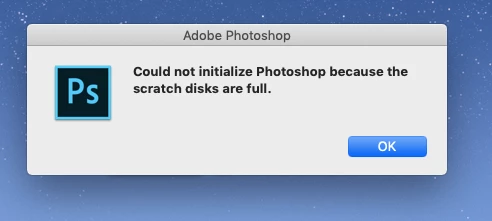
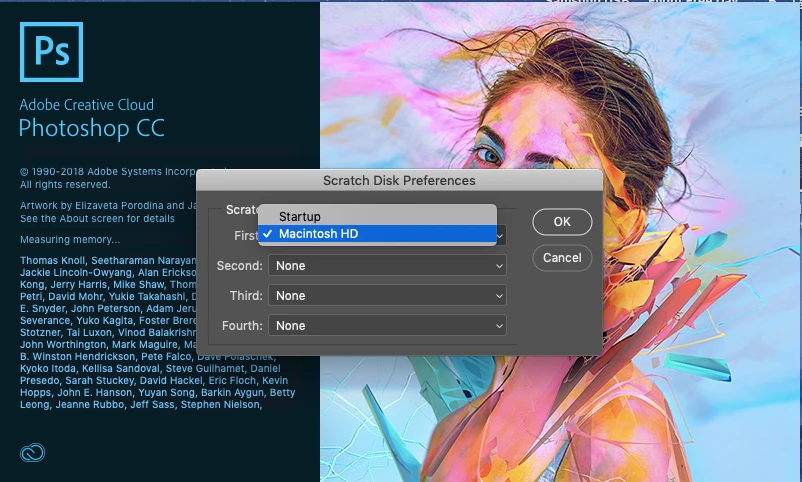
On my School-donned Macbook I recently got the "Could not initialize Photoshop because Scratch Disk is full" message when I attempted to open Adobe Photoshop CC 2018 but was able to change my first Scratch Disk from the "Startup" option to the "Macintosh HD" option by holding Command + Option keys while it was starting up which allowed me to get into Photoshop one last time.
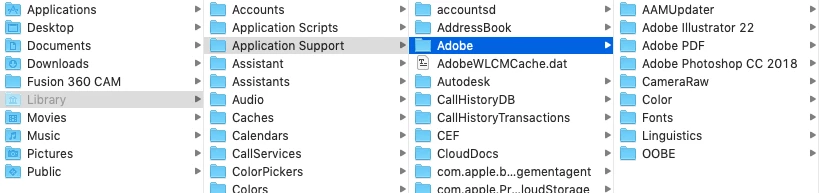
The next time I tried to open it, however, I got a similar message, "Could not initialize Photoshop because the Scratch Disks are full." I had already tried to delete my files that are said to accumulate in the hidden folder Libary > Application Support > Adobe > Commons, but once in the Adobe folder, I did not see a folder titles commons. I am quite stuck as to what to do or how to fix, edit, or even access my scratch disk.
I used these sources, but the solutions offered I was not able to use:
1. Set up scratch disks (Adobe article)
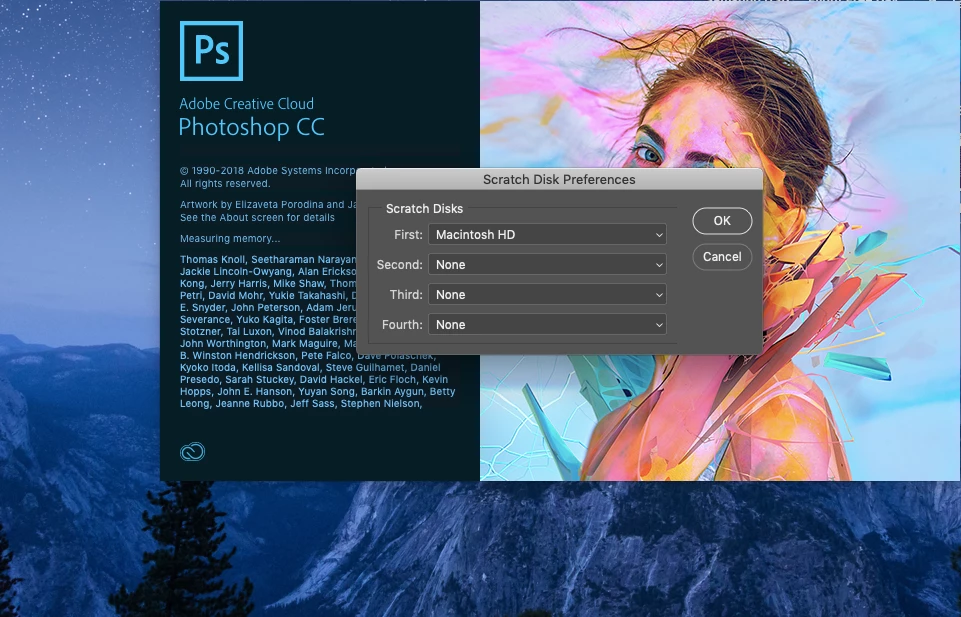
This was the source in which I found that Command + Option keys open Scratch Disk Preferences
2. Scratch Disk FULL Adobe Photoshop | FAST FIX (Youtube Video)
I found that I did not appear to have the "Commons" folder
I will also include screenshots of my current situation.
Thank you for any help you can provide!
My folder situation:
Message:
What happens when I hold down Command + Option keys:
My choices for first, second, third, and fourth disks:
No matter what I change any of them to, I still get the "Scratch Disks Full" message.
Thank you again for any help you may be able to provide!
 AdChoices