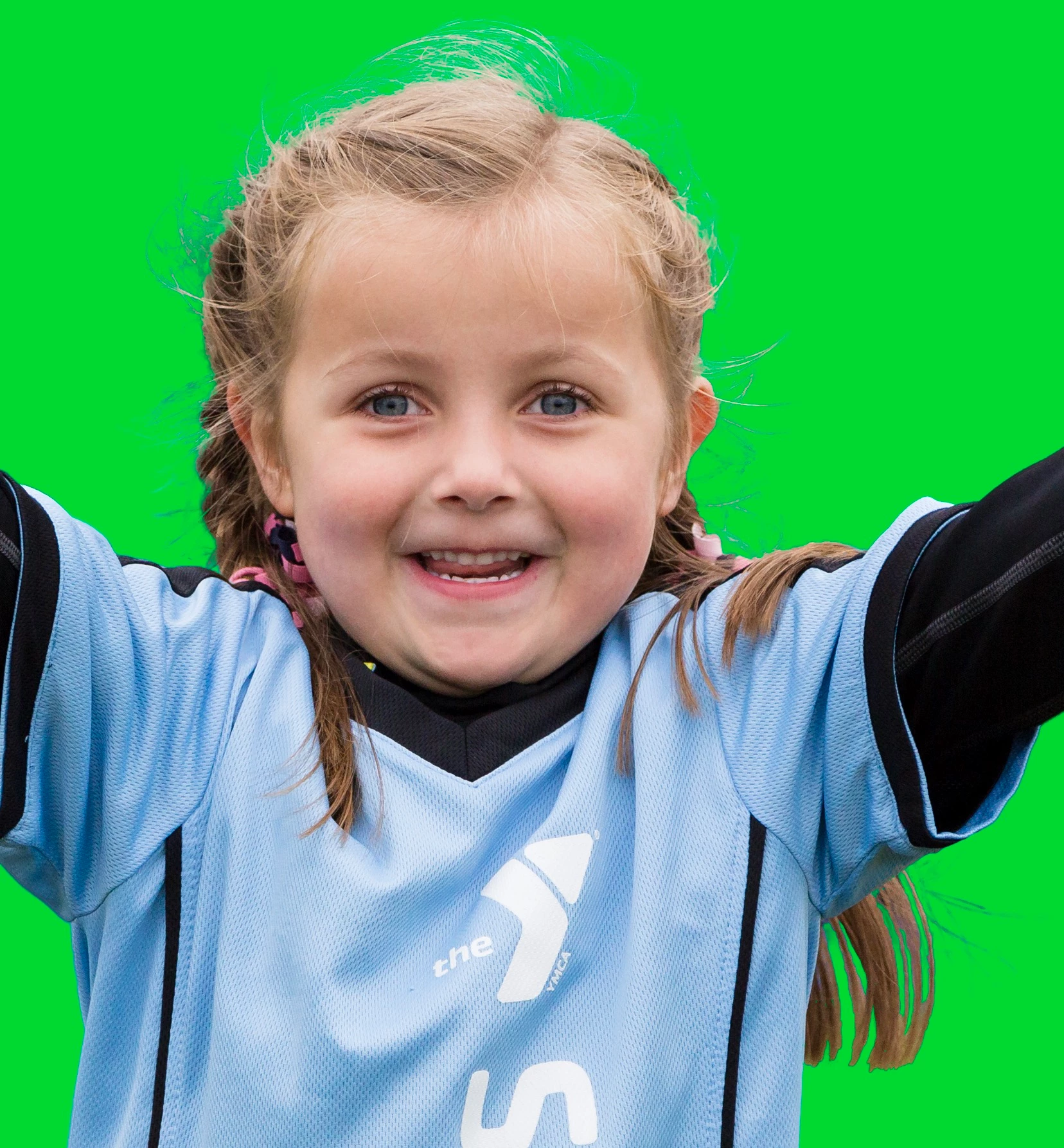
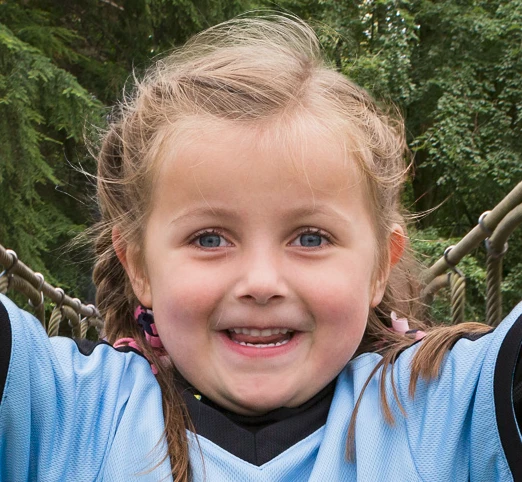
Here is my next very careful attempt using Dave's guidance. I put a green layer behind her so the hair issues would show up better. You see how the wispy part of her hair looks "cloudy" I'll call it? I generally use onion skinner the red overlay view. I can do the main part of her without any trouble pretty quickly. But the wispy parts of her hair still look terrible to me.
Hi Kent
Your mask is probably good enough to put on a real world background but let me see if I can help by doing the mask again and showing the steps
1. Open the image in Select and Mask and with onion skin view and transparency about 78% do an initial selection with the quick selection tool:
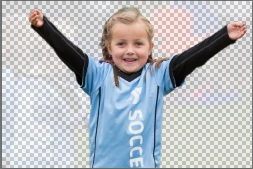
2. Switch to the On Black view mode and check for any missed areas or areas that should not have been included (they show up much
better against black or white) .
Correct these first with the quick select and normal brush tools. Remember holding down Alt whilst brushing takes away
from selection.
That gets this far :
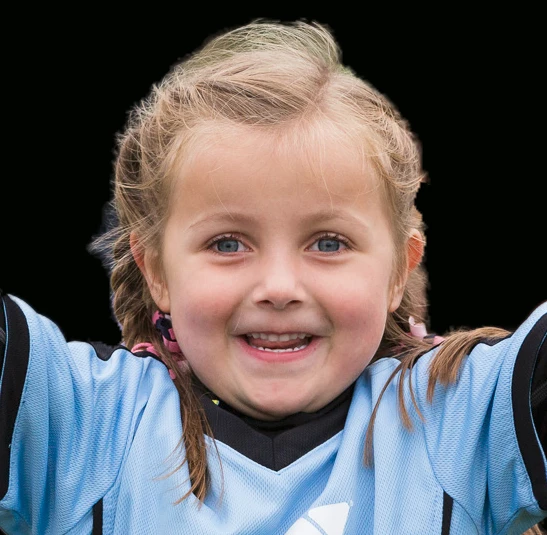
3. Go to the refine edge brush – set size to 10px Hardness to 100% and spacing to 1%.
Smart Radius is off and Radius is set at 0%.
I work with High Quality Preview on – which works as longs as your video card supports it.
4. Brush carefully round the hair edges opacity reduced to around 77% so that you can see the edge.

5. Switch to Show edge and go carefully round any areas you have missed
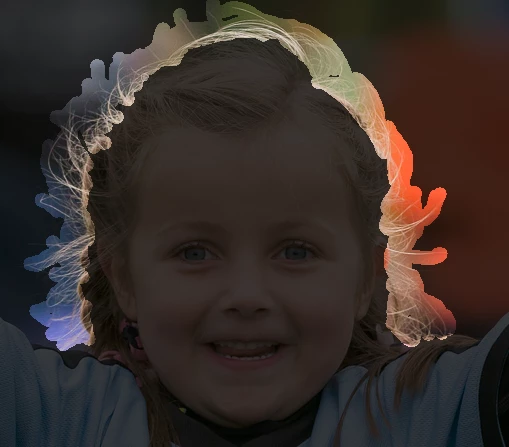
6. Use the Alt key with the refine edge brush and take out any areas which are not edges .
You may need to reduce the brush size.
A couple of iterations of steps 4-6 gets to here
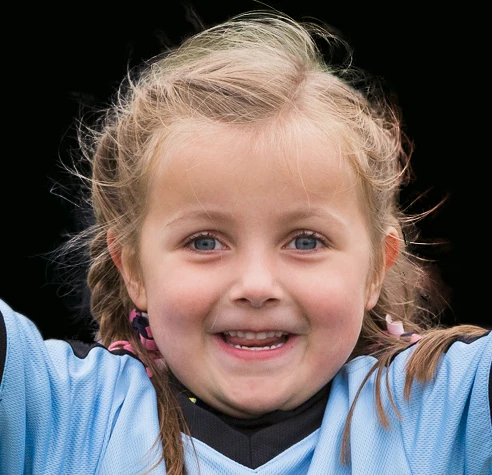
7 Now without checking Decontaminate colours output to new layer with layer mask
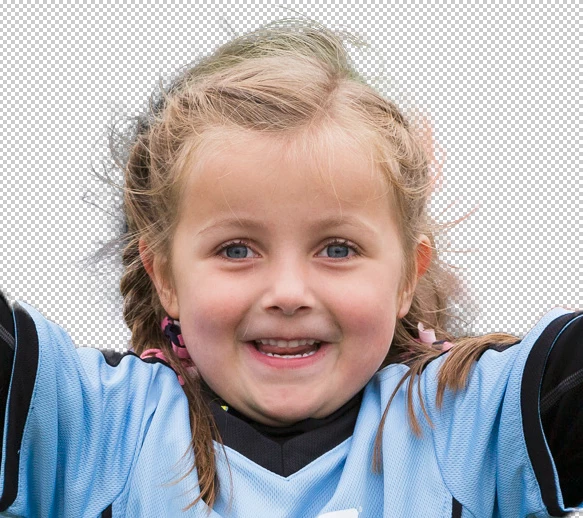
8. Although there are some edges which are semi transparent on many real new backgrounds that mask as it stands will work – as longs as we address the edge colours.
So let us take three examples
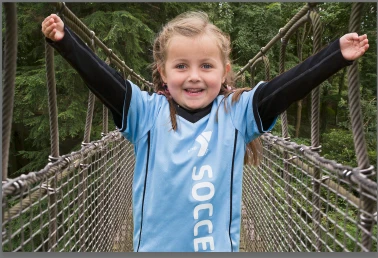
A On a real picture :
All I did was add a layer with a blending mode of colour and a second with a blending mode of luminosity. Both of these were clipped to the image layer so that they only affected the masked layer not the background.
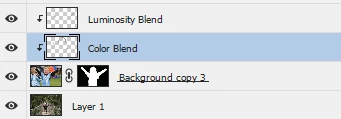
I brushed onto these to address any contamination from the old – but it was minimal
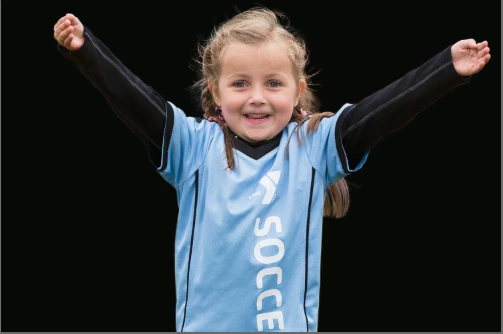
B : On black – same as before but a little more to do with luminosity layer just to avoid the hard edges

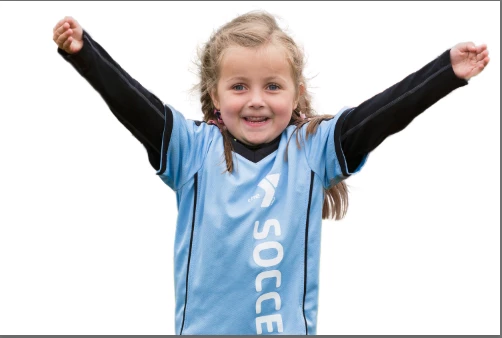
C: On White . This was the hardest and required just a little more work.
Before doing anything it looked like this

I got the mask – in channels – set a brush to Overlay blending mode and opacity at 50% and brushed round some of the less than sharp areas with black and white to sharpen up the mask a bit . Brush White on the white parts and black on the dark. You will see the contrast improve.
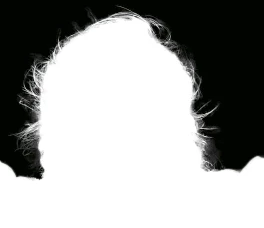
Just as I had in the other examples I added two layers, one with color and one with luminosity blending mode (both clipped to the image layer. This time, on the luminosity layer, I brushed round the edge hair with a soft brush set to 25% to lighten the hair strands. Hair in a photo is semi-transparent and blonde hair against a white background should be very light.
The result was below :
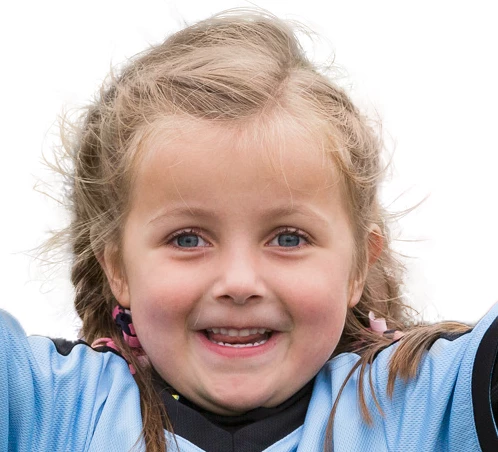
I hope this helps you
Dave



 AdChoices