
Known Participant
October 5, 2017
Answered

Select color range on greenscreen.

  • October 5, 2017
  • 1 reply
  • 1710 views

Hi There,

I have photographed an image with a hand holding a small white box against a greenscreen background.  I hope to replace this background with something different.

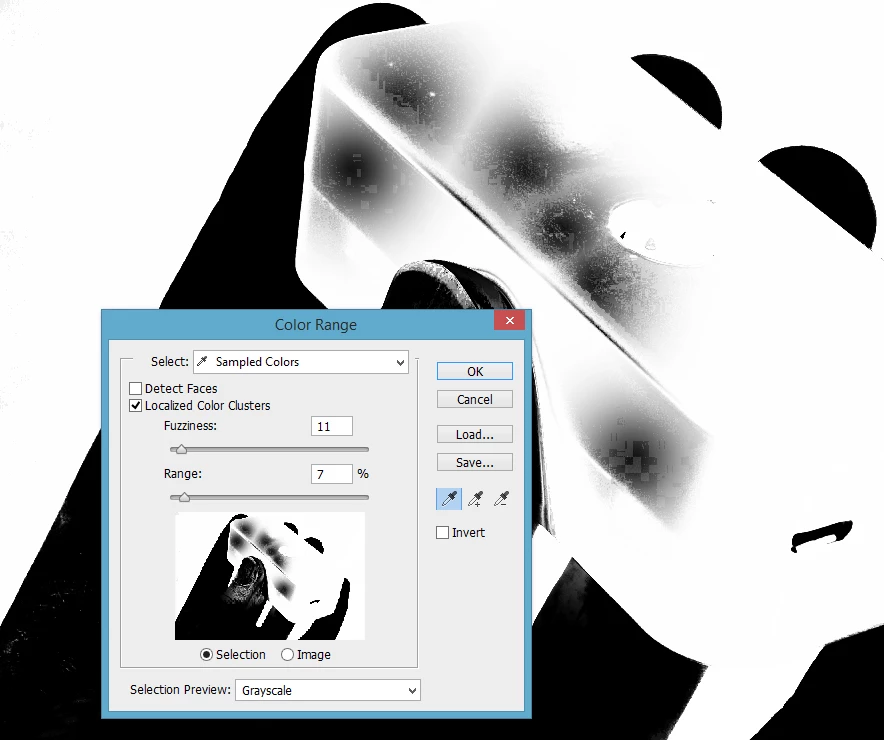
I am trying to use Photoshop cs6 to remove the green background using Select, Color Range.  This however is not working for me because the color range tool is selecting the white box.  I don't understand why this is happening.  I'm using "Sampled Colors" and simply selecting the green.  I've attached a screenshot.

Does anyone have any idea what I am doing wrong?  It seems pretty straightforward, but I'm finding it difficult to use this feature.  Any help is appreciated.
    This topic has been closed for replies.
    Correct answer Terri Stevens

    Looks good and makes sense to me - but, when I first go into the Select Color Range window it is looking like the first image I posted above.  (i.e., there is nothing to select, or all the green is already white - the little white box is also white.  This is where I am getting hung up is that Photoshop seems to think the white box is part of the background, thus eliminating the whole purpose of shooting this on a greenscreen.)

    I'm not sure where I am going wrong....   : (


    Color range remembers the last set of settings you used. Are you clicking in the image to reset everything then applying fuzziness?

    1 reply

    Terri Stevens
    Legend
    October 5, 2017

    could you upload the original image with the green screen as that will help with suggestions.

    Known Participant
    October 5, 2017

    davescm
    Community Expert
    Community Expert
    October 5, 2017

    Select Color Range works fine on that selection - use the + eyedropper to grab all the green and Invert to make the hand the subject

    Before converting to a mask I contracted the selection by 2 pixels to remove the green edge

    Dave