
PicksCDs
Known Participant
November 22, 2019
Answered

Settings for Granularity -- Unknown Short Cut Key?

  • November 22, 2019
  • 5 replies
  • 2709 views

Much as I love Photoshop, I will occasionally hit a combination of keys by mistake that unleashes a shortcut to change some settings.   It can be infuriating to undo when you don't know what keys you hit.  This time, I did something that increased the scale of granularity, most noticeable with photos, but not only there.  When I hit "blur" or "blur more," the issue fades -- but the core issue isn't really solved.  What did I do that made my original photos suddenly look more grainy when they never did before I hit that magic combination of keys.   I'm developing a strong hatred for shortcut keys!
This topic has been closed for replies.
Correct answer davescm

Thanks - got your file - nothing unusual about it .

It looks like this here - section at 100% zoom and lower zoomed out. Again nothing unusual.


So , given that it is definitely not the file, I would now reset Photoshop Preferences.  Go to Preferences > General and then click Reset Preferences on Quit. Click OK then close and restart Photoshop.


Photoshop's preferences contain a lot more than the user settings and are saved every time Photoshop closes. If they become corrupt, it can lead to all kinds of strange behaviour.

Dave

5 replies

D Fosse
Community Expert
Community Expert
November 23, 2019

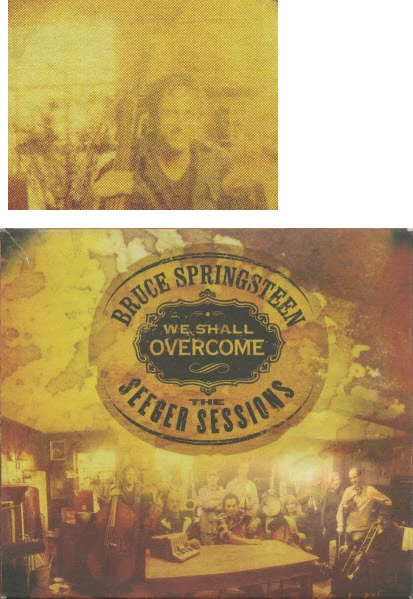
That's a scanned reproduction with a halftone screen (dots). Or what's left of it - it appears to have been downsampled a bit from the original.


So you have a halftone dot pattern in the original data, which at different zoom ratios may cause various interference effects. Those will disappear when you view at 100%.


In other words, there's nothing wrong with Photoshop. It's the file. A halftone screen is in fact very difficult to get entirely rid of, and you need to take several precautions when using such material.


Also, on a side note (not the issue here) I'd recommend converting to a standard profile (sRGB or Adobe RGB) instead of the Epson profile.

davescm
Community Expert
Community Expert
November 23, 2019

I thought that Dag - which is why I asked for the original. The downsampling here does not look anywhere near as bad as the OP's screenshot. It actually smooths the dots out, as I would expect. I would still try the preference reset

Dave

jane-e
Community Expert
Community Expert
November 23, 2019

“which is why I asked for the original.”


The original can be found at Bruce Springsteen’s website, Dave. The copyright information is at the bottom right in the gray box.


~ Jane


davescm
Community Expert
davescmCommunity ExpertCorrect answer
Community Expert
November 23, 2019

Thanks - got your file - nothing unusual about it .

It looks like this here - section at 100% zoom and lower zoomed out. Again nothing unusual.


So , given that it is definitely not the file, I would now reset Photoshop Preferences.  Go to Preferences > General and then click Reset Preferences on Quit. Click OK then close and restart Photoshop.


Photoshop's preferences contain a lot more than the user settings and are saved every time Photoshop closes. If they become corrupt, it can lead to all kinds of strange behaviour.

Dave

PicksCDs
PicksCDsAuthor
Known Participant
November 23, 2019

Bingo!  That did it.  Thank you SO MUCH!  To be sure I'm tracking with you, it appears that whatever caused the distortion was just a errant glitch as opposed to the result of accidental combination of short cut keys, i.e., this was not an actual setting.  Is that right?   


If not, as I whined on another post, I do think the Adobe wizards go overboard on some of these short cuts and end up catering to a very small percentage of users on many of them.  I'd bet good money that the vast majority of users don't have a clue about the supposed time saving advantages for more specialized/esoteric tools (and probably get far more annoyed with the confounding repercussions of typos).   I would be very grateful for an opportunity to slap some of these software designers into bigger picture sensitivities.   Do they have a booth at the Photoshop conferences for such catharsis?

Legend
November 22, 2019
What do your photos look like in other programs?
If in different ways, could you provide a screenshot that shows the difference?
 
PicksCDs
PicksCDsAuthor
Known Participant
November 23, 2019

To be clear, the change in appearance within Photoshop just started to happen -- instantly -- when I hit that unknown combination of keys.   But, to your question, attached are two screen-grabs of the same file -- one in the Photoshop [exaggerated granulurity] and other in Paint 3D.  You'll see the difference right away.

davescm
Community Expert
Community Expert
November 23, 2019

Just did.  See above.  Compare how the same file looks in Photoshop after my shortcut key mishap with how it looks in Paint 3D.  Again, this wasn't the case before my error.  It just started instantly at that point.  By the way, my original scans are at 600 dpi -- more than I need, but I always like to start my work with ultra-high resolution then scale back afterwards.  However, that's just a footnote.  It never affected the display before and I've been doing it for years.


Those were screenshots not the file. I'd like to take a look at the file that you opened in two applications which look so different, to see how it opens here  and get a clue as to what is happening.

Also a question - In Preferences > General    what Image Interpolation setting are you using?

Dave

Inspiring
November 22, 2019

Whatever combination of keys that you hit, if you look in your history panel it will tell you what Photoshop did. You can back it up and if you hate that keyboard shortcut, then go under Edit>Keyboard Shortcuts and make your own or remove the keyboard shortcut you do not like. 

PicksCDs
PicksCDsAuthor
Known Participant
November 23, 2019

Thanks for the suggestion.  That WILL be extremely useful.  However, the problem with granularity started several a couple of months ago and I've just been living with it...annoyed.   Had I known what you proposed, it would been the solution.  So, again...thanks for that.


Do you know of any setting that affects granularity?  It's not related to pixel resolution, so I'm still puzzled.  I wondered if it's related to the scanner somehow.

Kukurykus
Legend
November 22, 2019

Maybe if that will be solution set your workspace with configuration of own shortcuts.