
jaimep79107227
Known Participant
September 13, 2019
Question

Skin Softening Action not working in Photoshop CC 2019

  • September 13, 2019
  • 3 replies
  • 3195 views

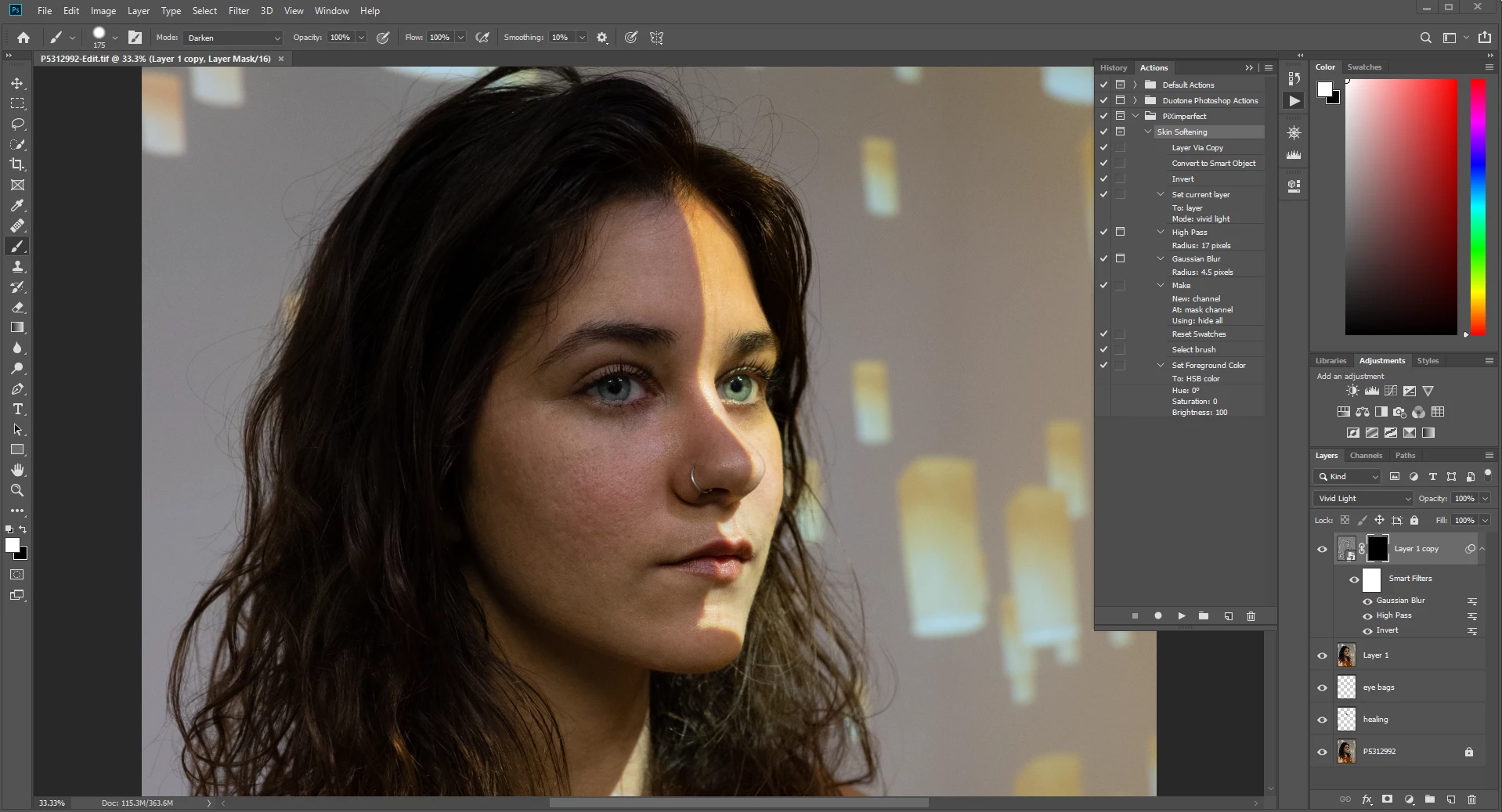
I was following this youtube tutorial: https://www.youtube.com/watch?v=H0lPIYERVlw on using photoshop actions to customize skin softening actions but it took no effect whatsoever after loading the actions. The Gaussian Blur and High Pass did show preview effects in the dialog window but after clicking OK to both, it didn't take any effect. Here's a screenshot of what it looks after applying the actions. What could I be doing wrong? Is it a compatibility issue or? The guy in the video is using Photoshop CC and so it should work likewise. Thanks!
    This topic has been closed for replies.

    3 replies

    c.pfaffenbichler
    Community Expert
    Community Expert
    September 13, 2019

    What is the result supposed to be? 

    Could you post a screenshot of the expanded Action in the Actions Panel? 

    jaimep79107227
    Known Participant
    September 13, 2019
    The result is suppose to smoothen the skin by way of the Gaussian Blur and High Pass but none of it took effect. I tried dragging the slider value higher and lower and nothing is taking effect to the image. The Skin Softening Action is in screenshot.
    Bojan Živković11378569
    Community Expert
    Community Expert
    September 13, 2019
    Action works from my testing. I have downloaded action and run it with default settings- do not change any slider- and it works, it is doing something after painting with white color on black layer mask. Download action and provided image and it must work. Do you have white color on your black mask? Perhaps that is problem, maybe .... Oh, I found what is the problem, please change blending mode for Brush back to Normal, currently it is set to Darken.
    Bojan Živković11378569
    Community Expert
    Community Expert
    September 13, 2019

    I do not think it is compatibiity. First what is noticable is that in your screenshot above there aren't two retouching layers as in video, which should be above Background layer but below merged layer. If you want similar resut you must remove blemishes first. Second, paint with white on layer mask which is black and applied to Layer 1 to start seeing difference.

    jaimep79107227
    Known Participant
    September 13, 2019
    I swapped out the image and redid it again, but it's the same result. No effect.
    c.pfaffenbichler
    Community Expert
    Community Expert
    September 13, 2019

    What happens when you paint white on the Layer Mask? 

    jaimep79107227
    Known Participant
    September 13, 2019
    Nothing happened to the layer mask as you can in screenshot. I toggled the white color and selected the black background layer mask and brushed over it and no result. I swapped out the image to work on a different one and same result.